 Published December 17, 2025
  read
read
How to clear cache on Mac (MacBook Air, MacBook Pro, and iMac)

Macs were designed to run efficiently and smoothly. A big part of that is cache, a collection of temporary files that macOS and apps, such as your browser, create so they can perform everyday tasks faster.
But over time, cached data can pile up or become corrupted. When apps begin to crash, or your device slows down, clearing cache may help. But, some of these files may be vital for system processes. Only remove them when you know it won’t cause further damage.
This article will break down how to clear cache on Mac safely, including the steps for clearing different types of cache. We’ll also discuss what might be the actual culprits for performance issues, and offer some tips for advanced users.
What cache is on a Mac and how it works
When you visit a website, your browser saves bits of information: images, scripts, thumbnails, preferences, and more. The next time you visit the same websites, the browser will simply pull the saved data from the cache, instead of looking it up again. Why? Reading local files tends to be easier and quicker than downloading new ones.
Think of it this way: if you are cooking every day, you’ll probably keep your most-used spices on hand, instead of going through the pantry each time. That’s what Macs do, by creating cache.
The main types of cache on Mac
Did you know there are multiple sorts of cache? When looking at how to clear cache on a MacBook, you need to factor in the cache type.
- Browser cache. Probably the most well-known type. Your browser (Safari, Google Chrome, Mozilla Firefox, etc.) stores temporary files to load the page faster when you revisit.
- Application (user) cache. Just like your favorite browser, other apps also store information to run more smoothly and load faster. For example, a media app will likely store photos or videos in its cache.
- System cache. Even macOS creates a cache to run more efficiently. System cache carries things like system logs, temporary files, and data used by macOS services.
- DNS cache. Whenever you visit a website, your Mac looks up its IP address. The DNS cache stores these lookups so your Mac doesn’t have to ask the server every time. The DNS cache may also contain details like the domain name, record type, TTL (time-to-live) information, and metadata.
When clearing cache helps, and when it won’t
We’ve established that cache is not a bad thing; quite the opposite, it helps your computer run faster. Problems arise when the cache grows large or becomes packed with outdated files, which can happen over time.
Before we dive into how to clear cache (and cookies) on a MacBook, let’s discuss the telltale signs that your cache needs clearing:
- Browser errors. Pages may not be loading correctly or showing outdated content.
- Apps misbehaving. They might be crashing, freezing, or not updating properly.
- Storage running low. Clearing your cache can free up space, temporarily.
But, erasing cache doesn’t help with:
- Slow Macs with nearly full disks. In this case, the underlying issue is probably the lack of storage or system resources, and not a full cache.
- Low RAM memory. If your computer needs more memory for active, right-now tasks, clearing the cache can’t fix that. RAM memory and cache memory are entirely different.
- Failing drivers. Clearing your cache won’t fix hardware problems.
Before you start: safety tips and what to expect
A number of things are likely to happen once you refresh the cache. Here is what to expect:
- Clearing the cache may log you out of sites. Browser cache and cookies store login sessions. Once you delete your browser cache, you’ll likely have to sign in again.
- Some apps may reload more slowly the first time after clearing. Apps need time to rebuild their temporary files after you’ve refreshed the user cache. Don’t be surprised if initial loading takes a little longer than usual.
- Don’t delete entire system folders. When erasing system cache, DO NOT delete entire system files. Your device may need these to function properly. Be safe and only remove specific cache files.
- Back up your Mac. Backing up is always a good practice before making changes to system files. This one additional step will protect your data in case anything goes south. Simply use Time Machine, macOS’s built-in tool for saving copies of your files, apps, settings, and system state.
- Restart may solve the issue without clearing anything. Before getting rid of the cache, try restarting your Mac. A simple restart can resolve many glitches.
How to clear browser cache on Mac (Safari, Chrome, Firefox)
How to clear Safari cache on Mac
1. Open Safari.
2. In the menu bar, click Safari > Settings (or Preferences on older macOS).

3. Go to the Advanced tab.
4. Check “Show features for web developers.”
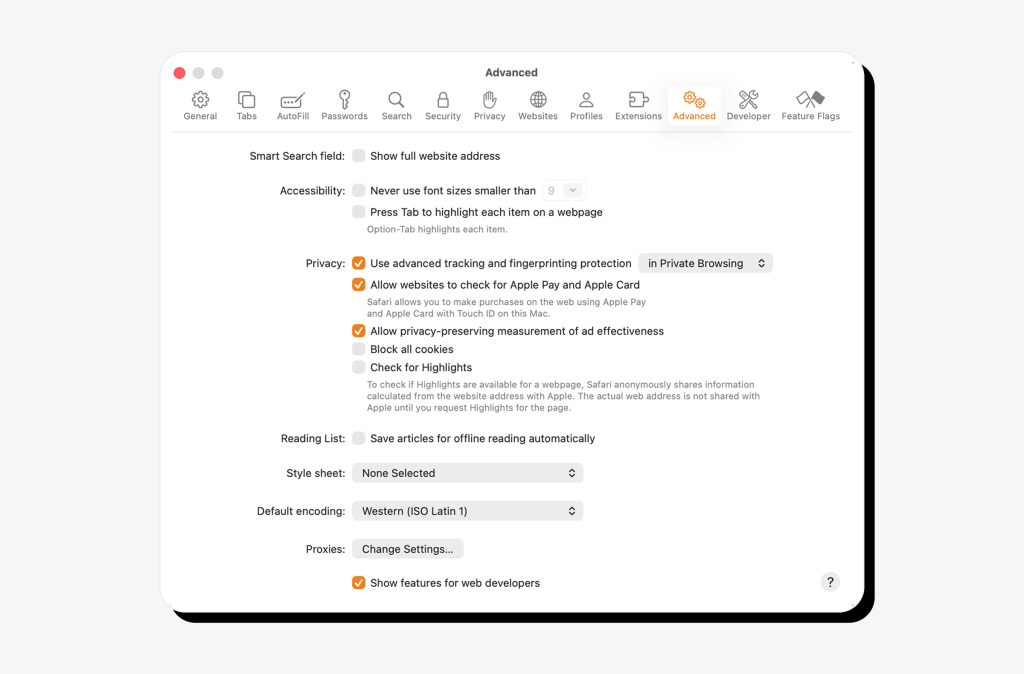
5. Close the settings window.
6. In the top menu bar, click Develop.

7. Select Empty Caches.
You can also clear cache in Safari Mac using a keyboard shortcut. Simply open Safari and press Option + Command + E to empty the cache.
If you also want to remove cache, cookies (which will log you out of sites), and browsing history, follow these steps:
1. Open Safari.
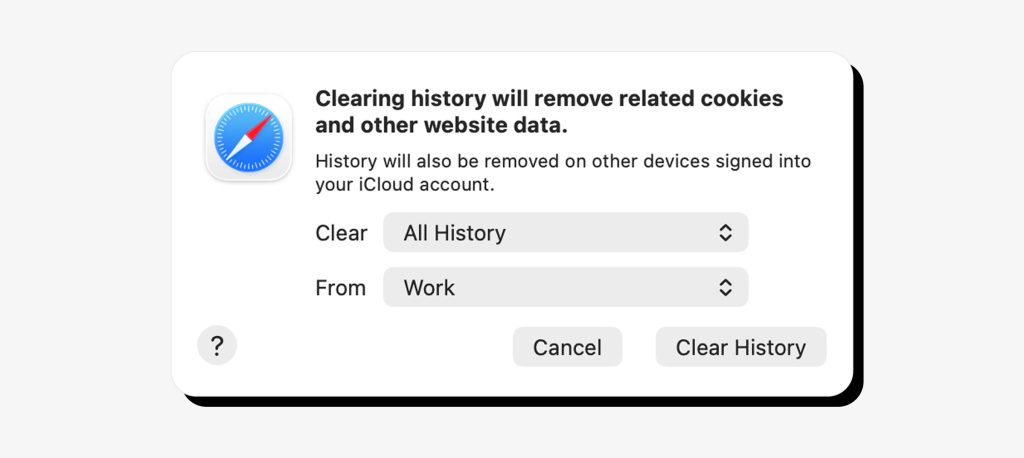
2. Click Safari > Clear History…

3. Choose the timeframe (“all history” for a full reset).
4. Click Clear History.
How to clear Chrome cache on Mac
Clearing your browser cache in Google Chrome is quite similar.
1. Open Google Chrome.
2. Click the three dots in the top-right corner.
3. Go to Settings.

4. In the left sidebar, select Privacy and security.
5. Click Delete browsing data.
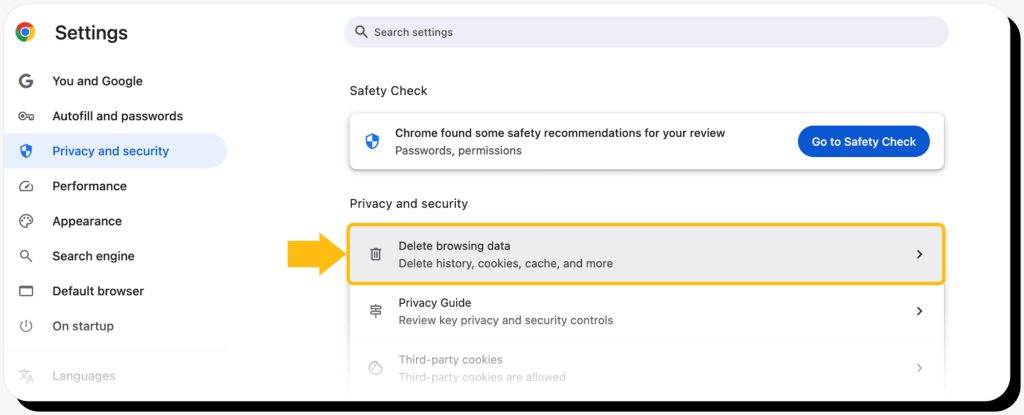
6. In the pop-up window, choose the Time range (select All time for a full clear).
7. Check Cached images and files. You can also check Cookies and other site data if you also want to log out of websites, or Browsing history.
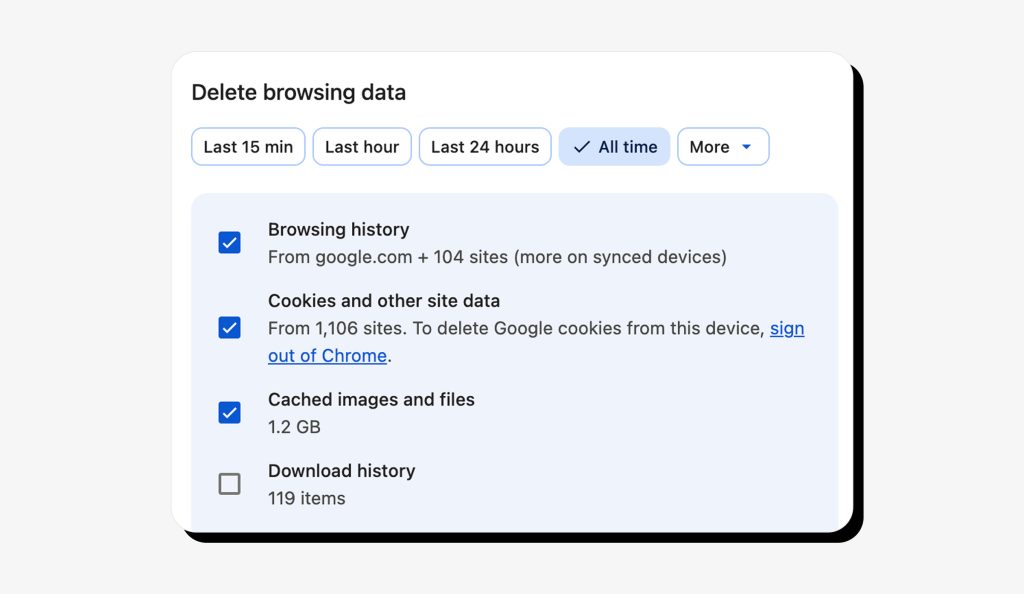
8. Click Clear data.
You can use a keyboard shortcut in Chrome as well. Press Command + Shift + Delete to open the “Delete browsing data” window and check the items you wish to remove.
How to clear Firefox cache on Mac
1. Open Firefox.
2. Click the menu button (≡) in the top-right corner.
3. Select Settings.

4. Go to Privacy & Security in the left sidebar.
5. Scroll down to the Cookies and Site Data section.
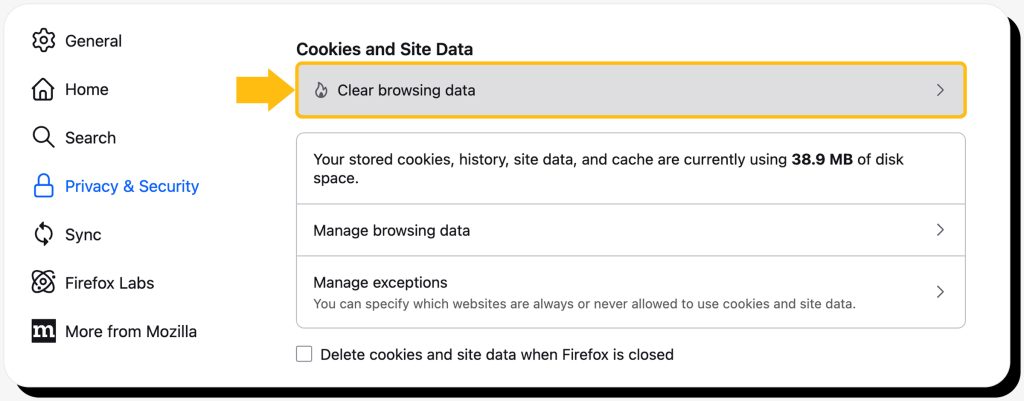
6. Click Clear browsing data…
7. Set the time range.
8. Check Temporary cached files and pages. You can also check Cookies and Site Data if you want to remove logins and site preferences, or check Browsing & download history.
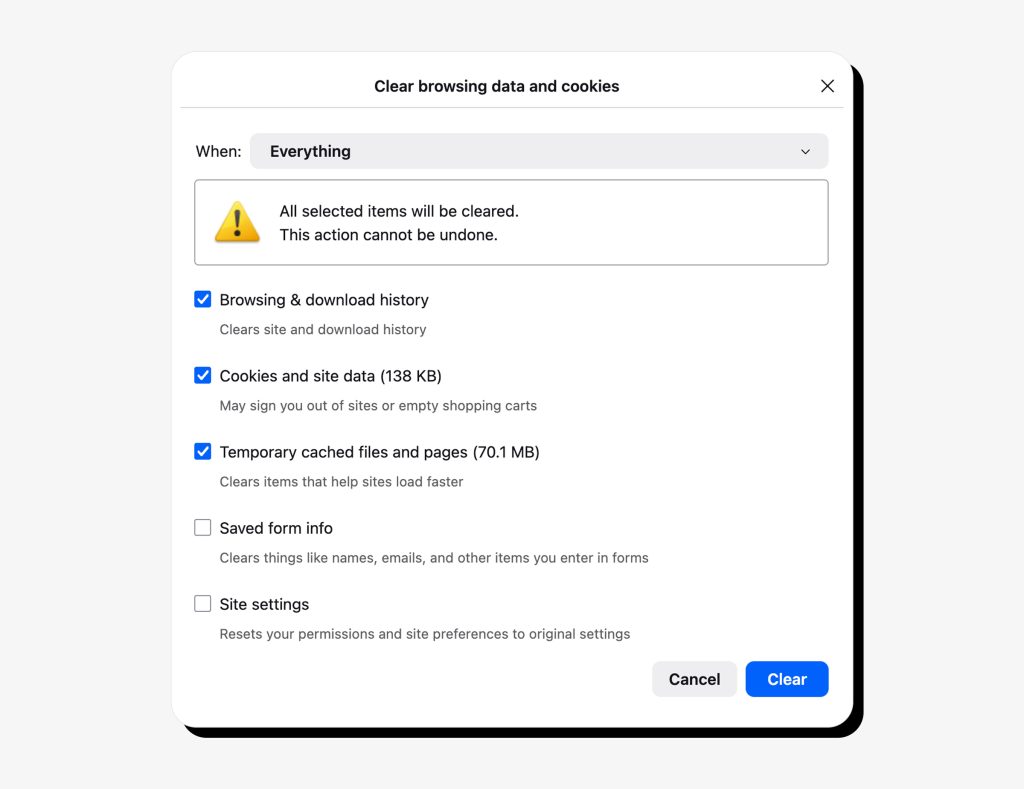
9. Click Clear. As before, you can also use the keyboard Command + Shift + Delete to open the Clear browsing data and cookies window.
How to clear cache in private browsing mode
You might be wondering how to empty cache on Mac when it comes to private browsing (Private browsing in Safari and Firefox, and Incognito in Chrome). The good news is that you don’t have to; the private mode will do that for you.
Private browsing uses temporary cache and temporary cookies, for pages to load and work properly while the session is active. But, the moment you close the window, all cache, cookies, browsing and search history, login sessions, and form data are erased.
Remember that private browsing keeps you anonymous for other people using your device, but your internet provider, employer, or school can still track your activity.
How to clear application cache on Mac
How to refresh cache on Mac for apps you use often, without touching anything important? Here is a safe method.
Step-by-step: clearing app cache via Finder
1. Open Finder.
2. In the top menu bar, click Go > Go to Folder…
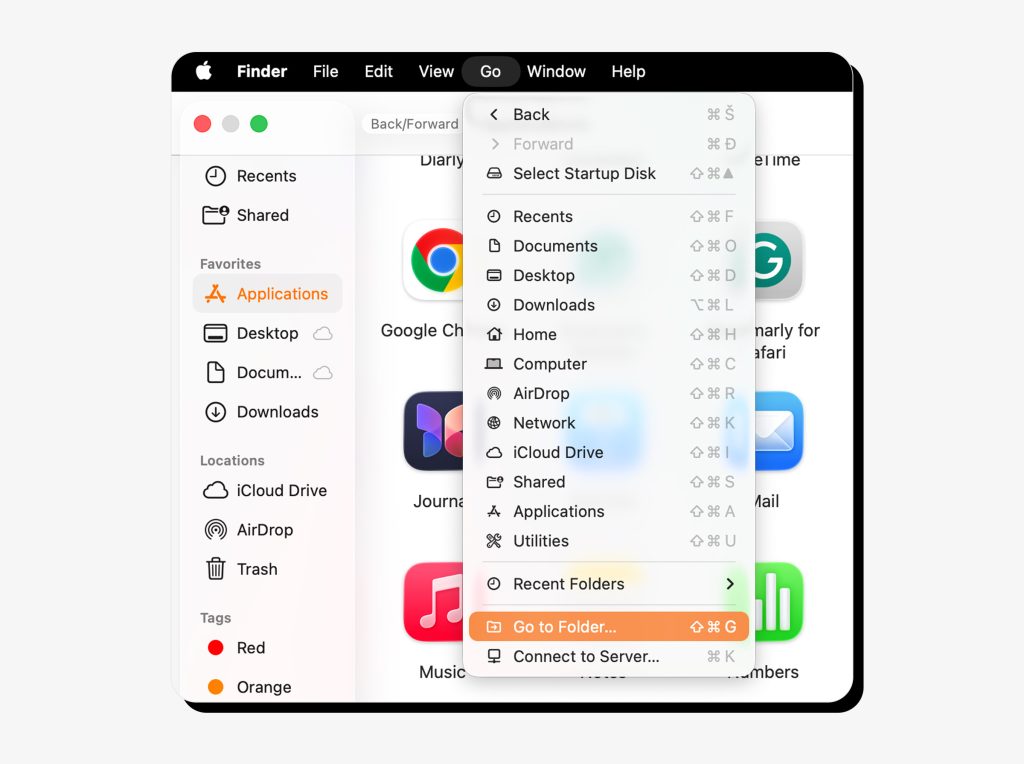
3,. Type ~/Library/Caches and press Enter.
This opens the folder where most apps store their temporary files.
4. You’ll see many cache folders—each one belongs to an app.
Open an app’s cache folder, then delete only the files inside, not the entire folder itself. This is important, since you want to selectively remove temporary files, not the core app components.
For example: open the Safari, Chrome, Photoshop, or Spotify cache folders and delete the files inside.
5. Once you’re done, close the window.
6. Empty the Trash to fully remove the cache files and free up space. Apps will simply create a new cache the next time you use them.
When clearing the app cache helps
Should you even be meddling with app cache? Yes, if you are facing a problem that can be fixed this way:
- The app is crashing. Sometimes, outdated or corrupted cache files make apps freeze or close without a warning. Clearing the cache forces the app to rebuild stable data.
- Editing software is acting buggy. Apps like Photoshop, Lightroom, or video editors store a bunch of previews, thumbnails, and temp files. These sometimes cause the app to glitch.
- Large “System Data” swelling. Cached data from many apps can cause the “System Data” (or “Other”) category to consume a large amount of macOS storage. In that case, clearing all the cache can free up space.
How to clear system cache on Mac
If you want to speed up your MacBook, don’t start with the system cache because you think it will free up the most space. System cache is essential for your device to run smoothly, so please be extra careful when deleting any files.
What system cache is used for
First, let’s break down why system cache is so important. There are multiple types:
- Render cache: files are used to load graphics, images, and visual elements faster.
- Kernel cache: stores system data used by macOS to communicate with hardware.
- Setup and installation cache: houses temporary files created during system updates or app installations.
- Spotlight cache: contains indexing information for Spotlight to quickly locate files.
- System services cache: helps background services (like Wi-Fi, Bluetooth, or extensions) to work properly.
Safe method for clearing system cache
Here is how to clear cache on a MacBook system safely, by being vigilant and following these exact instructions:
- Open Finder.
- In the top menu, click Go > Go to Folder…
- Type /Library/Caches and press Enter.
This opens the system-wide cache folder, the same one that pops up when deleting app cache.
- You’ll see many system cache subfolders. Only delete the top-level system cache subfolders you recognize, from apps or services you’re familiar with.
Don’t delete any folders starting with com.apple.* unless you fully understand their purpose.
- Empty the Trash to free up space.
Safer alternatives to system cache clearing
As you can probably tell, clearing system cache is tricky territory. Are you sure you’ve exploited all other options? There are a few things you could try before attempting to clear system cache:
- Restart the MacBook. Simple but often effective. A regular restart often fixes minor glitches and refreshes temporary files, without touching the essential cache.
- Restart the MacBook in Safe mode. Next level reboot. A safe mode restart starts your Mac with minimal system processes and automatically clears some system cache.
- Rebuild Spotlight index. The Spotlight index is a database that the Mac creates to search through the system. If your Search is slow and faulty, rebuilding the Spotlight index might be the right fix.
- Update macOS. Have you checked for system updates? These carry bug fixes, optimize performance, and refresh the cache.
How to flush the DNS cache on Mac
The DNS cache damage can fix some website loading or redirecting issues. And, refreshing it is fairly easy:
1. Open Finder.
2. In the left side bar, select Applications and look for the Utilities folder.
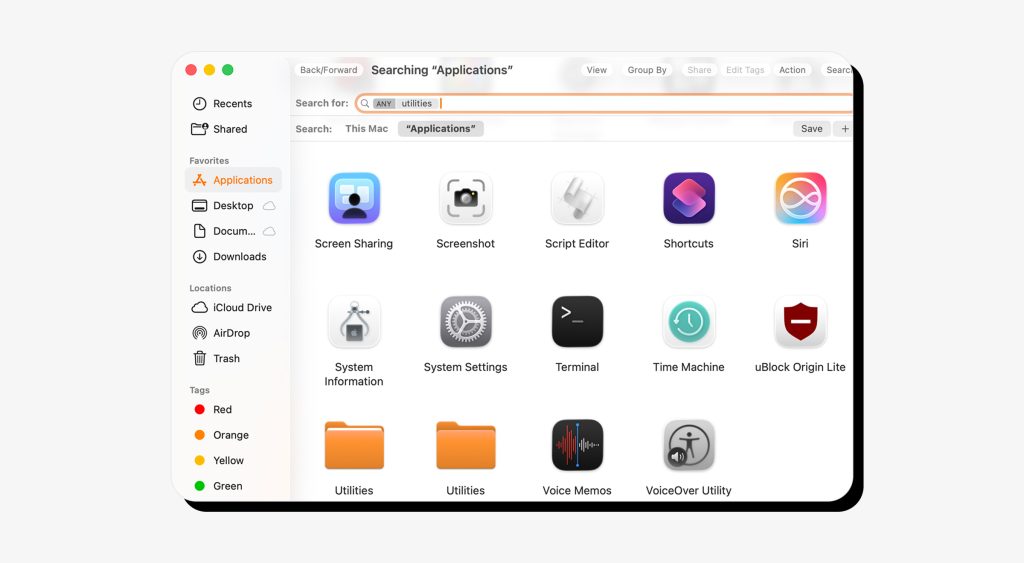
3. In the Utilities folder, click on Terminal.
4. Type the following command and press Enter:
sudo dscacheutil -flushcache; sudo killall -HUP mDNSResponder
5. You’ll be prompted to enter your Mac password. The password won’t show up as you type, and this is normal. Type it and press Enter.
Once you press Enter, the command will run quietly, and seeing no error sign means that it worked. Mac won’t notify you that your DNS cache has been cleared.
How to clear cache on MacBook Air vs MacBook Pro vs iMac
Same instructions, different problems
How to clear cache on MacBook Air? And how to clear cache MacBook Pro? Does the Mac model matter at all?
No, it doesn’t. The process is the same across all Mac devices. But there are some model-based specifics you ought to know.
- MacBook Air: Airs often have smaller storage, so cache is more likely to eat up space. You may benefit from erasing the browser and app cache. Remember to also monitor the actual storage (About This Mac > Storage).
- MacBook Pro: Pros are the go-to device for developers, designers, and video editors. They use apps that tend to create huge amounts of cache. Power users may need to clearing app cache selectively (looking for Xcode, Adobe, or Final Cut caches).
- iMac: Older iMac models with HDDs are more vulnerable to cache-induced slowdowns. You may need to clear system and app caches more often, and sometimes restart in Safe Mode to refresh the system cache.
Advanced methods
Clearing cache for specific apps
Some apps create a massive cache by default. Although this is entirely optional, advanced users may want to target these specific app caches to free up space.
- Xcode: Xcode DerivedData often accumulates build files and old app versions. Remove it via: ~/Library/Developer/Xcode/DerivedData.
- Adobe Creative Cloud: Editing apps like Photoshop, Illustrator, and Premiere are notorious cache accumulators. Use the Creative Cloud Cleaner Tool or delete caches manually via ~/Library/Caches/Adobe.
- Microsoft Office bloat: Office apps, which are quite a collection, all store temporary files that can pile up over time. Look for ~/Library/Containers/com.microsoft.* to remove their caches.
- WhatsApp: On Mac, WhatsApp stores a bunch of media and database files in its container folder. Clear it via ~/Library/Containers/WhatsApp.
Showing hidden folders
Some cache is stored in folders that Mac doesn’t display by default. Many of these files carry important system data, hidden to prevent accidental deletion. Some of the hidden cache is created by apps that aren’t in everyday use, or placed there to avoid cluttering your visible folders.
As an invisible cache can take up a lot of space, advanced users may want to clear it. Here is how to do that, carefully.
- Press Command + Shift + . in Finder to expose hidden files and folders.
- Then look for folders via ~/Library or /Library/Caches.
- Don’t delete any files you don’t understand.
Tools pros actually use
Advanced Mac users often rely on specialized tools to manage cache and storage. Here are a few popular options:
- Onyx: Multipurpose software for cleaning the system, app, and user caches, as well as running maintenance scripts.
- DaisyDisk: An app that visualizes disk usage and helps identify large cache and temporary files.
- OmniDiskSweeper: Lists all files by size, making it easy to locate and remove the massive ones.
- AppCleaner: Software that removes apps along with their associated cache.
When clearing cache won’t help: real reasons Macs slow down
Full disk (under 10–15% free space)
Full (over 85% consumed) storage will slow down your Mac. When there isn’t enough free space, temporary files can’t be written, virtual memory can’t be managed, and system indexing and updates stall.
Clearing the cache only won’t fix this. You’ll need to free up some real disk space by deleting large files or moving them to an external storage.
Low RAM and too many background apps
RAM is the type of memory your Mac uses for active processes, like running different apps at once. If it’s nearly full, your Mac will resort to much slower disk-based virtual memory.
Clearing the cache doesn’t increase RAM memory, but closing unused apps may help. If you have an older device, you might be able to upgrade the RAM.
Outdated macOS version
Older macOS versions can slow down your device. They often have performance bugs and old system caches that don’t work properly.
It’s always best to run the latest macOS version available, safety and performance-wise. Make sure to upgrade your system regularly.
Extremely large System Data
Sometimes your System Data grows enormously, and the cache isn’t to blame. The issue often lies in Spotlight V100 index files, Time Machine local snapshots, and hidden iCloud files.
Clearing the cache the usual way won’t touch these files. You could try to manage local snapshots (tmutil listlocalsnapshots), rebuild the Spotlight index, and change your iCloud storage settings.
FAQs: clearing cache on Mac
How to clear cache on a Macbook?
How to empty cache on Mac depends on the type of cache. Remember to always back up important data.
- Browser cache: Use Safari, Chrome, or Firefox settings, or keyboard shortcuts.
- Application cache: Go to ~/Library/Caches in Finder, look for a specific app folder, and delete the cache files inside.
- System cache (advanced): Go to /Library/Caches and remove only the system cache folders you understand.
- DNS cache: Use Terminal with the command sudo dscacheutil -flushcache; sudo killall -HUP mDNSResponder.
Is it good to clear the cache on a Mac?
Refreshing the cache on a Mac is a good idea if your browser or app is crashing, or when websites show outdated content. It may also help when storage is running low, but it won’t fix a full disk, low RAM, or other system issues.
How to clean up a Mac to run faster?
Aside from clearing the cache, try closing unused apps, restarting your Mac (especially in Safe Mode), and updating the macOS to the latest version. You may also want to free up disk space.
How often should I clear my cache?
Regular cache cleaning isn’t necessary. It’s mainly for troubleshooting or freeing up storage.
Here is some general guidance:
- Browser cache: When pages don’t load properly.
- App cache: Occasionally, if apps start misbehaving or storage is tight.
- DNS cache: Only when having issues with website loading or redirecting.
- System cache: Rarely. Only if you know what you’re doing or with expert guidance.




Mikalai is a Chief Technical Officer at Onerep. With a degree in Computer Science, he headed the developer team that automated the previously manual process of removing personal information from data brokers, making Onerep the industry’s first fully automated tool to bulk-remove unauthorized profiles from the internet.