 Published October 29, 2025
  read
read
Is Apple password manager safe? Discover how secure your data really is

The Passwords app is a safe way to store passwords for most users. It’s built on iCloud Keychain, which uses end-to-end encryption (E2EE) so that only you can access your saved passwords, passkeys, and 2FA codes (even Apple cannot view or decrypt this data). Additionally, unlocking the app requires Face ID, Touch ID, or your device passcode.
That said, Passwords is only as secure as your device and Apple ID. If someone gains physical access to your unlocked iPhone or your Apple ID credentials, they could potentially reach your stored data.
What is Apple Passwords?
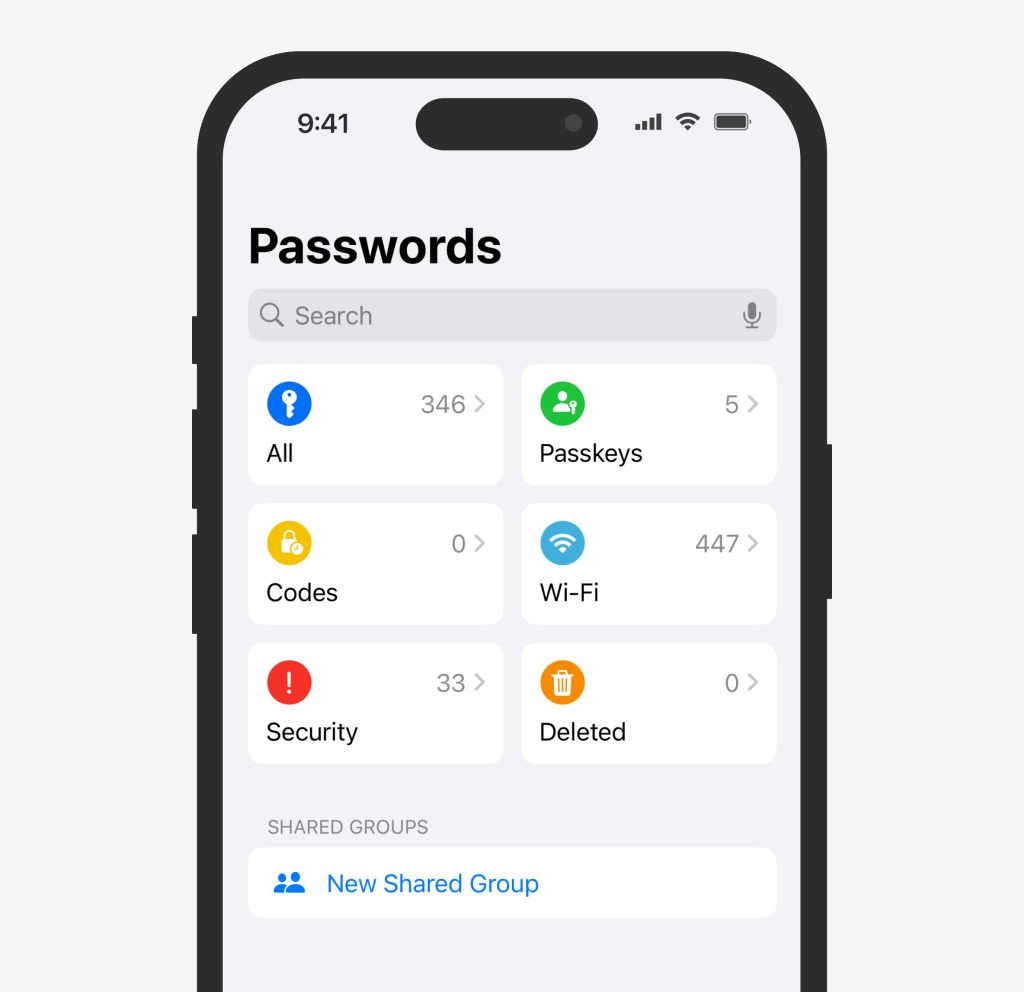
Launched in 2024, Passwords is Apple’s password manager designed to help securely manage logins, passkeys, and two-factor authentication (2FA) codes across all your Apple devices. It comes pre-installed on iOS 18 and corresponding updates to iPadOS and macOS. If your phone isn’t updated to iOS 18, you probably won’t see a standalone Passwords app icon on the home screen, but will be able to access the underlying functionality via Settings → Passwords or iCloud Keychain. You can also access the app on Windows via iCloud for Windows.
Basically, Passwords is a free and secure alternative to third-party password managers for Apple users. The app has the following features:
- Autofill: On Safari and supported apps, your login credentials will be filled automatically.
- Passkey support: You can sign in using passkeys instead of passwords on supported sites and apps.
- Built-in 2FA code storage: The app can generate and autofill 2FA codes so that you don’t have to use a third-party authenticator like Google Authenticator or Authy.
- Password sharing: You can share passwords with trusted contacts by creating a shared group in the app. You can manage who is in the group at any time.
- Password generator: When you create new accounts in Safari or an app, you’ll get suggestions on a strong password in the corresponding field (the generator adapts to each site’s rules, like length or allowed symbols). If you accept it, it’s automatically saved in the Passwords app.
Apple Passwords vs. iCloud Keychain
When Apple rolled out the Passwords app, it didn’t create a brand new password manager, but instead updated existing tools to improve user experience.
iCloud Keychain is a storage and syncing system built into iCloud that keeps your passwords, passkeys, Wi-Fi logins, and credit card details secure and in sync across your Apple devices. As a user, you can’t directly open or browse iCloud Keychain itself. It’s not an app or folder you can access—it’s the system that runs in the background.
The Passwords app is built on top of Keychain—everything you see in the app is actually coming from Keychain’s encrypted storage. Simply put, Passwords is the tool you use, while iCloud Keychain is the technology behind it. The app is like a control panel to access and manage what’s inside the vault.
Is Apple Passwords safe to use?
The Passwords app is indeed safe to use. In fact, it’s better than storing your credentials in notes or documents due to the following security measures:
- End-to-end encryption (E2EE) and AES-256-GCM encryption safeguard your passwords before they are synced to iCloud so that even Apple can’t access them. Your data can be deciphered only on your Apple devices.
- Biometric authentication (Face ID, Touch ID) is required to open the app, autofill credentials, and change saved info. This ensures you’re the only one who can use Passwords even if someone else steals your phone.
- Security recommendations alert you if the password you’re setting up is weak or reused. It also compares your credentials to known breached databases and alerts you if it finds a match.
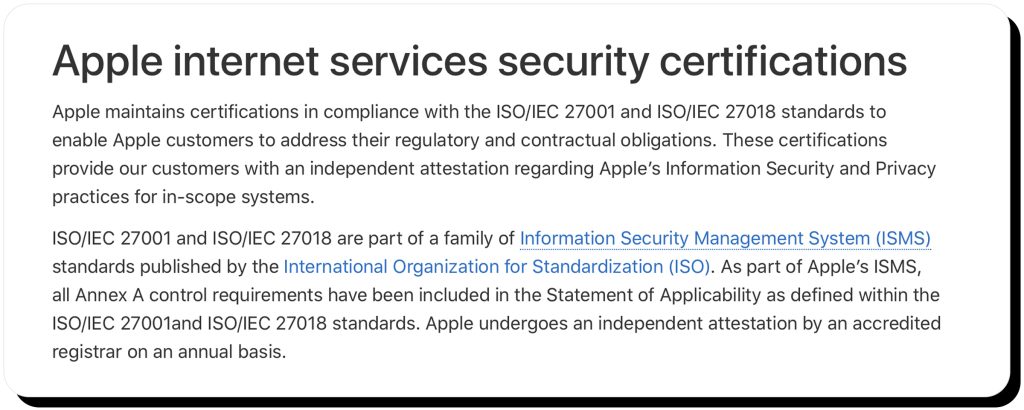
- Regular security audits performed by Apple ensure that its systems (including iCloud Keychain and the Passwords app) meet strict global standards for data protection and encryption. These audits, combined with third-party certifications like ISO/IEC 27001 and ISO/IEC 27018, verify that Apple’s infrastructure, encryption methods, and access controls remain secure, compliant, and resistant to emerging threats.
Potential limitations
Passwords is free, easy to use, and keeps all of your important credentials neatly organized on your mobile or desktop devices. However, the app does have a few mild to moderate limitations.
Risk of stolen/ lost devices
Passwords does a robust job of safeguarding your data, but the security of your device plays a crucial role as well. If your phone (laptop, tablet) isn’t locked with a password or biometrics, anyone can access the accounts you’re signed into. While they are less likely to access Passwords as it requires biometric authentication, they could potentially access your Apple ID, register new trusted devices, and sync your iCloud Keychain data.
Past vulnerability
When the Passwords app was first launched, it contained a security flaw that went uncorrected for around three months. The vulnerability was basically a connection mistake that made it possible for hackers to trick users on the same Wi-Fi network: when the app tried to show website icons (like the little logo next to each saved password), it sometimes used an unsecured HTTP connection instead of HTTPS. That meant if you were on public Wi-Fi, a hacker on the same network could intercept or alter that traffic and redirect you to a fake version of a login page to steal your credentials.
On the good side, there haven’t been any verified reports of users being hacked due to this flaw and Apple fixed the issue in iOS 18.2.
Cross-platform compatibility
Passwords works only inside the Apple ecosystem. While it’s possible to access it on Windows via iCloud for Windows, you can’t download it as a standalone app. This makes it difficult to access your credentials if you use both Apple and non-Apple devices. This also limits who you can share passwords with.
Basic features
Passwords is convenient to use, but its features are quite basic and lack some advanced ones offered by third-party password managers. It doesn’t save additional information like bank account details or ID documents and the password generator doesn’t allow setting specific character types or length preferences. Some third-party managers also include dark web monitoring.
Tips to maximize security when using Passwords
Passwords is a secure enough app by itself, but there are things you can do to strengthen your protection even further:
- Choose strong, unique passwords if you don’t want to rely on the password generator feature. Having complex passwords makes it less likely they’ll be compromised.
- Perform security updates when they are available as these contain the latest security patches to potential vulnerabilities.
- Set Auto-Lock to the minimal possible time so that your phone locks as quickly as possible between uses. That way, if you leave your phone somewhere or it gets stolen, hackers can’t easily access your accounts and apps.
- Turn on Stolen Device Protection: this feature requires Face ID or Touch ID (and sometimes a one-hour delay) before making key security changes when away from familiar locations. It helps block thieves from changing your Apple ID password or accessing saved credentials.
- Enable biometrics whenever possible as they can’t be guessed like passwords can.
- Check security recommendations regularly to see if any of your passwords match those Apple identifies as compromised or weak.
- Enable 2FA for your Apple ID to stop hackers from signing in to your iCloud account even if they know your password.
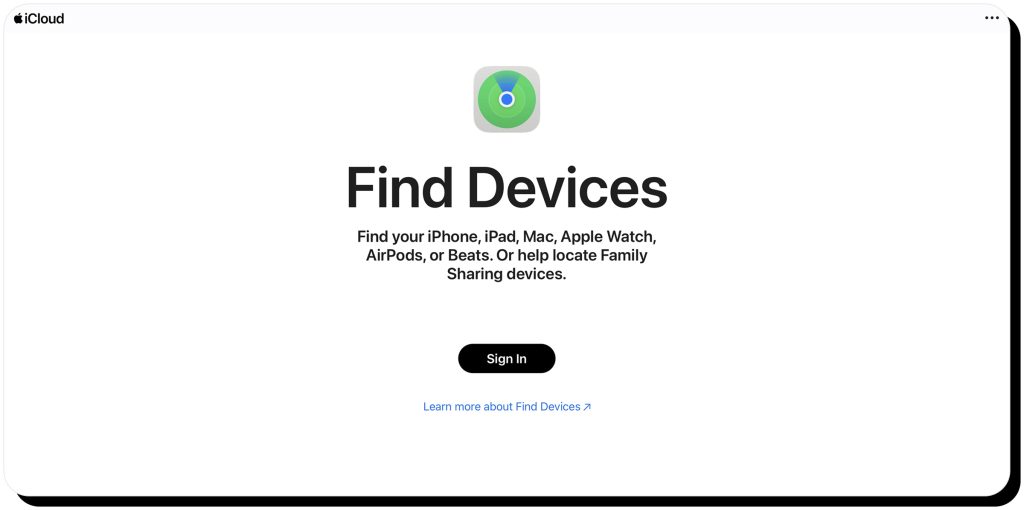
- Enable the “Find Devices” feature so that you can remotely erase data from a lost device.
Alternatives to Apple Passwords
If you want cross-platform compatibility or more advanced features, there are options beyond the Passwords app to consider. Here are some popular alternatives:
- 1Password offers more flexibility and advanced tools, but it comes with a subscription. It’s fully cross-platform and works on Apple, Android, Windows, Linux, and web browsers. It includes dark web monitoring, custom password vaults, emergency access, secure file and document storage, and detailed security reports that Apple’s manager lacks. You can also share passwords with anyone, not just Apple users, and assign permissions like view-only or edit access.
- Bitwarden also works on Windows, macOS, Linux, Android, iOS, and all major browsers. It supports custom vaults, secure note and file storage, and optional self-hosting for maximum privacy. Its password generator is more customizable, and the paid plan adds features like dark web monitoring and advanced 2FA options. It’s also open source, meaning its code is publicly available for independent security audits.
- Dashlane is another cross-platform option but it also comes with a subscription fee. It has built-in dark web monitoring, VPN for Wi-Fi protection, and a security dashboard that rates your password strength and alerts you to potential risks. It also supports secure password sharing, automatic password changing on select sites, and encrypted notes and payment info storage.
Final thoughts: how secure is Apple’s password manager?
The Passwords app is a simple yet highly secure option for saving and sharing your passwords. It combines E2EE and AES-256-GCM encryption to encrypt all passwords, passkeys, and verification codes locally on your device before being synced to iCloud. This means that only your trusted devices can decrypt them, not even Apple can see your credentials. Additionally, the app requires biometrics or a passcode for access and editing data, so that it stays protected even if your device is lost or stolen.
FAQs
Should I use a password manager on my iPhone?
Using a password manager is generally much safer than storing them in a note or document. On iPhones, the Passwords app is the most secure option: it encrypts your credentials so that they can be accessed only on your trusted devices (not even Apple can see them), protects access with biometrics and passcodes, and does automatic security checks for weak or compromised passwords.
Which is safer: 1Password or Apple Passwords?
Both options are highly secure as they provide robust encryption and strong authentication methods. Apple Passwords is better for users fully within the Apple ecosystem because it’s built directly into iOS, macOS, and iCloud. 1Password is better for those who need cross-platform compatibility or want advanced features like dark web monitoring, custom vaults, and emergency access.
Is iPhone’s password manager safe?
Yes, iPhone’s password managers are safe. Pre-iOS 18, users could manage their credentials via settings. Now, there’s a built-in standalone app—Passwords. Basically, they are the same thing, but the app provides a more user-friendly access. Both rely on iCloud Keychain, which uses end-to-end encryption to securely store and sync your passwords, passkeys, and verification codes across devices.




Mark comes from a strong background in the identity theft protection and consumer credit world, having spent 4 years at Experian, including working on FreeCreditReport and ProtectMyID. He is frequently featured on various media outlets, including MarketWatch, Yahoo News, WTVC, CBS News, and others.