 Last updated January 29, 2026
  read
read
How to check iPhone for a virus in settings (2026 guide)
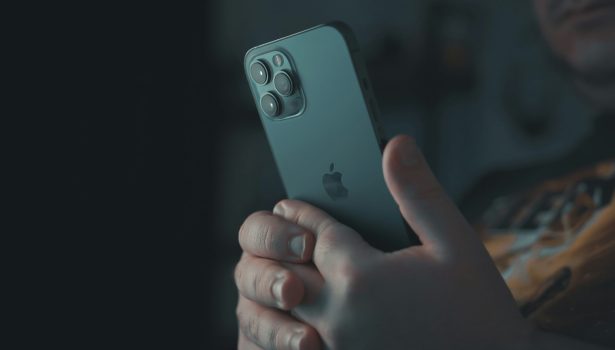
To evaluate whether your iPhone has been infected, check for spikes in data usage, noticeable drop-offs in battery life, apps you don’t recognize, or the ones that have unnecessary sensitive permissions like your location or microphone. You can also check for unfamiliar configuration profiles or mobile device management (MDM) entries in VPN & Device Management and unfamiliar devices and sign-in locations in your Apple ID. Finally, ensure your iOS is up to date because Apple patches potential vulnerabilities cybercriminals could exploit.
Can iPhones get viruses?
Overall, it’s highly unlikely to catch classic “viruses”—a type of malware that spreads by copying itself to other devices—on iPhones. The reason is Apple’s robust security measures, which include:
- Sandboxing: each app runs in its own isolated space, separate from other apps and the phone’s operating system.
- App Store’s vetting that screens apps to block malicious code.
- Frequent security patches that address discovered vulnerabilities.
However, while traditional “viruses” are uncommon, iPhones aren’t completely off the hook when it comes to cybersecurity threats. There is still a moderate risk of malware, spyware, and configuration exploits. These are typically introduced by downloading fake apps, clicking on malicious links and attachments, and weakening the security of your device by jailbreaking it.
As technology advances, cybercriminals exploit AI and your own personal data to create sophisticated social engineering scams that are harder to detect. Zero-day exploits, where criminals identify vulnerabilities before developers, are also on the rise. Because of this, it’s better not to rely on iOS security only, but also to keep in mind potential warning signs.

How to tell if an iPhone has a virus: common signs
The following signs may suggest that you have malware on your device:
- Battery overheating or rapidly draining: Batteries that all of a sudden overheat or drain faster than they ever have before could indicate that you have malicious software on your iPhone. Sometimes it’s as simple as needing to change certain device settings, but other times it’s a sign of something more problematic, like spyware running in the background.
- Unexpected pop-ups or redirects in Safari: Malicious or compromised websites can inject code that causes pop-ups or fake “virus alert” messages. You may have adware-infected browser data or a malicious profile altering Safari’s behavior.
- Increased data usage: Spikes in data are often a warning sign that you may have malicious programs running in the background. That’s because many types of malware, especially spyware or adware, communicate with remote servers to upload stolen information or display ads.
- Performance lag: Malware often interferes with legitimate app functions, causing them to crash or behave unpredictably. Crashes across multiple apps or system functions (not just one faulty app) may indicate broader interference, not just a software glitch.
- Unknown icons appearing: Apps that you don’t remember downloading (that also aren’t built-in) are a major red flag. These could be spyware, fake system apps, or tools meant to steal credentials.
- Unauthorized charges or logins on Apple ID: Any activity you don’t recognize on your Apple ID (unexpected sign-in notifications, unfamiliar charges, or passwords suddenly not working) could mean that your account has been compromised.
While some of these symptoms happen from everyday usage (especially as your device gets older), it’s more concerning when you notice more than one of these signs. If 3-4 symptoms appear on your iPhone, you should look into it.
How to check an iPhone for a virus using settings
There is no specific virus scan for iPhone, and no settings will tell you definitely that there’s a certain virus on your device. However, they will help understand whether everything functions properly or there’s been some interference.
Review installed profiles and device management settings
There are several ways unknown configuration profiles or MDM entries can end up on an iPhone. The most common route is a link or email that convinces you to tap “Allow” and install a profile (e.g., “Install this profile to access work Wi-Fi” or “Update settings”). Profiles are user-approved, so attackers rely on tricking you. If your device is jailbroken or already compromised, software can add profiles or MDM entries without normal user consent.
These can allow hackers to control your phone remotely or route your data through malicious servers.
To review profiles and management settings on your iPhone, go to Settings → General → VPN & Device Management.

Review battery and data usage
Go to Settings → Battery and see which apps are using the most power. If you notice apps you don’t remember installing or ones that drain an unusual amount of battery, they could be running hidden background processes.
Check data and network usage
You can see which apps are using data and exactly how much by going to Settings → Cellular and selecting “Show All.” Look for apps using unexplainably large amounts of data in the background.
Check for jailbreak indicators
If someone has direct physical access to your phone, they can jailbreak it, which disables Apple’s built-in security protections. Go to Settings → General → iPhone Storage and look for apps like Cydia, Sileo, or any other tool you didn’t install.
Review app permissions
Under Settings → Privacy & Security, you can see which apps have access to your location, camera, microphone, or tracking. Evaluate whether the discovered apps actually need those permissions or if they seem excessive.

Inspect your Apple ID
Go to Settings → [your name] → Password & Security and review
- the list of devices using your Apple ID
- locations
- trusted phone numbers
- account recovery contacts
What to do if you think your iPhone has a virus
In case you believe your iPhone has been infected, you’ll want to act quickly. The faster you take the following measures, the less likely it is that your data and device will be compromised:
- Delete suspicious profiles and apps from your phone. Configuration profiles and MDM entries can be removed via Settings → General → VPN & Device Management. Apps are removed by pressing and holding the app icon until you see “Remove App,” tapping it, and then selecting “Delete App.”
- Update your iOS to the most recent version to protect your device from the latest security flaws Apple discovered. You can do this via Settings → General → Software Update.
- Restart your phone to stop background processes. Then, watch for the same red flags you noticed before. If they persist, continue to deeper cleanup.
- Run Apple Diagnostics to check for any hardware issues like battery health on your device. Additionally, calling Apple Support puts you in contact with experts who can help identify possible causes.
- Change your Apple ID password and enable two-factor authentication if you haven’t already. This will stop hackers from reusing stolen credentials to access your data.
- Clear Safari history and data to remove malicious cookies, cached redirects, or pop-up triggers. You can do this in Settings → Safari (or any other browser app you use).
- Reset settings to clear the ones altered by malicious actors. You can do this under Settings → General → Transfer or Reset iPhone → Reset. If you still suspect a virus is on your iPhone, you may need to perform a full factory reset. To do this, follow the same steps but choose “Erase All Content and Settings”—you might want to back up essential data first.

How to prevent future infections on an iPhone
They may not be completely immune to every cyberattack out there, but iPhones do have very strong security. It’s typically user behavior that leads to compromise and data leaks.
To prevent malware from infecting your phone in the future, always follow these guidelines:
- Avoid jailbreaking your iPhone, which can make your device less secure. It can also void the warranty and stop you from receiving automatic security updates.
- Install apps from the official App Store to ensure that what you download meets Apple’s security and privacy guidelines. Third-party app stores just can’t offer the same level of protection, putting you at a higher risk of downloading malicious software.
- Keep iOS updated to get the latest security patches and ensure your device is running smoothly.
- Don’t click suspicious links or attachments, as these are the most common ways to download malware or expose personally identifiable information.
- Never install unknown profiles or VPNs: don’t tap “Allow” if a website or message asks to install a configuration profile or VPN.
- Consider Safari’s privacy reports and Apple’s Lockdown Mode if you think you are at a high risk of targeted attacks (journalists, activists, or people affected by data leaks).

FAQs
How to scan an iPhone for malware?
iPhones don’t have a built-in malware scanner or traditional antivirus apps like computers do, because Apple’s iOS prevents third-party apps from accessing system files. Instead, you can “scan” for malware by manually reviewing your settings and behavior indicators.
What is an iOS virus?
There really isn’t an iOS or iPhone virus, in a traditional sense. Apple devices have highly effective security protocols, which make it very difficult for viruses to spread from a single app to the rest of your phone. That said, if someone mentions having a virus on their device, they are likely referring to malware downloaded from third-party apps, malicious links, or a jailbroken phone.


Mark comes from a strong background in the identity theft protection and consumer credit world, having spent 4 years at Experian, including working on FreeCreditReport and ProtectMyID. He is frequently featured on various media outlets, including MarketWatch, Yahoo News, WTVC, CBS News, and others.