 Last updated January 29, 2026
  read
read
How to delete an X account: step-by-step instructions for 2026

To permanently delete your X account (formerly Twitter), go to your account settings and choose “Deactivate your account.” After 30 days of inactivity, it will be permanently erased. However, if you sign in for any reason during this time, your profile is restored—and you’ll need to repeat the process again.
Key things to know before you delete your X account
There are some actions you might want to take before closing your X profile. Here’s what you should know:
- Account deactivation is not the same as deletion. Deactivation hides profile information and posts, but doesn’t delete the account right away. If it’s inactive for 30 days, then it will be completely removed.
- Deleting your account won’t cancel paid subscriptions automatically. If you have an X Premium membership, you’ll need to cancel it first. If you don’t, you’ll still be charged monthly.
- Your username will become available to others. After you delete your account, anyone can create a new one using your handle. In case your username is tied to your brand, business, or professional identity, you might want to take steps to prevent impersonation.
- You can download your data archive. If you want copies of your tweets and other usage info, take care of it before deactivation.
- Third-party apps may reactivate your account. Some linked apps may automatically attempt to reconnect which could reactivate your X account without your explicit consent. To prevent this, you should revoke third-party access before you start the process of deletion.
How to delete an X account permanently on mobile
Step 1: Open the X app on your phone.
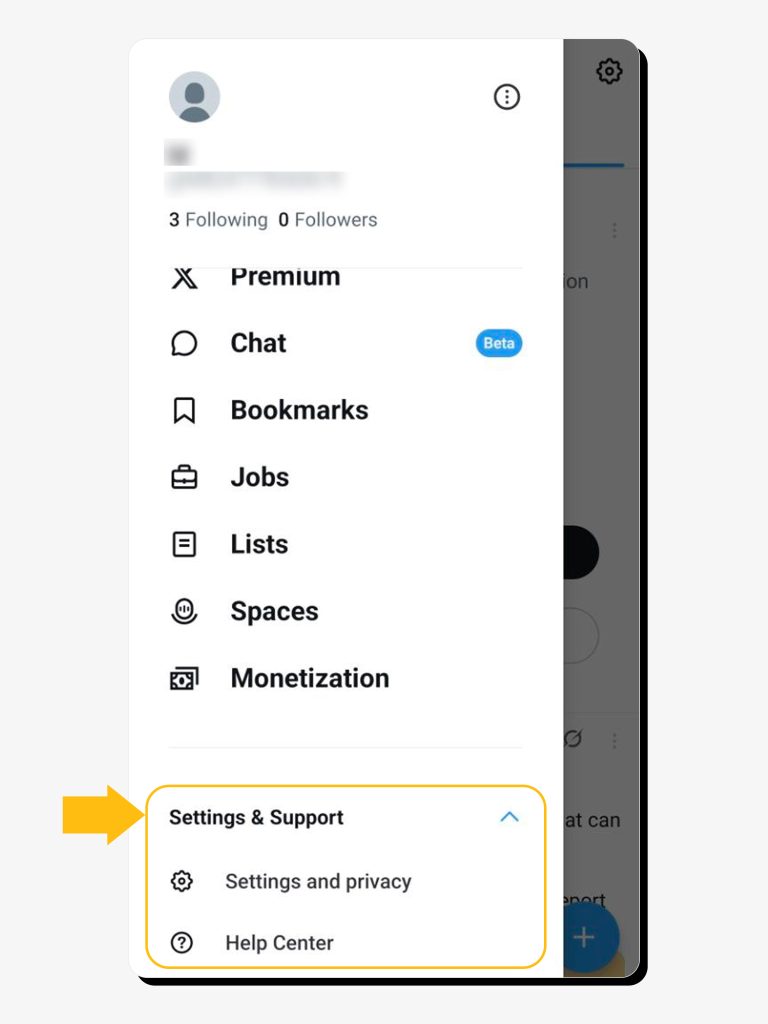
Step 2: Tap your profile icon.

Step 3: Select “Settings and Support.” Then, tap “Settings and privacy” under the drop-down menu.
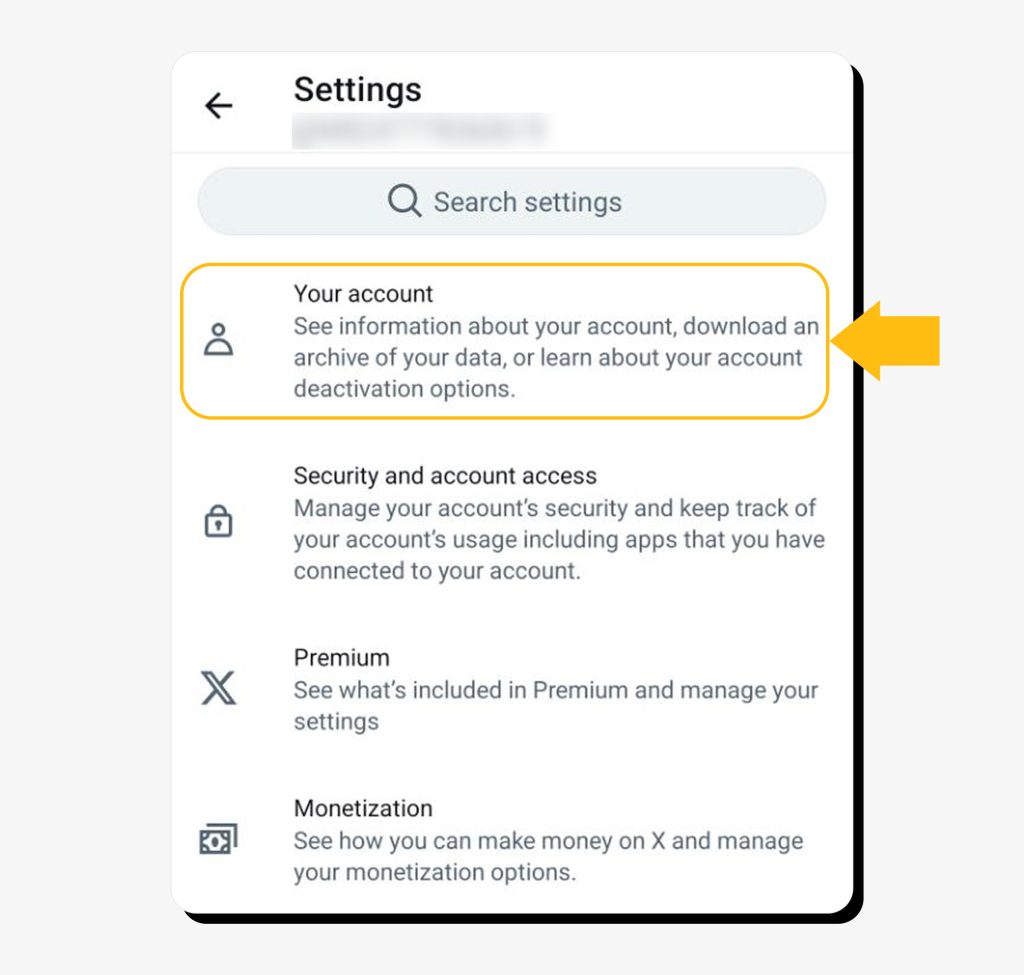
Step 4: Go to “Your account” at the very top.
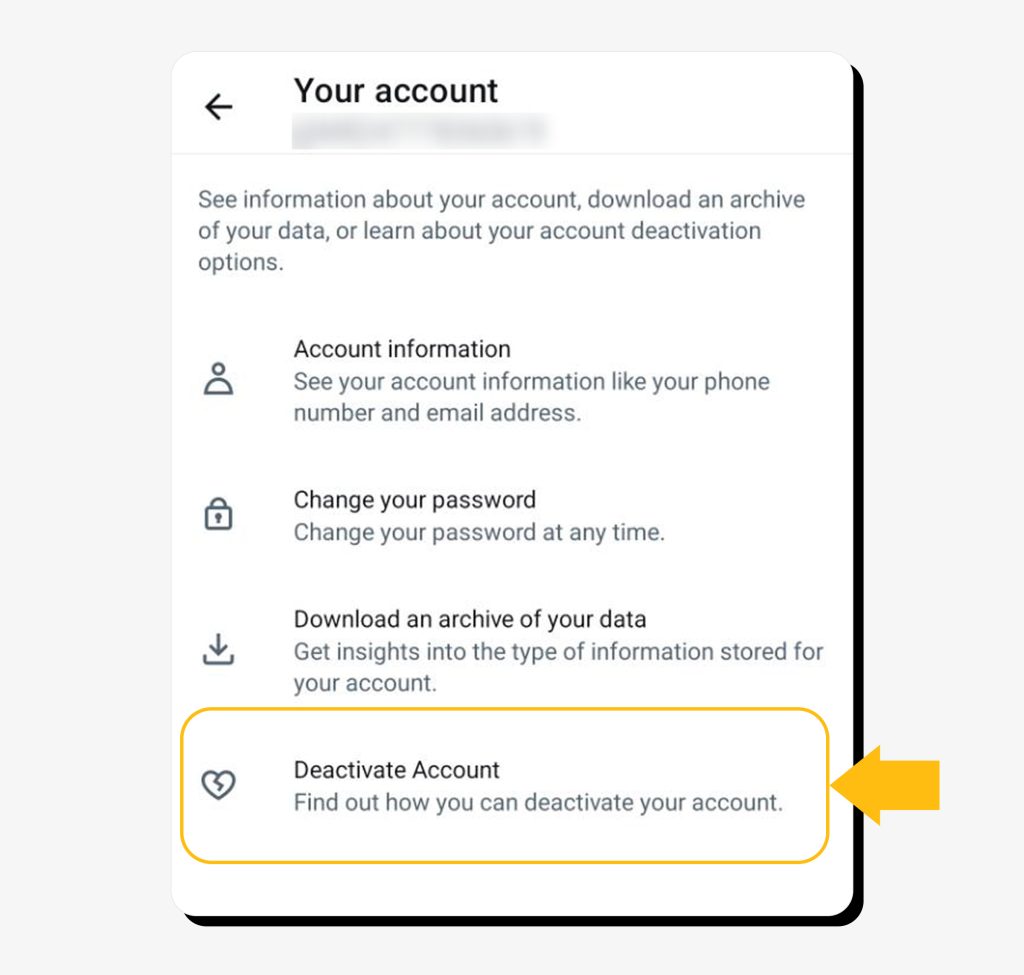
Step 5: Tap “Deactivate Account.”
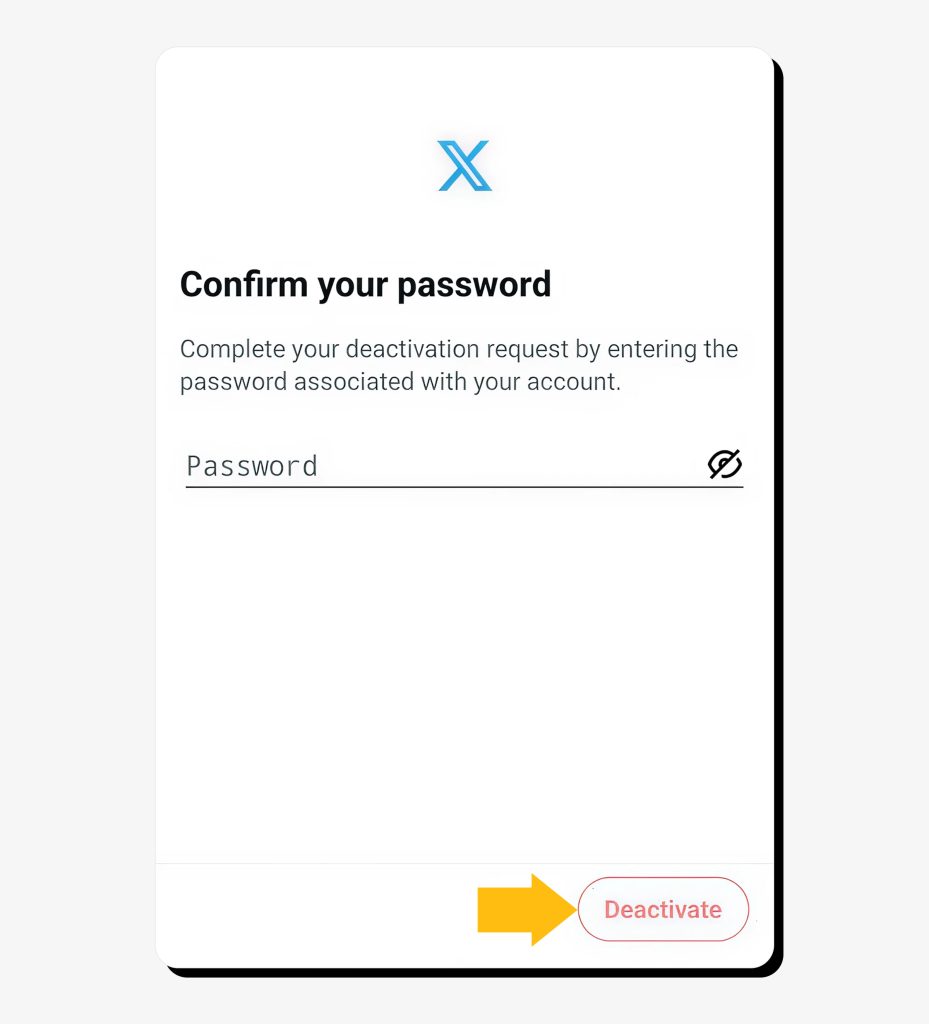
Step 6: Tap “Deactivate” at the bottom of the screen.
Step 7: Submit your password.
Step 8: Tap “Yes, deactivate.”
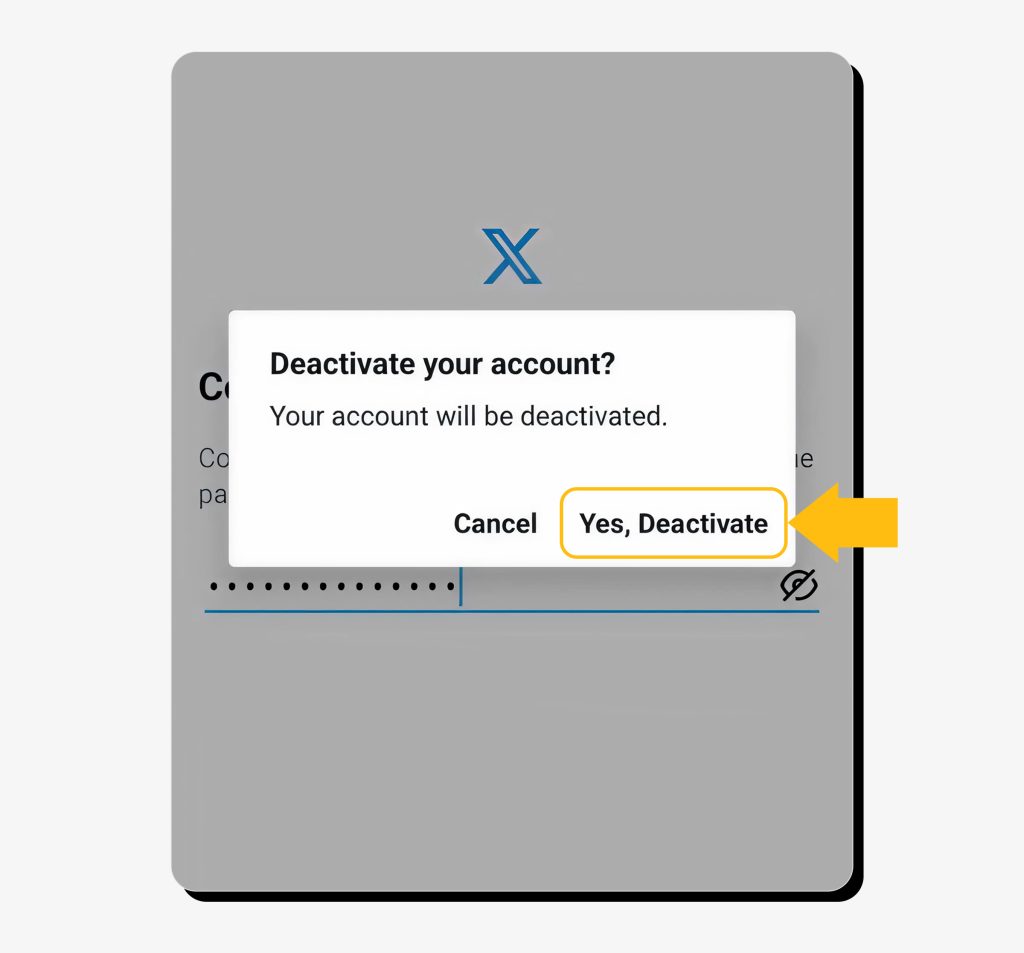
You’ve completed the process—make sure to stay logged out on all devices for 30 days.
How to delete an account on X on desktop
Step 1: Go to X.com and log in to your profile.
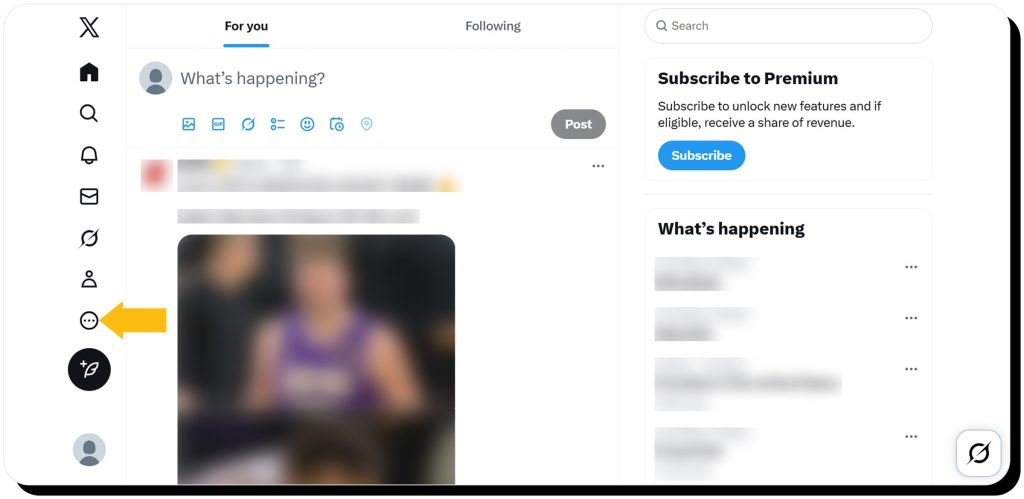
Step 2: Select the “More” icon on the left side of the screen (three dots in a circle).
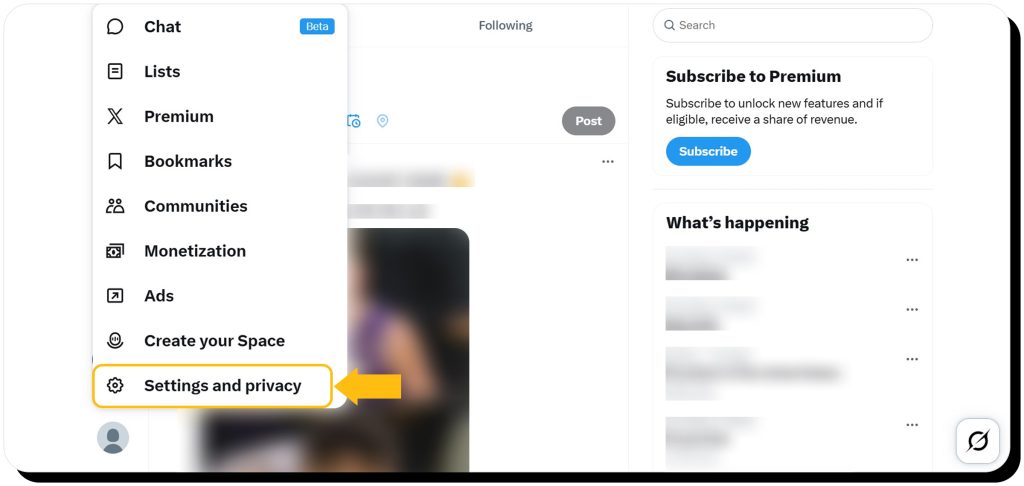
Step 3: Choose “Settings and privacy.”
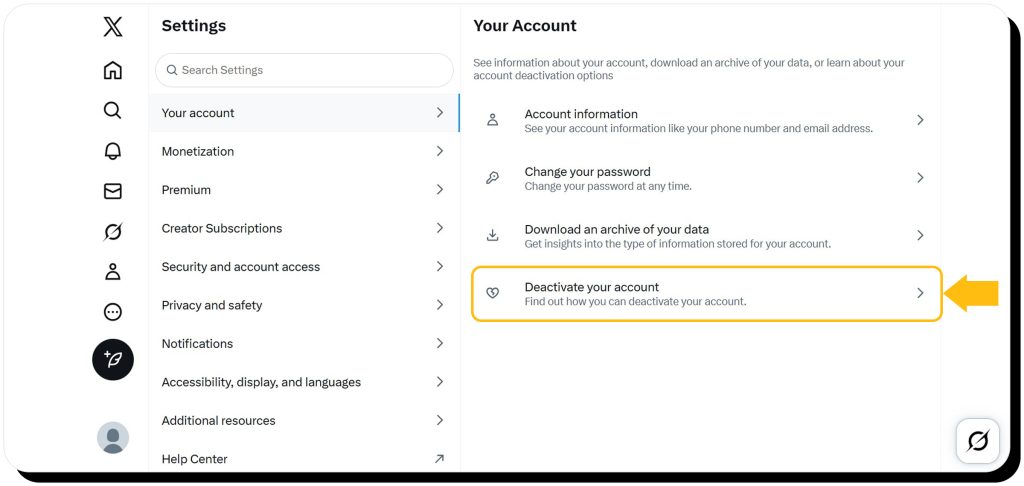
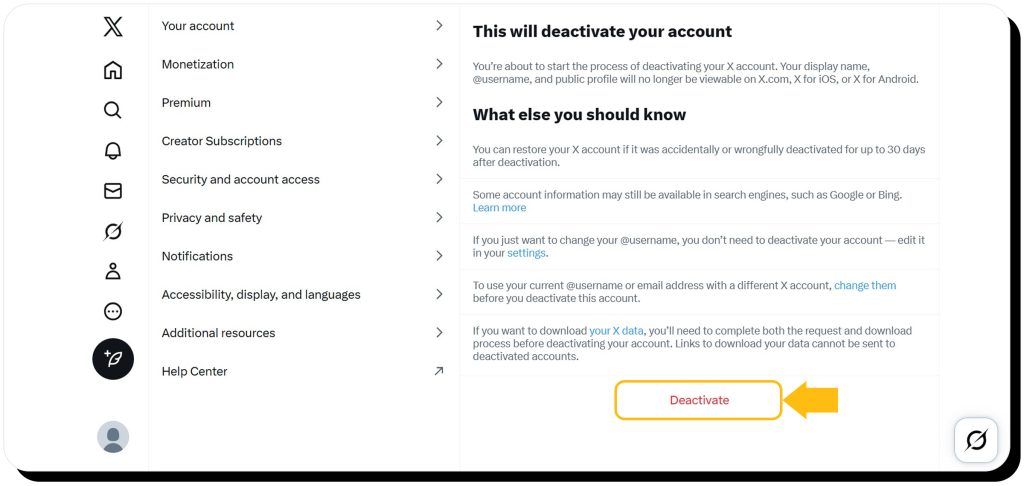
Step 4: Go to “Your account,” then click “Deactivate your account.”
Step 5: Scroll down and click the red “Deactivate” button at the bottom of the screen.
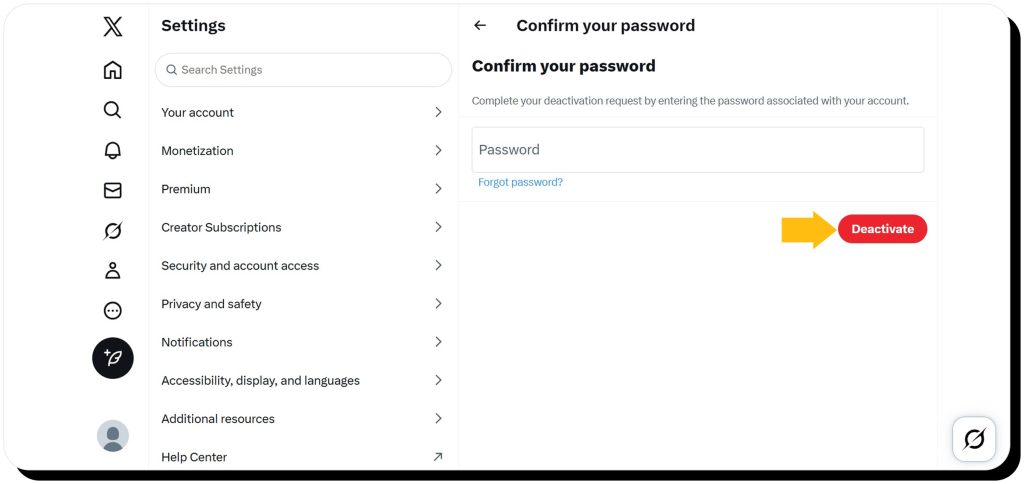
Step 6: Submit your password.
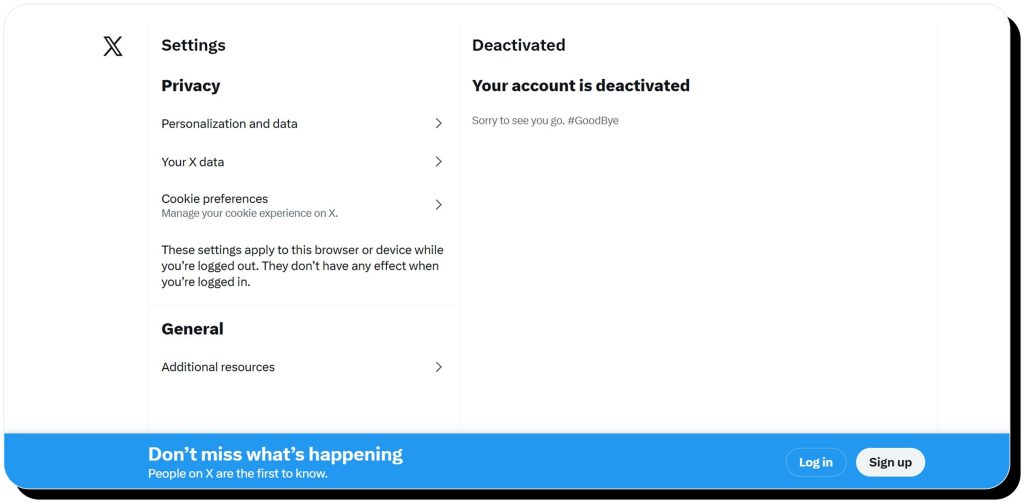
You will now see an on-screen confirmation as well as a Log in/ Sign up prompt at the bottom of the screen.
How to delete a deceased person’s X account
If you want to close the account of a deceased or incapacitated user, you should contact the X support team. Use this form to leave a request.
After you fill out the form, X will email you with instructions on the next steps. This generally mentions the documentation you need to submit. Depending on the circumstances, it might include:
- More information about the user
- A copy of your ID
- A copy of the user’s ID or death certificate
- A copy of a Power of Attorney authorizing you to act on the user’s behalf
How to reactivate your account
In the event you change your mind and want to return, you have 30 days to reactivate your X account. This is done by simply logging into your profile. Once you do, a message will pop up saying “Yes, reactivate.” After that, you’ll be taken to your timeline.
How to download your X data archive
Your X data archive includes your tweets (posts, replies, media), direct messages, followers and those you follow, profile info (bio, name, handle, etc.), bookmarks, likes, activity history, logins, and other account information.
To download it, go to Settings and privacy → Your account → Download an archive of your data. You’ll need to verify your identity by entering your password or confirming a code sent to your email or phone. Once verified, click Request archive.
It may take anywhere from a few minutes to over a day for X to prepare your ZIP file. After the process is complete, you’ll receive a push notification or an email with a secure download link.
FAQs
Can you delete your X account?
Yes, you can delete your X account, but it remains deactivated for around 30 days before it’s permanently removed. First, your account is deactivated for 30 days. If you don’t log in during that period, it’s automatically deleted.
How to deactivate an X account?
To deactivate your X account from a mobile or desktop device, go to settings, select your account, and choose “Deactivate your account.” Keep in mind that you have a month to restore it—if you don’t, it will be permanently gone.
How do I cancel my X account?
You can cancel your X account by deactivating it and leaving it untouched for a month. After that, it will be canceled permanently. Note that your tweets, messages, followers, and other data can’t be restored after deletion.




Dimitri is a tech entrepreneur and founder of Onerep, the first fully automated data removal service. Top cybersecurity CEO of 2021 by The Software Report.