Published February 4, 2026
  read
read
How to delete your Instagram account: 2026 guide

To delete your Instagram account, sign in on the mobile app or a web browser and go to Settings → Accounts Center → Personal details → Account ownership and control → Deactivation or deletion. There, choose the Instagram account you want to remove, and follow the prompts. Once deleted, your profile and content become hidden immediately—but erased permanently only after 30 days. If you change your mind, logging back in during that 30-day period will reactivate your account.
Should you delete or deactivate Instagram?
Besides deletion, you have the option to deactivate your account:
- Deletion is permanent. Once requested, there’s only a 30-day period during which you can recover the account. If you don’t log in for 30 days, your profile and all the data are gone for good.
- Deactivation is temporary. Your profile, comments, and likes will be hidden from other users but not erased—you can restore everything simply by logging back in. Instagram doesn’t set a specific time limit for deactivation, so you can remain inactive for as long as you need.
Deletion is a good option in case you’re sure you want to leave the platform. If you simply need a break (for however long), then deactivation might be a better choice.
Key things to consider before deleting an Instagram account
Before you take the final action, consider the following:
- Once your account is fully deleted (30 days after your request), your data is permanently erased. Your photos, messages, followers, Reels, and stories will disappear with no possibility to restore. In case you’d like to keep a copy of your content and activity history, you can download your data archive before deletion.
- Deleting Instagram may affect logins through Facebook if your account is linked through Meta’s Accounts Center. Your Facebook account itself is not deleted, but you may need to log in separately, re-verify your email or phone number, or adjust security settings if you were relying on the linked setup.
- There’s no guarantee that your Instagram username will become available, though it might.
How to delete an Instagram account on a phone (iPhone and Android)
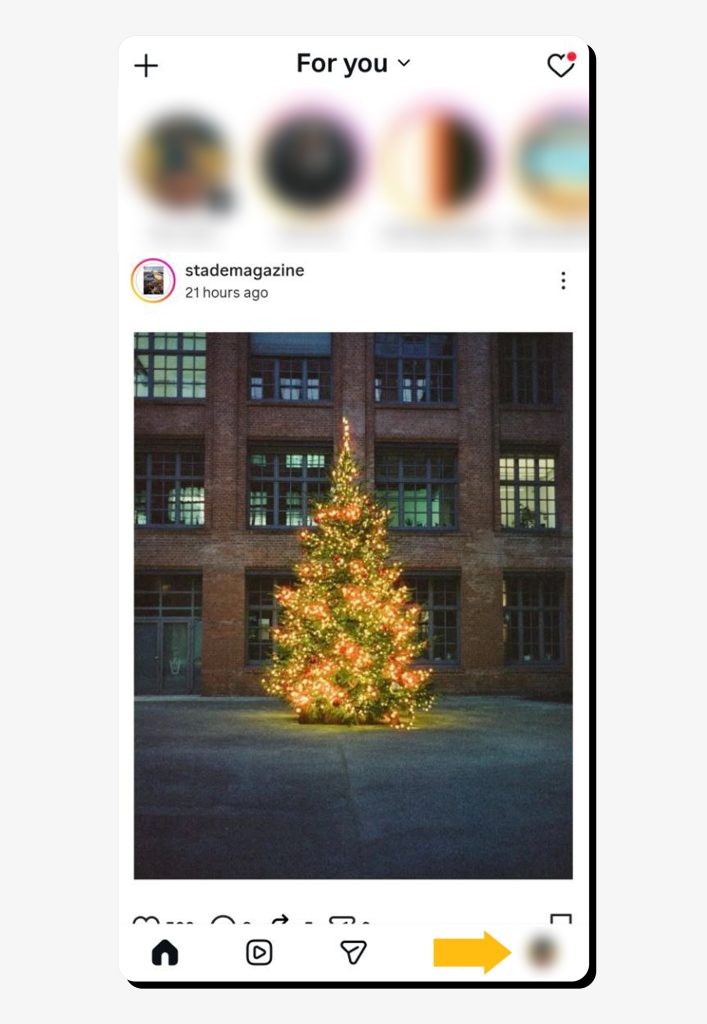
Step 1: Open the Instagram app. Tap the profile icon (your photo) at the bottom of the screen.
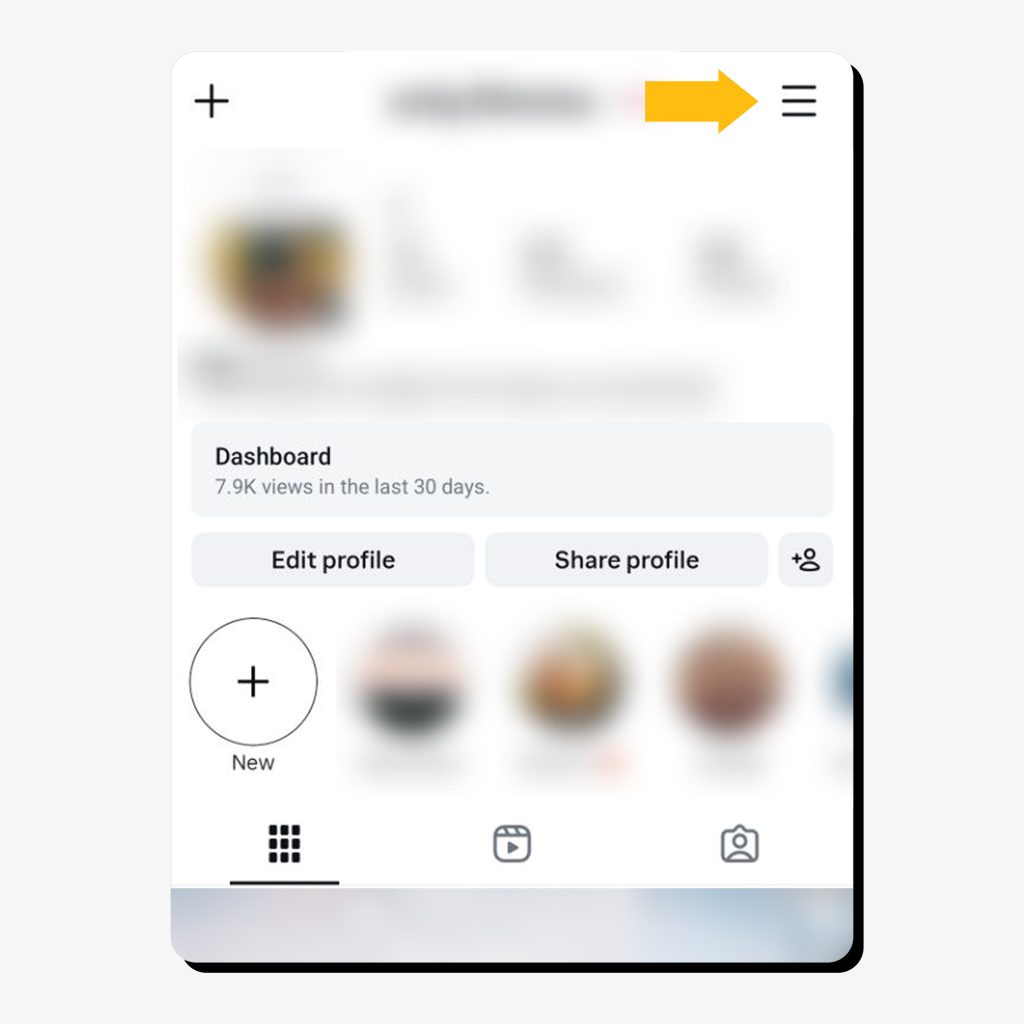
Step 2: Tap the “More” icon (3 horizontal lines at the top).
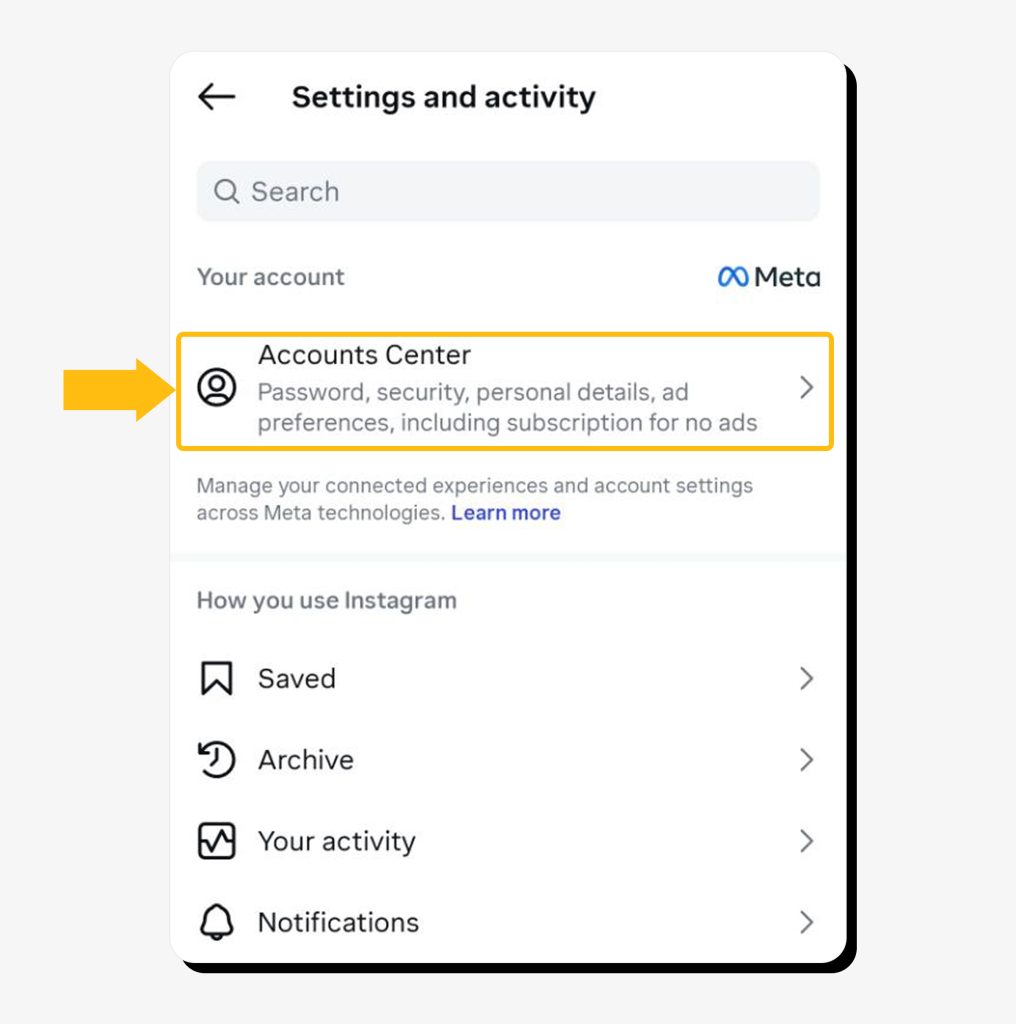
Step 3: Go to “Accounts Center.”
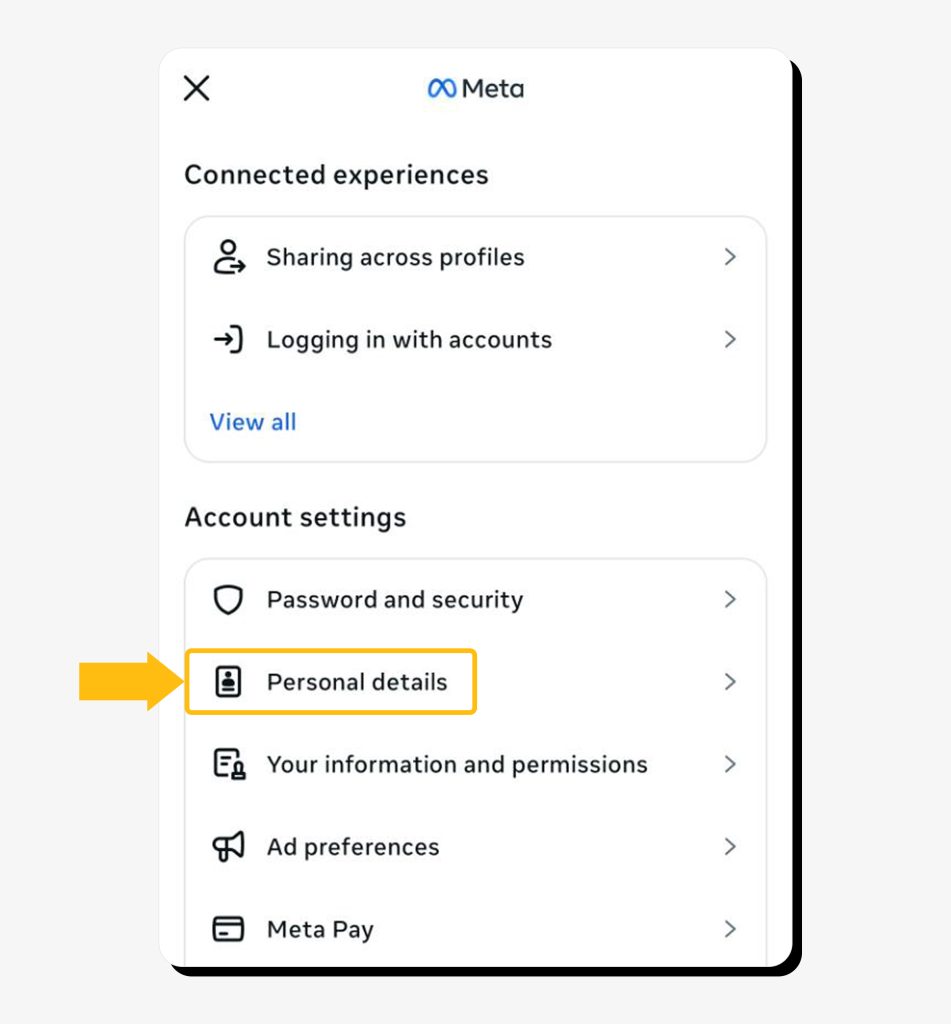
Step 4: Go to “Personal details” in the account settings section.
Step 5: Tap “Account ownership and control.”
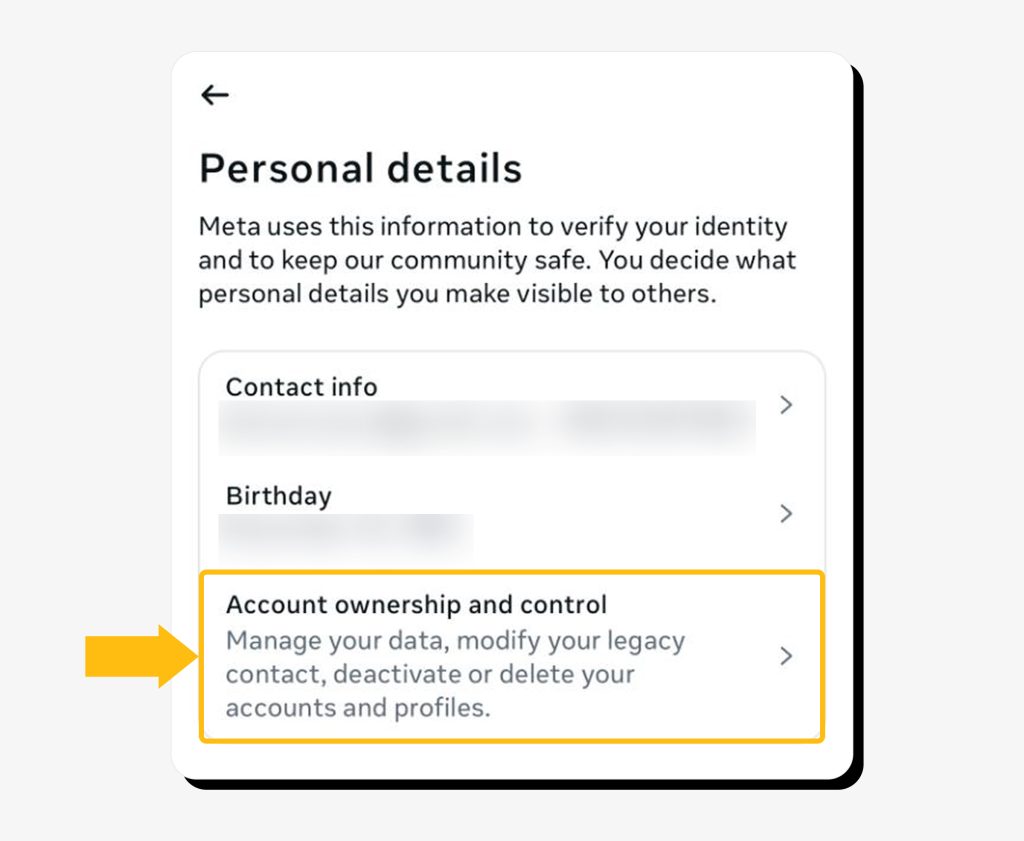
Step 6: Tap “Deactivation or deletion.”
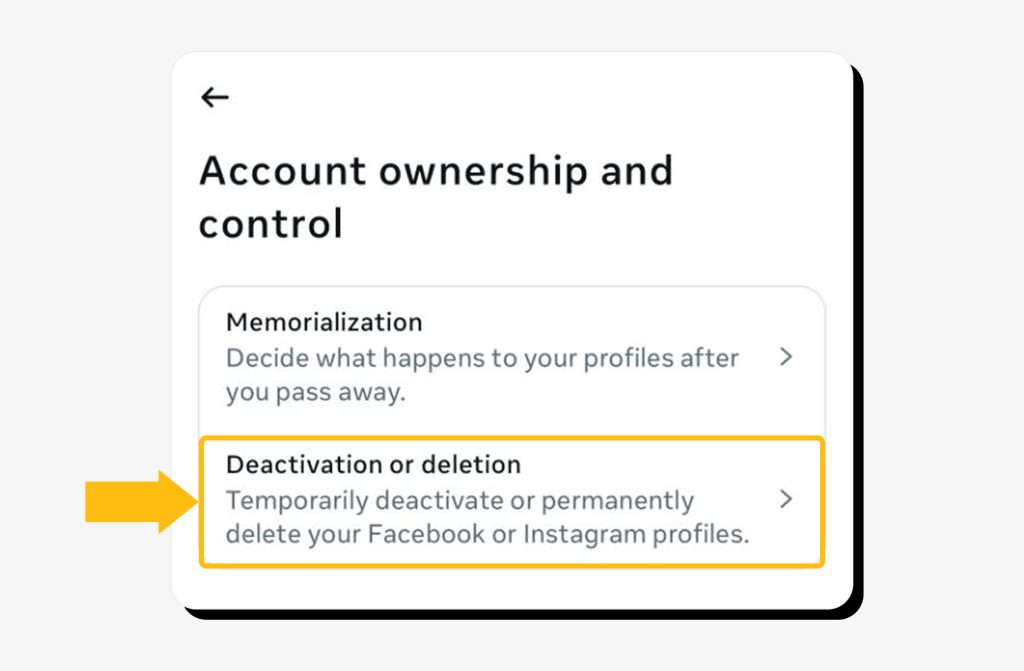
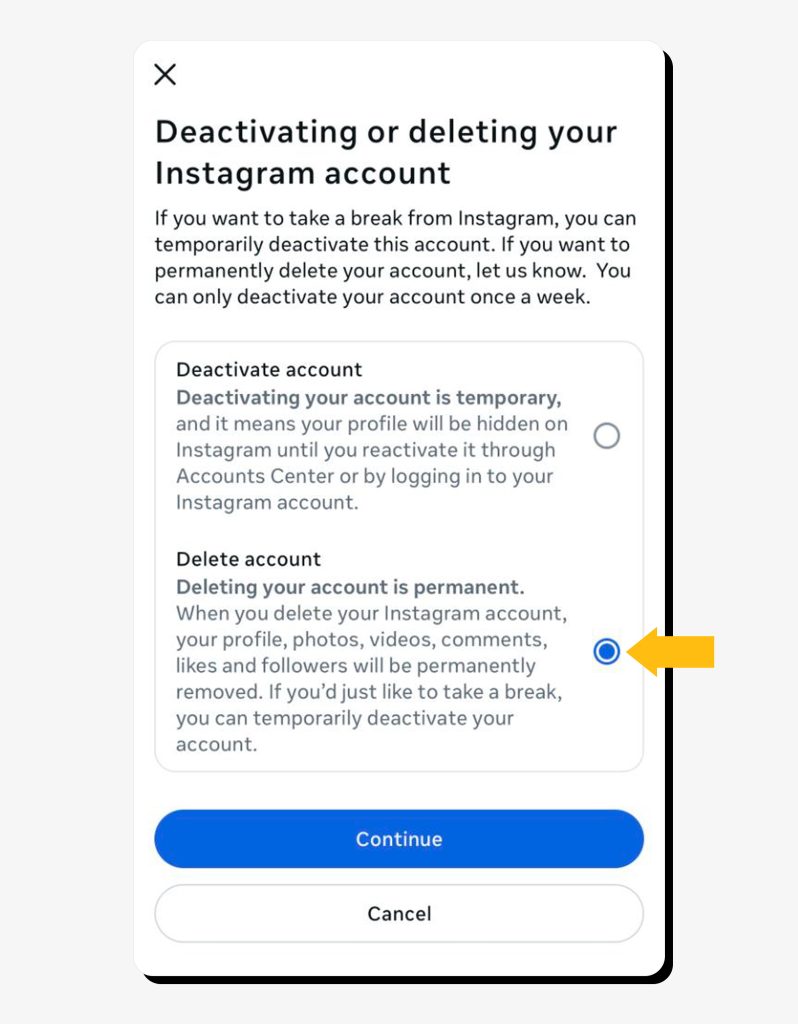
Step 7: Choose which account you want to delete. Then, select “Delete account” and tap “Continue.”
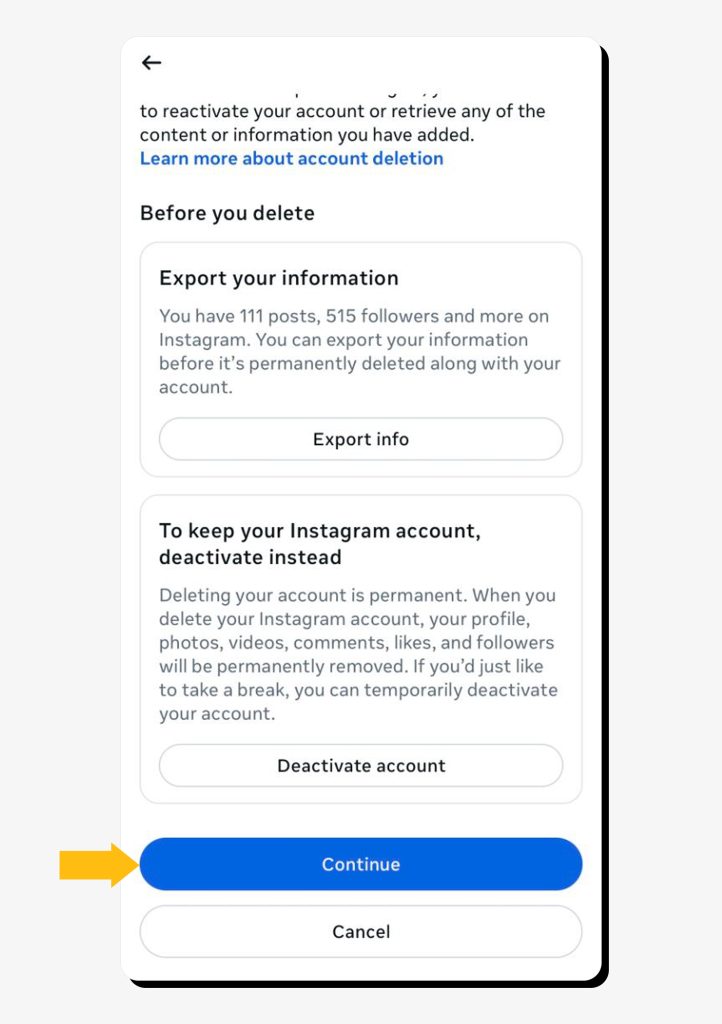
Step 8: Submit your reason. Then, tap “Continue” unless you want to export your info.
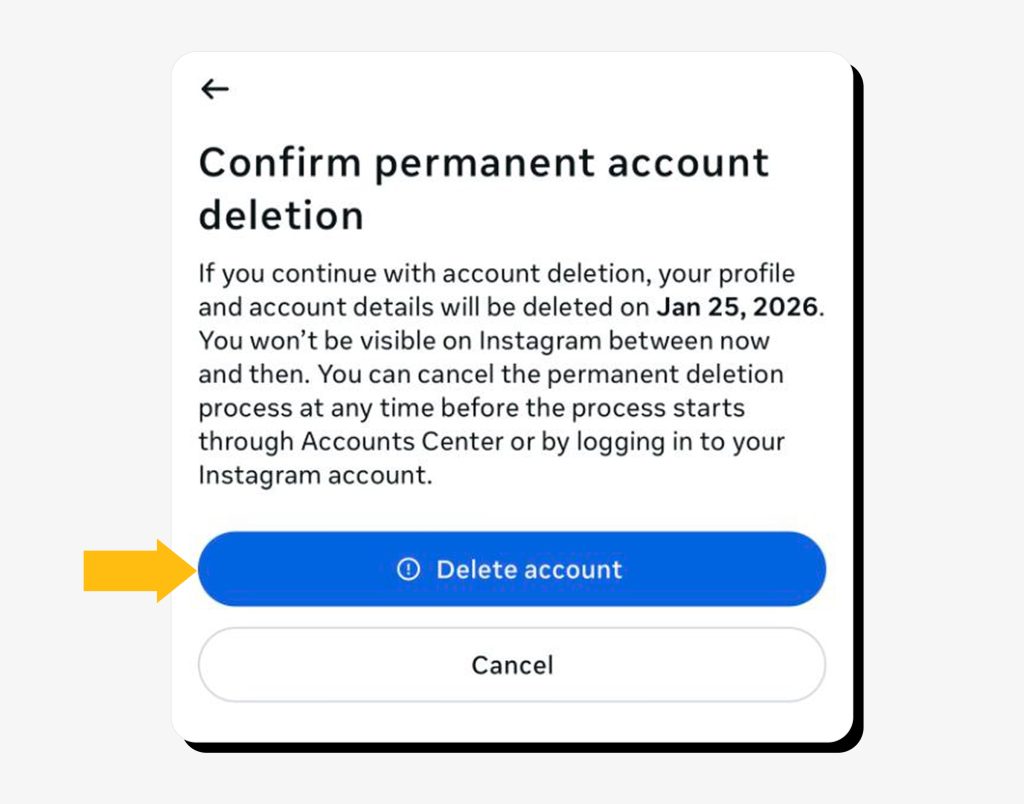
Step 9: Submit your password, then tap “Delete account” to complete the process.
How to permanently delete an Instagram account on desktop
Step 1: Open the Instagram website and log in to your account.
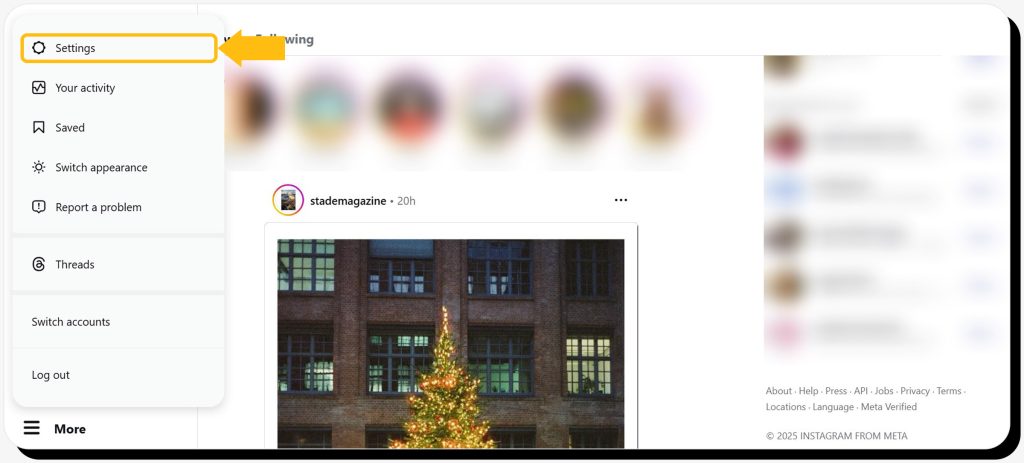
Step 2: Click “More” in the left sidebar, then “Settings.”
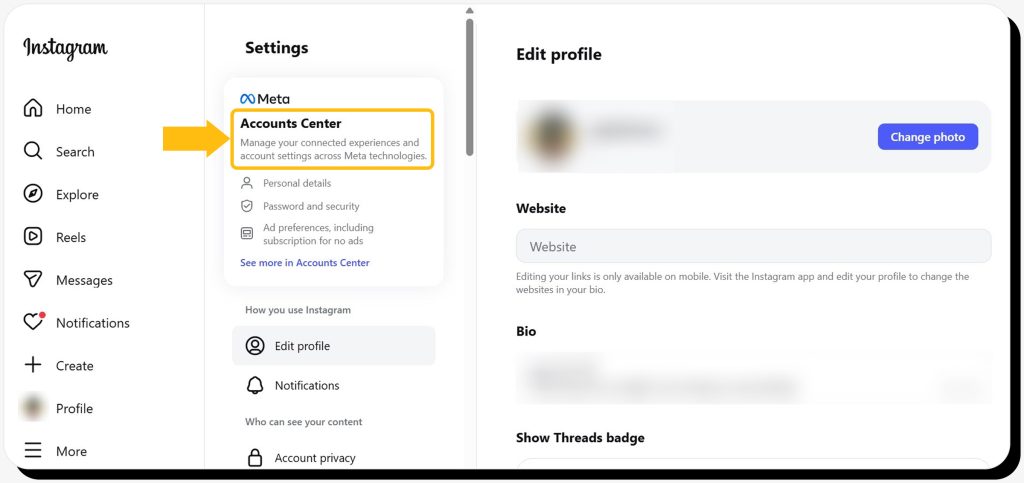
Step 3: Go to “Accounts Center.”
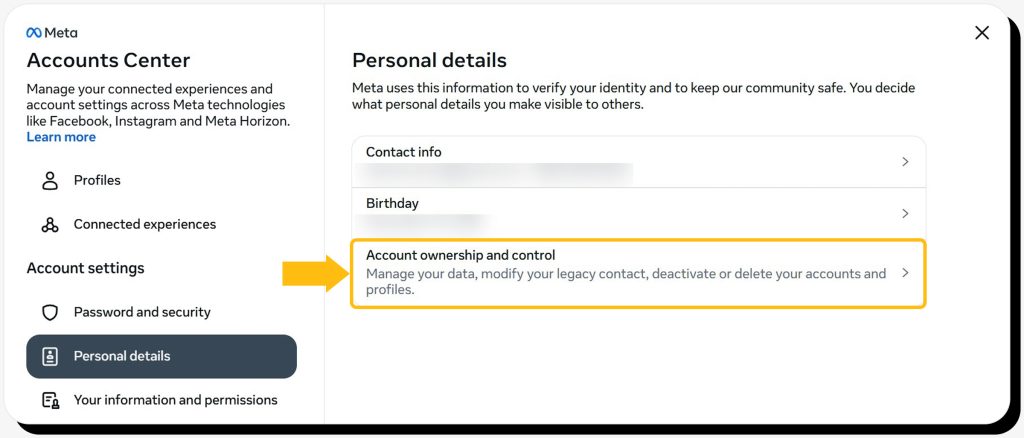
Step 4: Go to “Personal details” under “Account Settings.” There, click “Account ownership and control.”
Step 5: Click “Deactivation or deletion.”
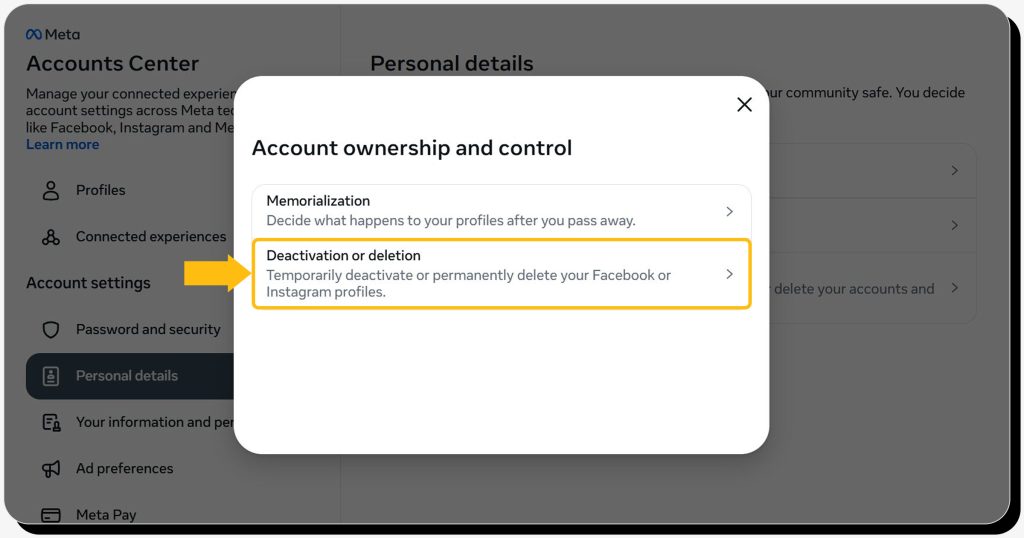
Step 6: Choose the account you want to delete. Then, select “Delete account.”
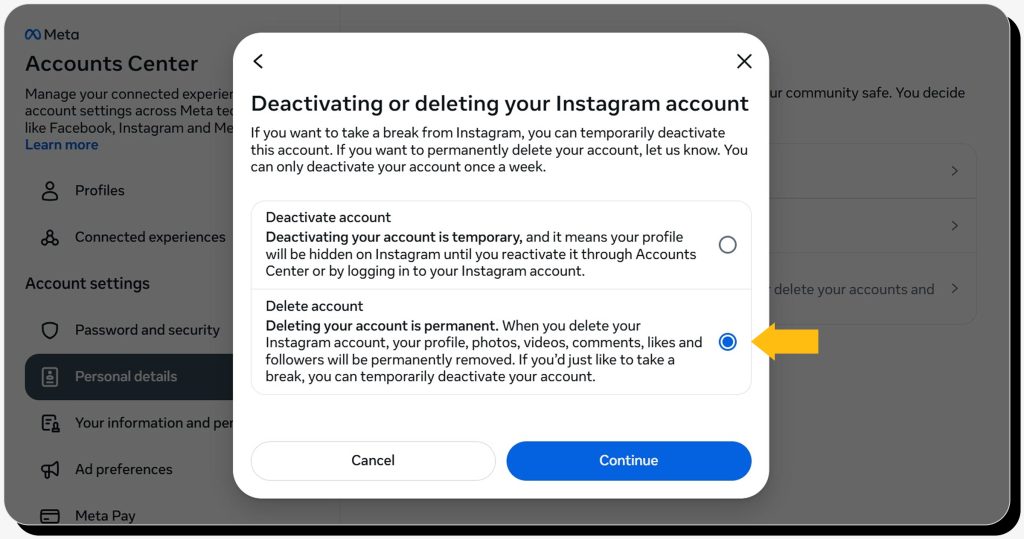
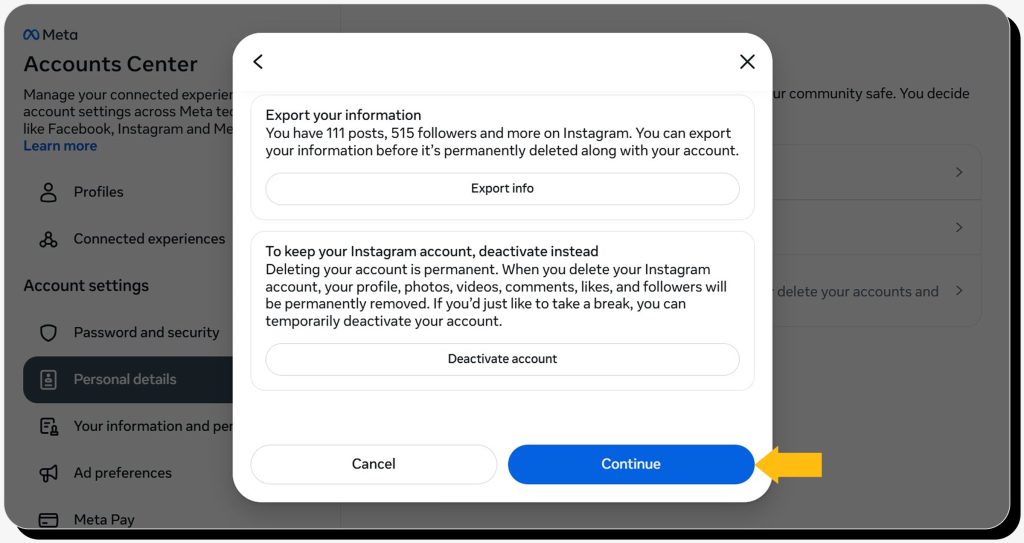
Step 7: Submit your password. After that, submit the reason for account deletion. Then, click “Continue” unless you want to export your data.
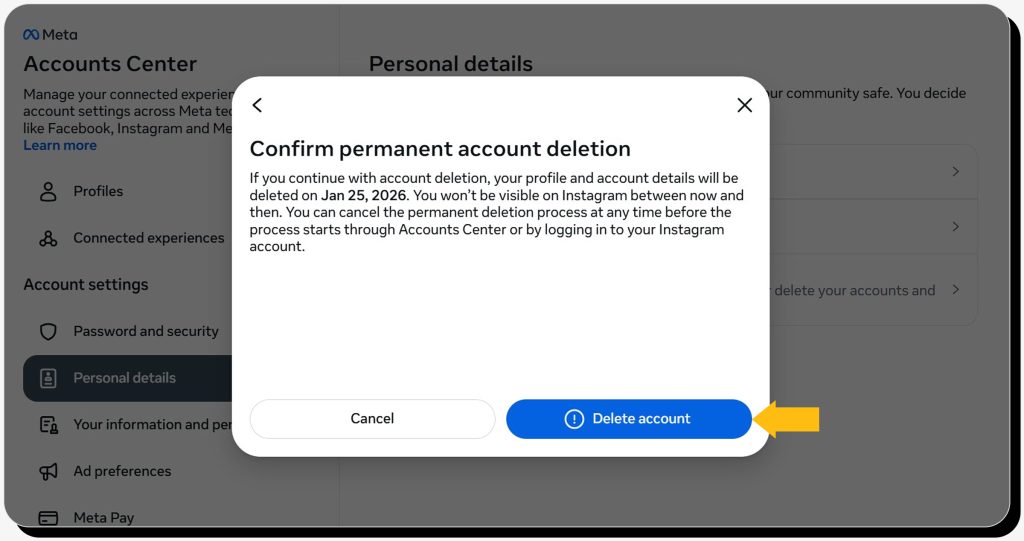
Step 8: Click “Delete account” to complete the process.
How to deactivate an Instagram account temporarily
To deactivate your profile, go to Settings → Accounts Center → Personal details → Account ownership and control → Deactivation or deletion. There, choose deactivation and follow the prompts.
Your profile and previous activity will be hidden from other users until you log back in—which you can do at any time.
How to reactivate an Instagram account
To reactivate your account, simply log in using your username and password through the app or a web browser. You may be asked to complete a security check or agree to updated terms before access is fully restored.
How to improve your Instagram privacy
There are alternatives to stepping away from Instagram—whether temporarily or permanently. Here are some things you can do to use the app with less compromise to your data or free time:
- Update privacy settings: If you turn on the “Private account” toggle, it prevents strangers from seeing and interacting with your posts, messaging you, or tagging you.
- Review permissions: Removing third-party app access, login integrations, and connected services in the Accounts Center limits how much data external apps can access and reduces the risk of misuse if those apps are compromised.
- Limit ad tracking and data shared across Meta platforms: Go to the Accounts Center → Your information and permissions and review the available options.
- Adjust how others can interact with you in Settings. This will give you more control over who can reach you and will prevent unwanted contact and Instagram scams.
- Remove unwanted followers: Simply open their profile, tap the menu (3 dots), and choose “Remove follower.”
- Reduce visible digital footprint: Limit what others can learn about you via Instagram: review and delete old posts (both your own and where you’re tagged), risky DMs, and location-tagged content.
- Avoid using Instagram Maps: This new feature allows you to share your live location with followers, but it’s better to keep it off. If you want to share your location with emergency contacts for safety, do it via another platform.
FAQs
Does deactivating Instagram delete the account?
No, deactivating Instagram doesn’t delete the account. It will just remain hidden—your contacts, activity, and data won’t be permanently removed.
How do I close my Instagram account?
You can close your Instagram account by going to Accounts Center → Personal details → Account ownership and control → Deactivation or deletion. Once you complete the process, you have 30 days to reactivate your account. After that, it’s permanently deleted.
 Erin Kapczynski
SVP, B2B Marketing at Onerep
Erin Kapczynski
SVP, B2B Marketing at Onerep