 Last updated January 29, 2026
  read
read
Is BlueStacks safe? Here’s what you need to know in 2026
BlueStacks is considered safe when downloaded from the official website, as the popular Android emulator doesn’t contain malware, is released by a reputable company, and is trusted by millions of users.
However, BlueStacks does use significant resources and can trigger antivirus warnings due to how emulators operate–but those are false positives, and BlueStacks can be used securely on both Windows PCs and macOS. Read our BlueStacks review to learn more about what it is, privacy concerns, and how to stay safe when using it.
What is BlueStacks?
BlueStacks is an Android emulator that allows you to run Android apps and games on your desktop or laptop computer. Key features include:
- PC-like game controls
- Multiple instances to play multiple games at the same time
- Smart controls that display only what’s needed for focused play
- Macros that can be exported, imported, and shared
- Native support for Xbox, PlayStation, Logitech, and other gamepads
- Moments, which record the last 60 seconds of your gameplay
Self-billed as “the world’s #1 app player,” BlueStacks has a global userbase with over 100 million users, and it’s particularly popular with mobile gamers.
Is BlueStacks legit?
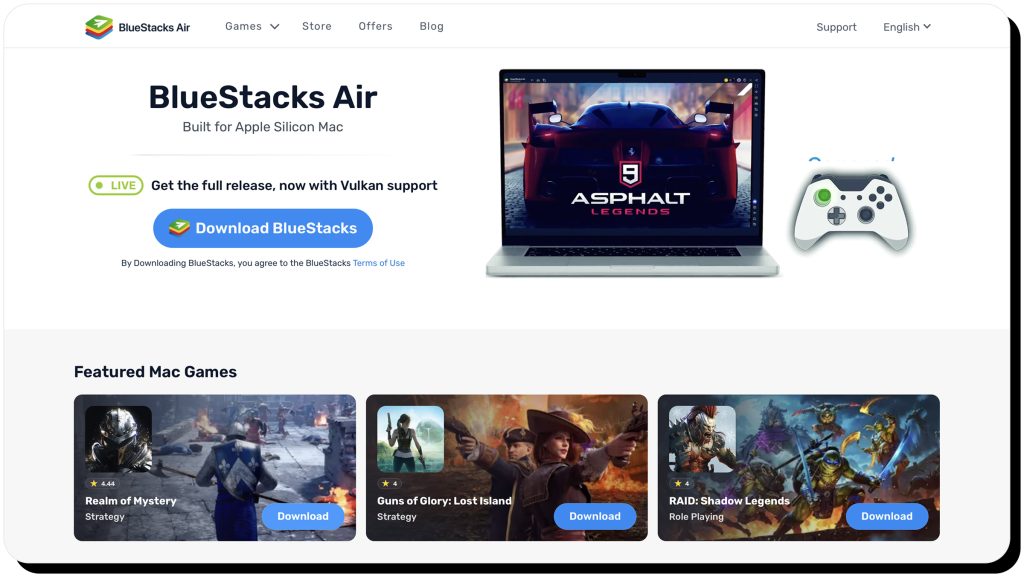
Yes, BlueStacks is a legitimate company founded in 2011 and based in Campbell, California. It has venture capital backing from major corporations in the United States, Japan, India, and Korea–including Intel, AMD, and Qualcomm.
BlueStacks routinely partners with companies such as Samsung, AMD, and MSI, which pre-installs BlueStacks software on its gaming computers. Collaborations with high-profile businesses like these help solidify BlueStacks as a legit company.
Is BlueStacks safe to use?
Yes, BlueStacks is safe to use–provided you download the application from the official website. The app runs in a virtual environment, so it’s isolated from your computer’s system files. In addition, BlueStacks’ support docs show that it uses HTTPS for account connections and app data.
Overall, safety depends on how you use the emulator. If you only run verified, trusted apps, you should be safe. If you install unknown APKs (Android Package Kits) not found on Google Play, your risk increases.
Note that older versions of BlueStacks could have security issues. In 2024, a security flaw was discovered that could have allowed hackers to access users’ systems under certain conditions. However, there were no actual reports of breached accounts, and BlueStacks quickly issued a security patch—subsequent releases remained secure.
Is BlueStacks legal?
BlueStacks is completely legal to use because it’s just a tool that emulates Android. Even though Android is made by Google, it’s open-source, so emulation doesn’t violate Google’s terms.
However, running pirated apps or APKs on BlueStacks is illegal, as it violates copyright laws and the terms of service of both Google and the app developers. To stay within the law, you need to install apps from legitimate sources like the Google Play Store or the developer’s official site.
Common concerns about BlueStacks
Even though BlueStacks is legal and considered safe, it’s still important to consider the following concerns.
Performance issues
BlueStacks uses a lot of processing power, which can slow down older computers. That doesn’t mean it’s unsafe, only that BlueStacks can overwhelm old systems.
You can optimize BlueStacks by:
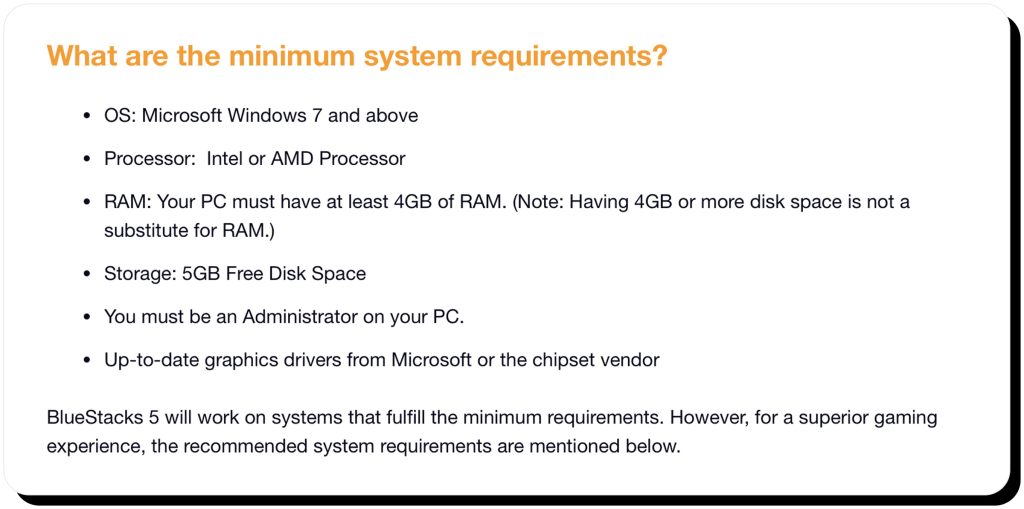
- Using a computer that meets the minimum requirements, including at least 4GB of RAM (and 8GB+ is recommended)
- Enabling virtualization
- Allocating more RAM and CPU to BlueStacks
- Enabling Eco Mode, which BlueStacks says can decrease CPU and GPU usage by 87% and 97%, respectively
- Keeping BlueStacks updated to the latest version
Data privacy
BlueStacks collects the same type of data that many other apps do, including your:
- Email address
- Location
- IP address
- Device information (operating system, network information, app activity, etc.)
- Purchase history
The app also collects data from your Google account, which could include your name, email address, and photograph. In addition, third-party ads (which fund BlueStacks so it’s free for users) can use cookies to track you after leaving BlueStacks.
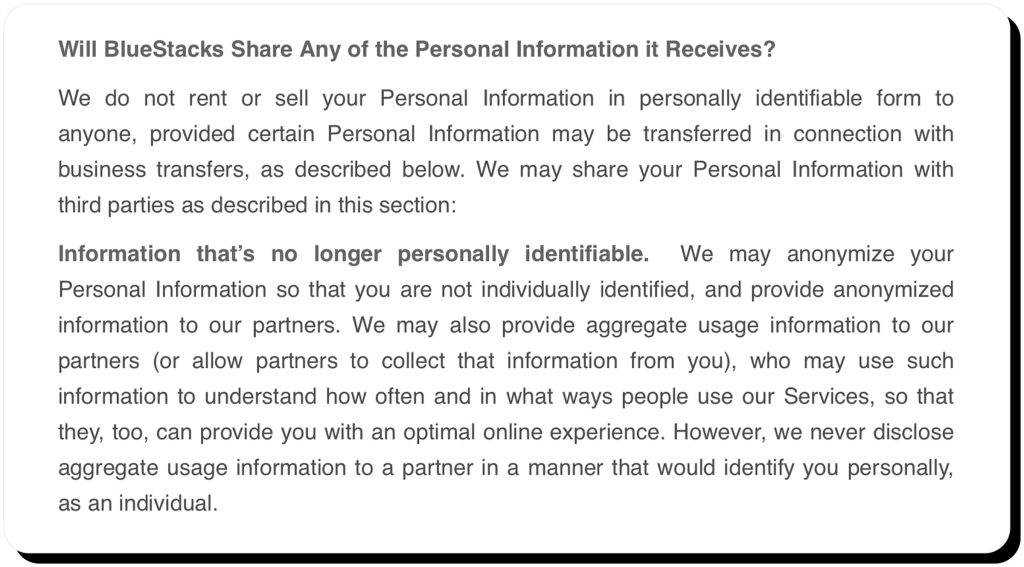
That said, BlueStacks doesn’t spy on you or sell your personally identifying data (though it does share anonymized or aggregated data with ad partners). BlueStacks doesn’t have malware, and it complies with privacy laws such as the GDPR and CCPA.
Together, these factors mean BlueStacks takes reasonable measures to protect your personal information. Still, privacy-conscious users might want to use an alternative Google account (that doesn’t reveal their identity) to sign in to the app.
Antivirus flags
Antivirus software can sometimes flag legitimate apps like BlueStacks as malicious. If that happens after you’ve downloaded the official app, it’s a false positive due to how emulators work, not because BlueStacks has malware.
The reason it gets flagged is because it runs in a virtual environment—where one operating system (in this case, Android) operates inside another (Windows or macOS). Some types of malware also use virtualization, and when an antivirus recognizes it, it can trigger a warning.
Still, it’s always best to check the digital signature on the installer file before running it to ensure it’s the official software. To check the digital signature on Windows:
- Download BlueStacks (but don’t run the file)
- Right-click on the downloaded .exe and select “Properties”
- Click the “Digital Signatures” tab. You should see Now.gg, INC or BlueStacks Inc. as the signer
How to use BlueStacks safely
Follow these tips to stay safe when using BlueStacks.
1. Only download BlueStacks from the official website
Unofficial downloads from third-party sources can contain malware, so be sure to only download from the official site and check the digital signature (as described above) before installing.
2. Keep BlueStacks updated
Like all software, BlueStacks occasionally releases security patches. It’s important to keep the app updated to prevent exploits.
3. Use an alternative Google account
If you’re concerned about the personal information on your Google account being exposed, create a second account with as little identifying data as possible, and only use that for BlueStacks.
4. Double-check app permissions
Keep in mind that BlueStacks doesn’t control the apps you download. Those apps might request permissions that go beyond what BlueStacks asks for. Be sure to double-check permission requests and reject any you’re not comfortable with.
5. Only download apps from the official sources
Only download apps from the Google Play Store or the developers’ official channels. Don’t sideload APKs from unofficial, untrusted sources, as these could contain malware.
6. Use a VPN
Consider using a VPN for an extra layer of privacy. A VPN masks your IP address, hiding your location from your ISP and any ad trackers. It also encrypts your data, making it difficult for your ISP and potential hackers to see your activity in BlueStacks.
7. Use an antivirus
Even though BlueStacks is safe, malware from other sources can still exploit vulnerabilities in your computer to target your BlueStacks environment. A good antivirus helps detect and block these threats.
Alternatives to BlueStacks
Here’s how BlueStacks compares to alternatives like NoxPlayer, LDPlayer, and Android Studio Emulator.
NoxPlayer
NoxPlayer is a lightweight Android emulator with extensive customization options for gaming, including keyboard mapping, script recording, and multiple instances. Like BlueStacks, it’s ad-supported. In 2021, NoxPlayer’s update system was compromised by hackers who installed spyware on targeted user computers. The company quickly investigated, resolved the issue, and put safeguards in place to help prevent future incidents.
LDPlayer
LDPlayer is optimized for gaming performance and offers keyboard mapping, multiple instances, virtual location, and gamepad controller support. Its unique OSLink feature allows you to use your mobile phone to remotely control your desktop or laptop emulator from anywhere. Like NoxPlayer and BlueStacks, LDPlayer is ad-supported. At the time of this writing, there are no known LDPlayer breaches.
Android Studio Emulator
Google’s official Android emulator is typically used for app development because it allows developers to simulate different Android devices and environments to test app builds. Ultimately, it’s best for Android app development, not pure gaming.
FAQs
Is BlueStacks safe for PC?
Yes, BlueStacks is safe to use on a PC, provided you take proper precautions such as downloading the app from its official website. The app runs in a virtual environment, so it’s isolated from Windows system files. In addition, it uses secure HTTPS connections to download and install updates, including security patches.
Is BlueStacks safe for Mac?
Yes, BlueStacks is safe to run on a Mac when downloaded from the official website. The app is sandboxed, so it doesn’t have direct access to macOS system files, and it downloads updates such as security patches over encrypted HTTPS connections. Note that because Apple’s computer architectures differ significantly from Windows, and most BlueStacks users are Windows users, features often roll out more slowly for the macOS version–but it’s still considered safe to use on Macs.
Is BlueStacks a virus?
No, BlueStacks is not a virus, and the official download doesn’t contain malware. However, some antivirus programs can still flag BlueStacks as malicious because of the way emulators work–essentially running one operating system (Android) inside another (Windows or macOS). Some types of malware work the same way, so antivirus software considers it to be suspicious–even though BlueStacks is safe. The true risk is in downloading installers from third-party sources, which can contain malware.



Mark comes from a strong background in the identity theft protection and consumer credit world, having spent 4 years at Experian, including working on FreeCreditReport and ProtectMyID. He is frequently featured on various media outlets, including MarketWatch, Yahoo News, WTVC, CBS News, and others.