Published December 25, 2025
  read
read
How to delete your PayPal account: a complete guide for desktop and mobile

To delete (close) your PayPal account, log in using the mobile app or the official website. Then go to Settings and choose the “Close Account” option. Note that pending transactions, unresolved disputes, and active subscriptions must be resolved beforehand.
Before you delete your PayPal account
Here are some important steps to take to make sure the deletion isn’t interrupted by any issues:
- Withdraw or transfer the remaining balance. PayPal won’t let you close an account that still has money in it or pending transactions. Moving the money out ensures you don’t risk delays caused by payment holds, refunds, or chargebacks that haven’t finished processing. It also ensures your money ends up exactly where you want it (your bank account or card). You can transfer funds by going to “Wallet” on desktop and mobile devices.
- Remove connected bank accounts and credit cards. Even though PayPal restricts activity on closed accounts, unlinking payment methods first ensures they won’t be used for pending transactions, delayed refunds, or automatic payments tied to them. You can remove the connected methods by going to “Wallet” on desktop and mobile as well.
- Resolve open disputes and chargebacks. PayPal won’t allow account deletion while claims are still open because they can affect your balance or legal responsibility. Unresolved cases may involve reversals, fees, or requests for additional information, and closing your account mid-process could lead to outcomes you can’t easily contest. To manage open cases, log in to your account on a desktop and go to the Resolution Center (usually found under Activity or Help).
- Cancel active subscriptions and recurring payments. If you connected any services like streaming platforms or software subscriptions to PayPal for automatic renewals, these should be cancelled to avoid service interruptions or billing confusion. If you’re on a desktop, you can find recurring charges under “Settings” → “Payments.” On mobile devices, tap the menu icon at the top of the app screen, then check “Subscriptions” and “Linked businesses.”
- Download your transaction history. Once your account is closed, you won’t be able to retrieve your history—but having it might be useful for tax and bookkeeping purposes. You can save the information via a browser by going to “Activity” → “Download” section or icon.
What happens after you delete your PayPal account?
Account deletion (or, to use PayPal’s term, closure) is permanent and can’t be reversed. You won’t be able to access your transaction history, rewards, merchant tools, crypto features, and other services.
If you decide you want to use PayPal again later, you can create a new account—even with the same email you signed up with before. However, it will be treated as a brand new profile, and no previous history will be restored.
How to close a PayPal account via a browser
Step 1: Go to PayPal’s website and sign in to your account.
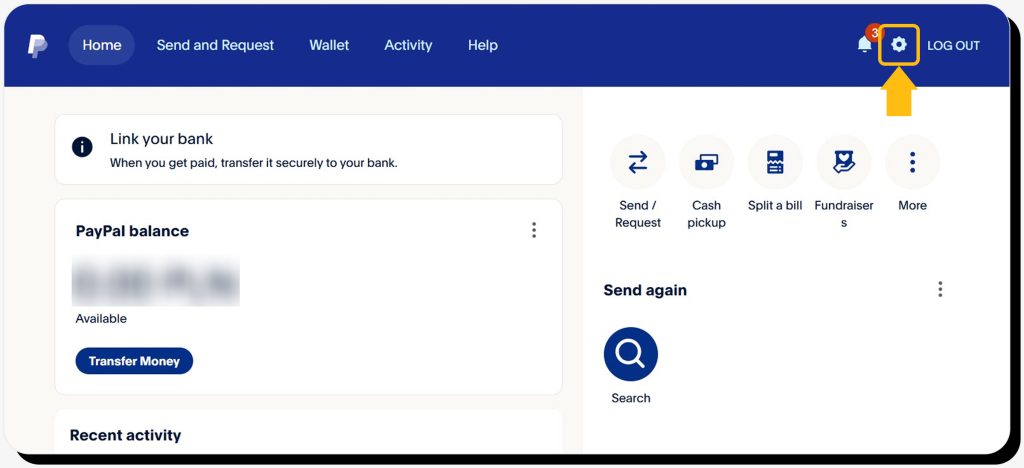
Step 2: Click the “Settings” icon, located on the top right of the screen (gear symbol).
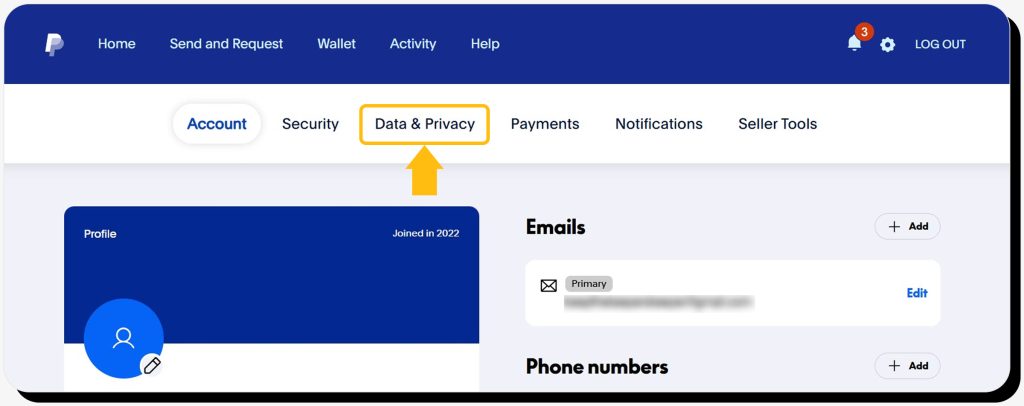
Step 3: Choose “Data & Privacy.”
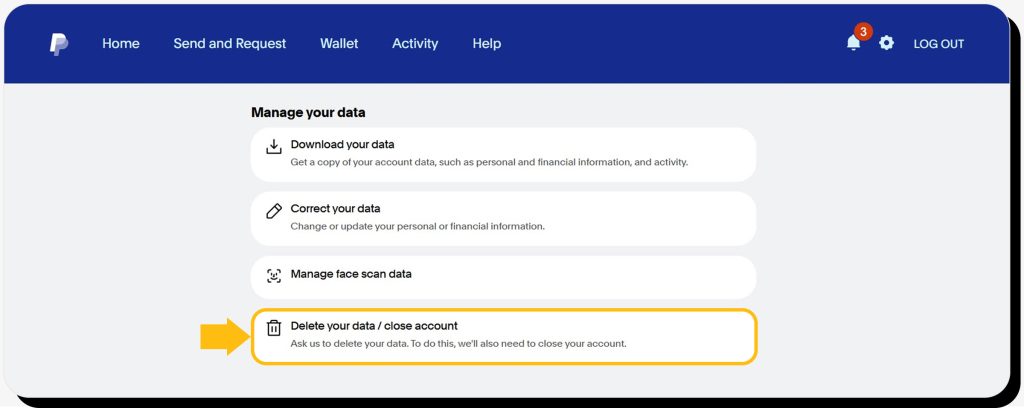
Step 4: Scroll all the way down and choose “Delete your data/ close account.”
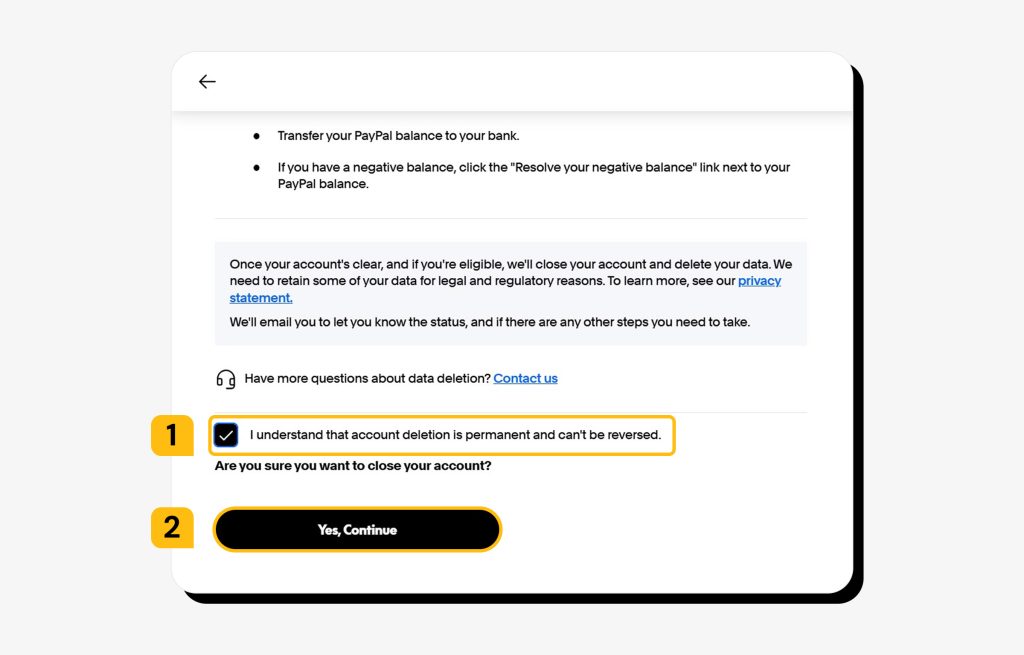
Step 5: Read the “Before you continue” note and check the box labeled “I understand that account deletion is permanent and can’t be reversed.” Finally, click the “Yes, Continue” button.
How to cancel a PayPal account on mobile
Step 1: Open the PayPal app and log in.
Step 2: Tap on your profile icon at the top of the screen.
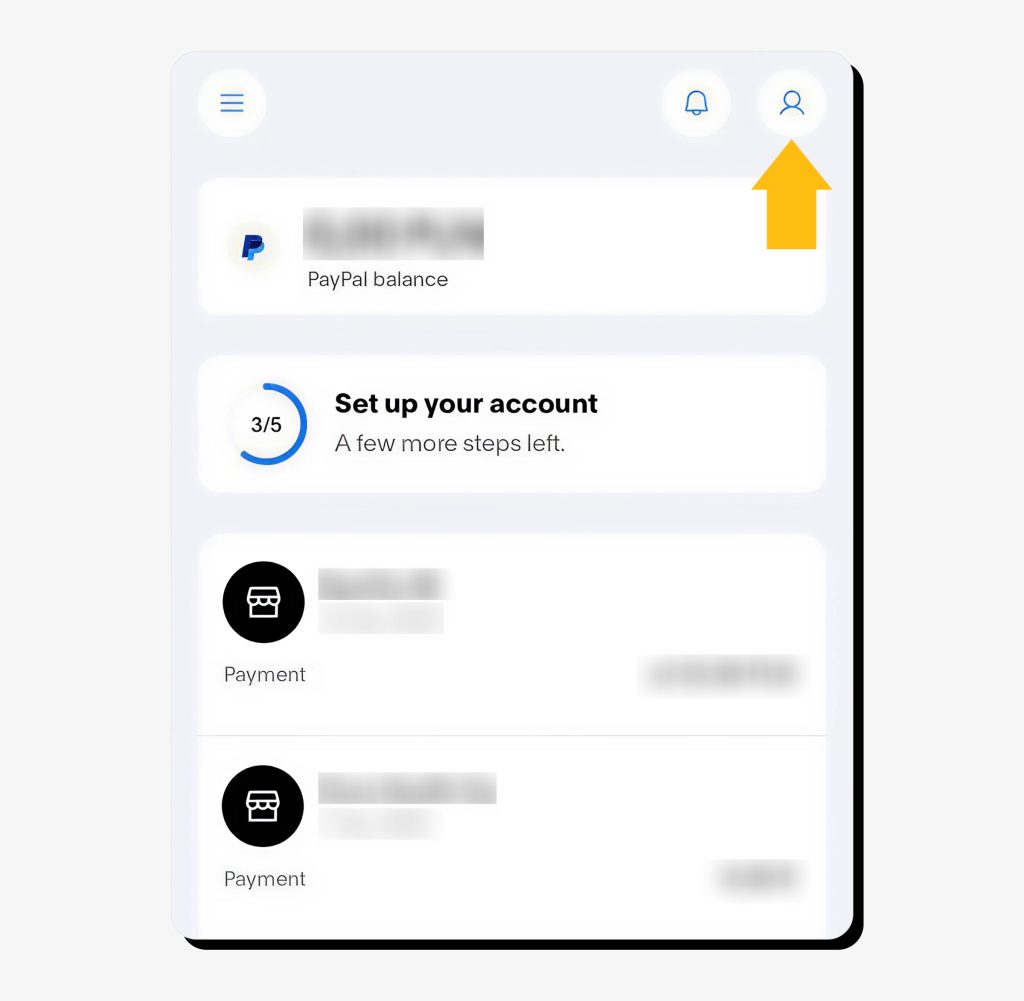
Step 3: Go to Settings.

Step 4: Tap “Close your account” at the bottom of the screen.
Step 5: Tap “Close account.”
How to delete a business PayPal account
You can close your business account via desktop, PayPal app, or the business app. You’ll need to go to your profile/ account settings, then select “Close account” and follow the on-screen instructions.
FAQs
How to deactivate PayPal if you can’t log in?
If you can’t log in because you forgot your password, try resetting it. If you lost access to your email, phone number, or authentication device, you need to contact PayPal customer support. Note that they are likely to ask for proof of identity to confirm you’re the account owner.
Is closing your PayPal account the same as deleting it?
Yes, it’s essentially the same thing: PayPal uses the term “close account” when describing the process of deactivating it permanently.
Will closing my PayPal account hurt my credit score?
No, closing your PayPal account shouldn’t hurt your credit score. Paypal is an online payment system—not a credit or debit card. However, if you’ve used PayPal Credit or another PayPal financing option, the impact depends on your situation. Any missed or late payments on PayPal Credit, not the account closure itself, are what can negatively affect your credit.
 Erin Kapczynski
SVP, B2B Marketing at Onerep
Erin Kapczynski
SVP, B2B Marketing at Onerep