Published December 23, 2025
  read
read
How to delete a LinkedIn account: step-by-step guide for mobile and desktop
To delete your LinkedIn account, open Settings & Privacy from your profile menu, go to Account preferences, and scroll to the Account management section, where you’ll find the Close account option. LinkedIn will ask you to choose the reason for leaving and then prompt you to enter your password to confirm. Once submitted, your profile is deactivated immediately and permanently deleted after a short period—unless you decide to reactivate it within 14 days.
Things to know before closing your LinkedIn account
Closing your LinkedIn account is a permanent step, and there are a few important details worth reviewing before you do it:
- Deleting an account doesn’t automatically cancel subscriptions. LinkedIn might prompt you to cancel Premium when you’re closing your profile, but it’s better to do it manually beforehand to ensure there aren’t any issues. For that, log in to your account on desktop, go to Premium features under the Me icon at the top, then click Manage subscription → Purchases → Active subscription → Cancel subscription.
- If you change your mind, LinkedIn typically allows reactivation within 14 days. However, it’s important to note that some data—including endorsements and group memberships—won’t be restored.
- You can hibernate your account instead of deleting it. This also hides your profile from public view but doesn’t erase it completely, and you can restore all the data later.
- You can save your LinkedIn data before deleting the account. Once the profile is permanently removed, you lose access to your entire history—connections, messages, posts, endorsements, recommendations, and job application activity. You can download your data by going to Settings & Privacy → Data privacy → Get a copy of your data under the How LinkedIn uses your data section.
How to close your LinkedIn account on desktop
Step 1: Click on your profile icon (Me at the top of the page). Click “Settings & Privacy.”
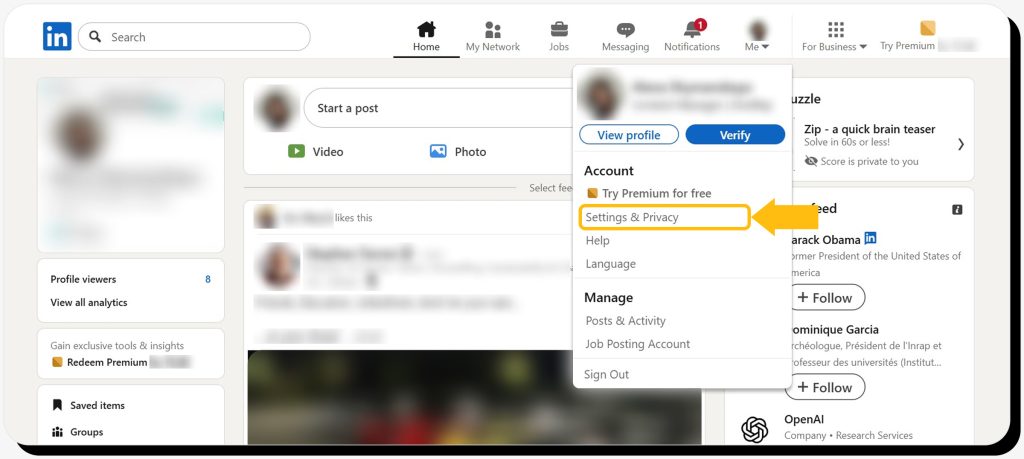
Step 2: You should now be on the “Account preferences” page. If not, click this option on the left pane. Scroll all the way down to the “Account management” section and click “Close and delete account.”
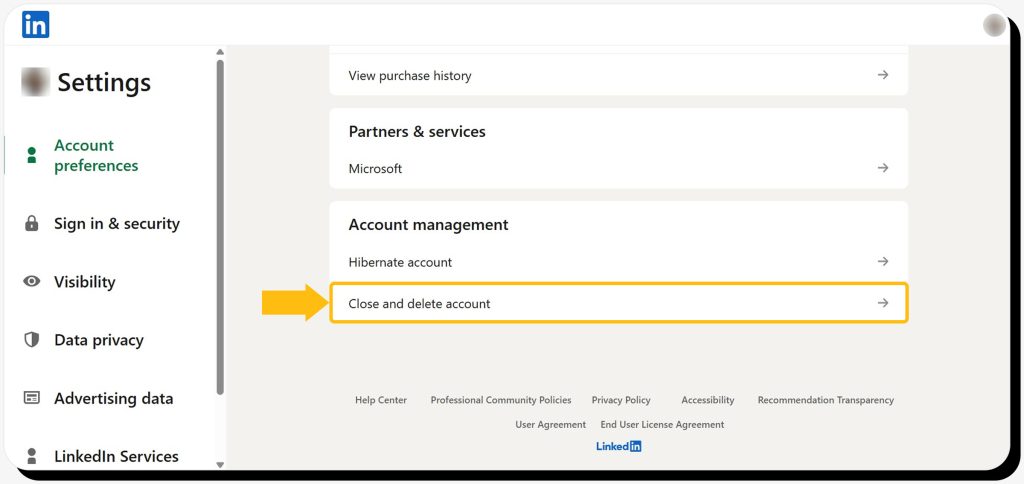
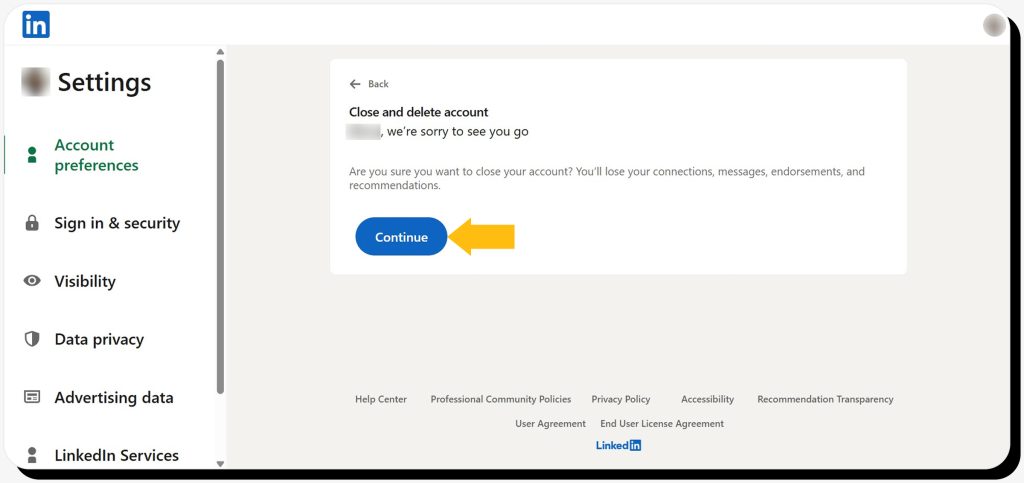
Step 3: Click “Continue.”
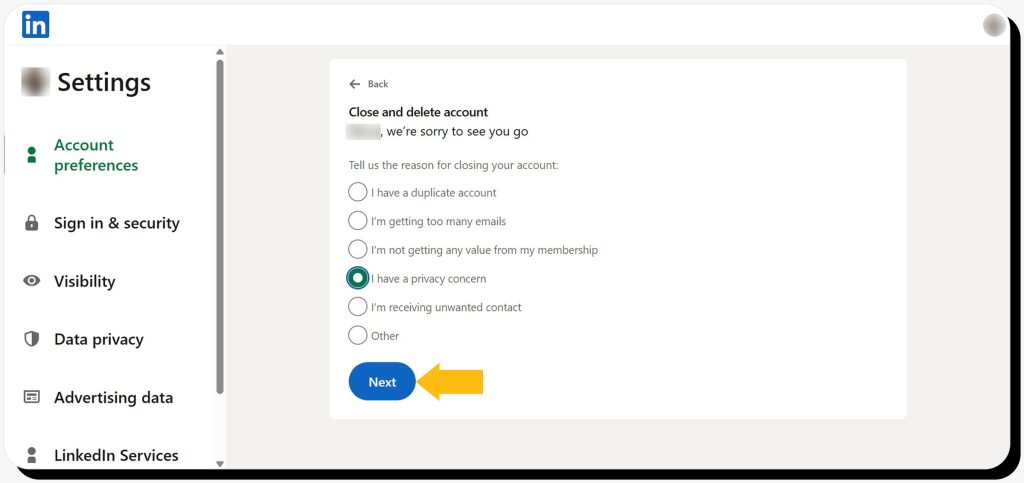
Step 4: Choose your reason for closing the LinkedIn account and click “Next.”
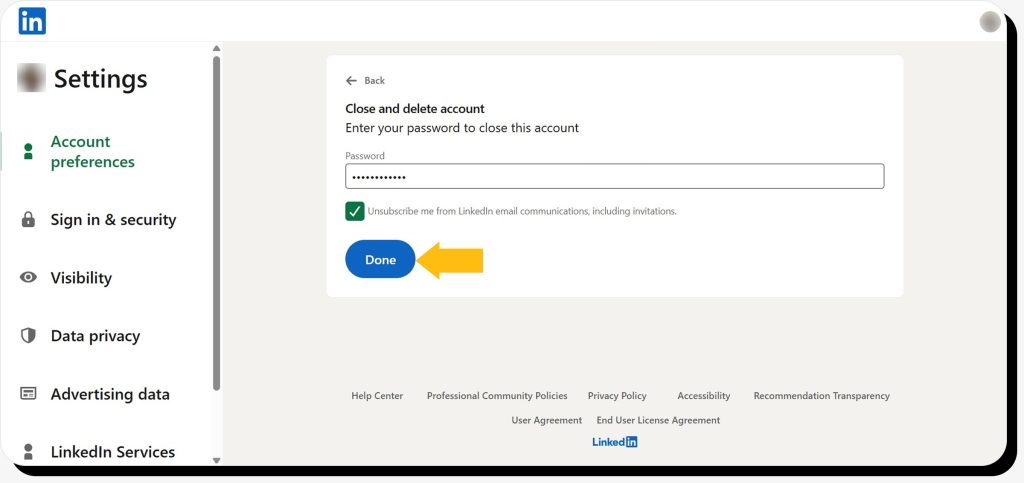
Step 5: Enter your password, tick the unsubscribe option, and click “Done.”
Your profile is now deactivated. Note that it may appear in search results for a short while until cached data updates.
How to delete your LinkedIn profile on mobile
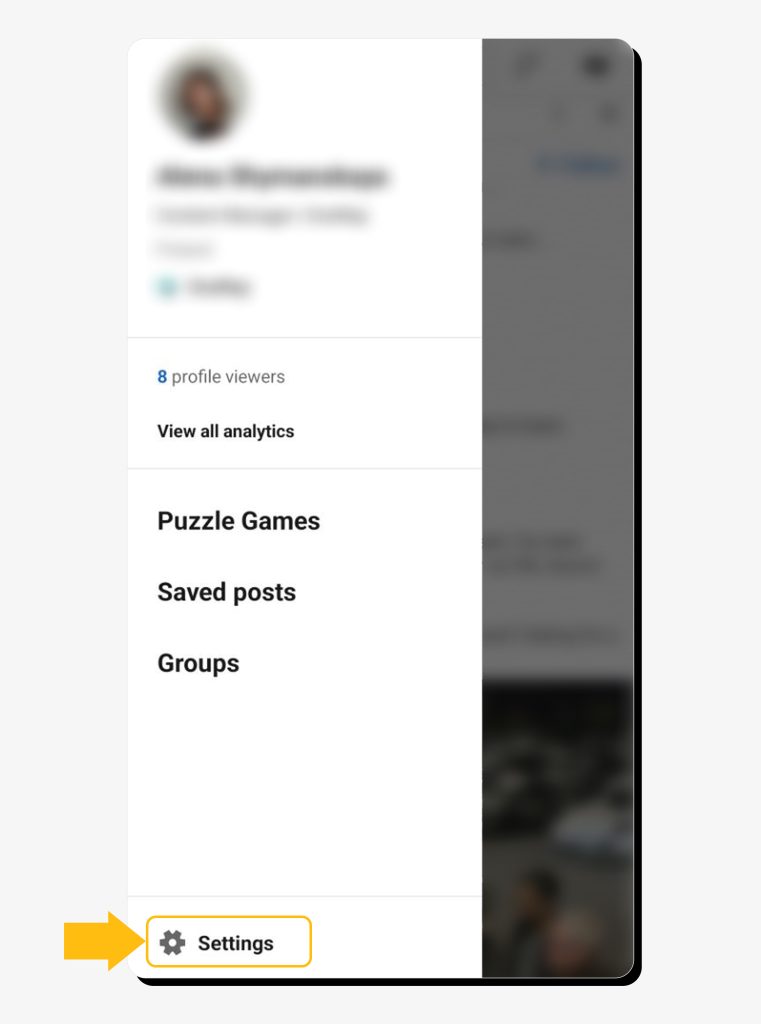
Step 1: Click on your profile image and go to “Settings.”
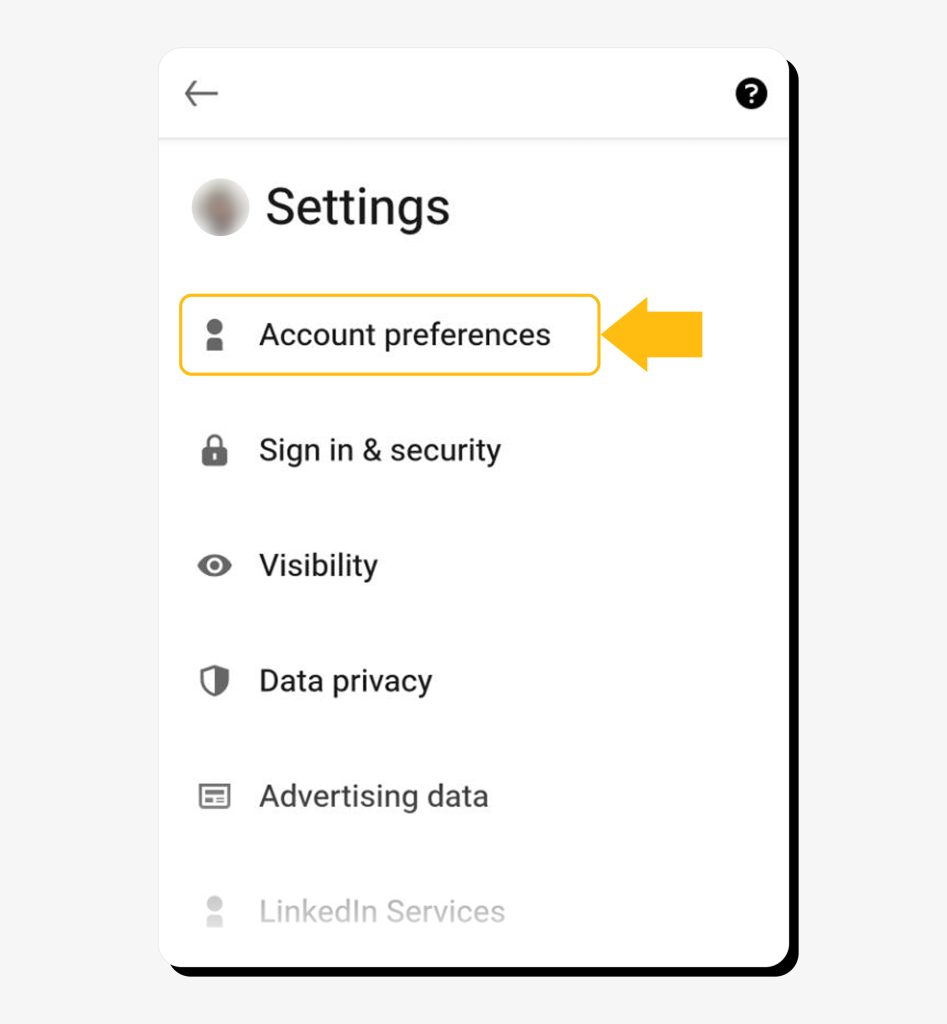
Step 2: Choose “Account preferences.”
Step 3: Scroll to the “Account management” section and tap “Close and delete account.”
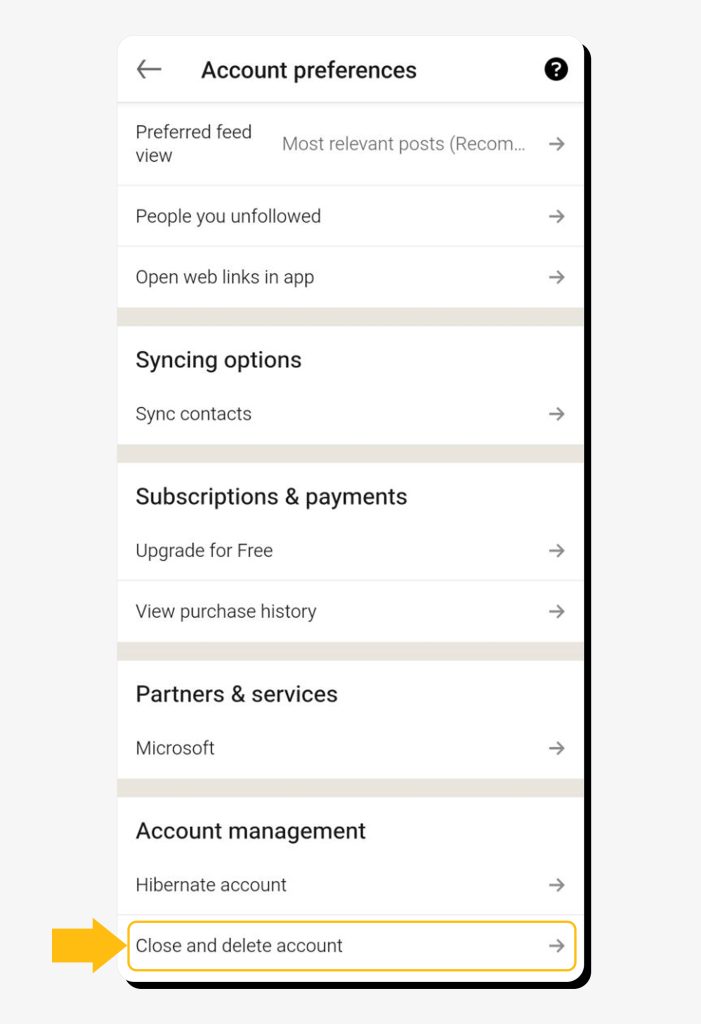
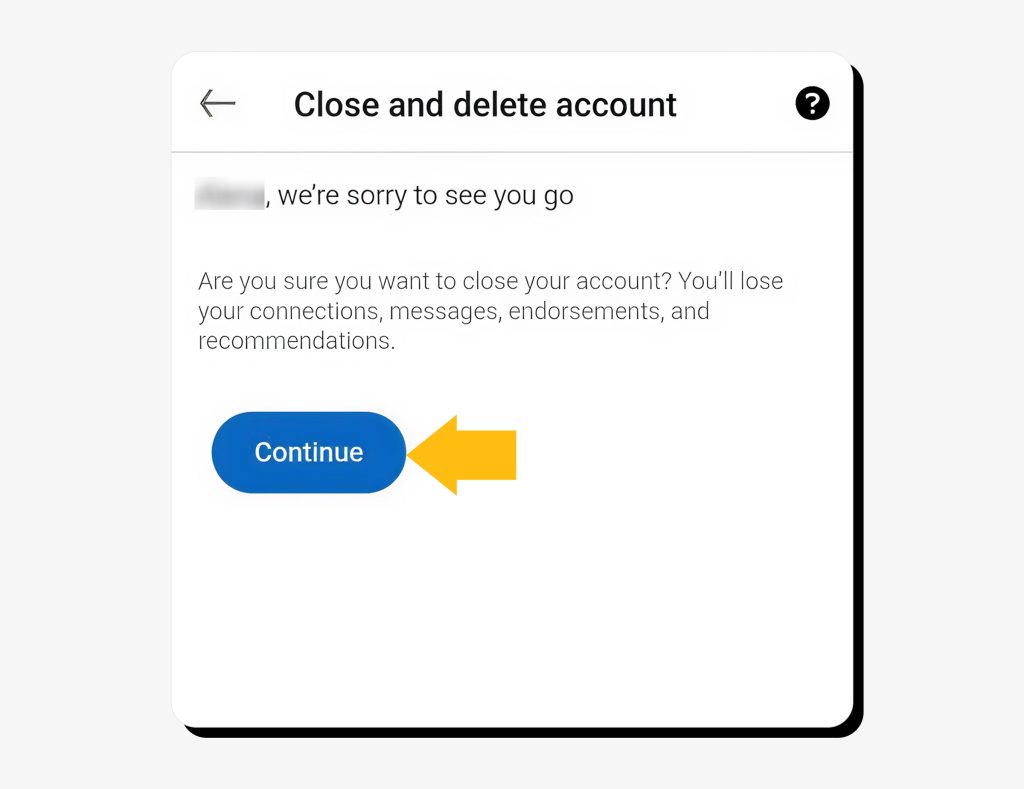
Step 4: Hit “Continue.”
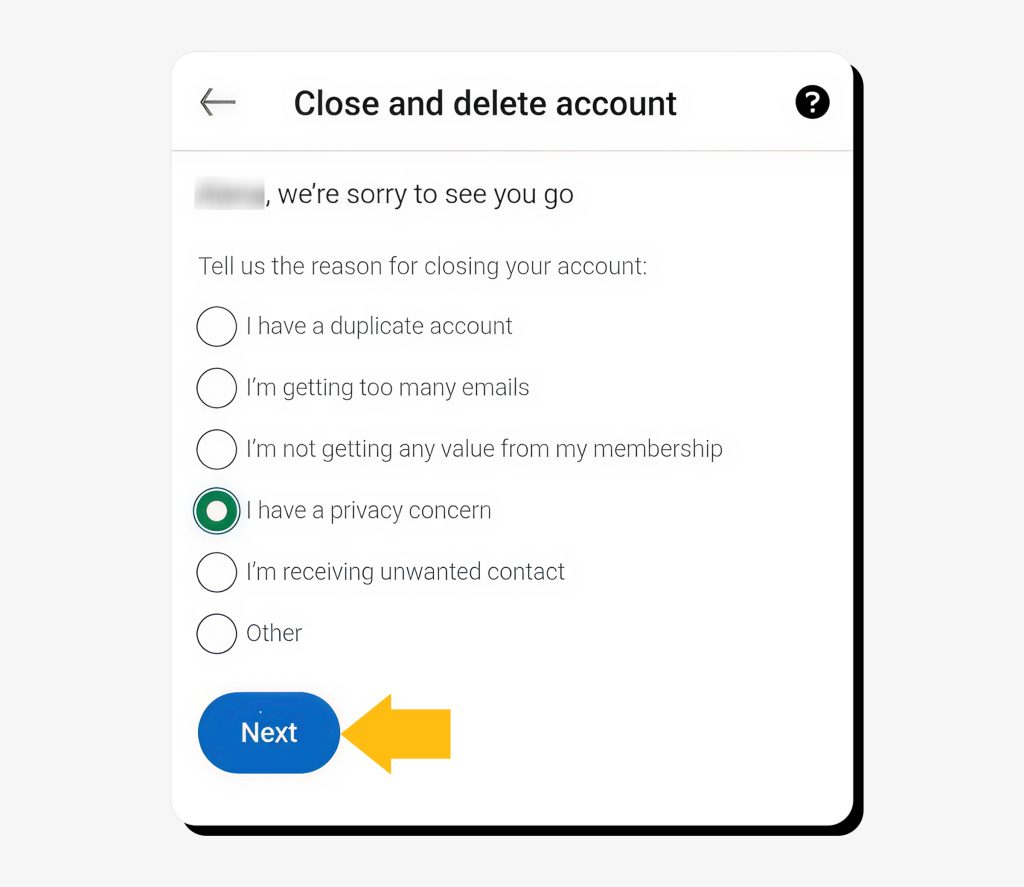
Step 5: Submit your reason for closing the account.
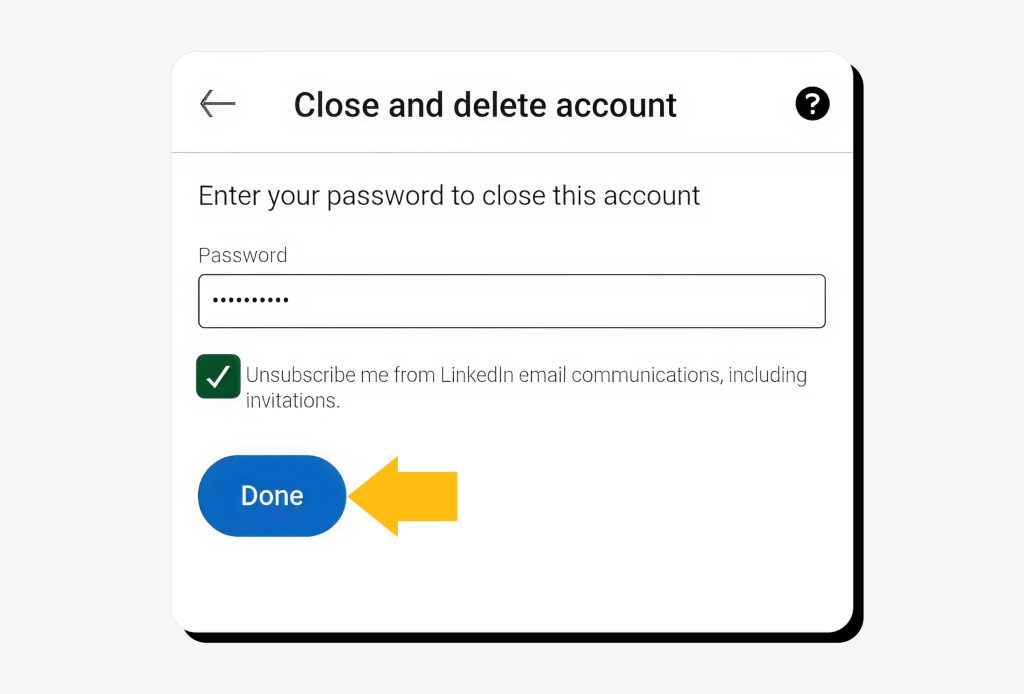
Step 6: Enter your LinkedIn password, unsubscribe from LinkedIn communications, and tap “Done.”
After you deactivate your LinkedIn account, most of your information is permanently erased within about 30 days, though some backup copies may take up to 90 days to fully remove.
How to hibernate your LinkedIn account
Hibernation is a good option if you might want to get back to your account later—you won’t lose any data, including connections, endorsements, and messages. LinkedIn doesn’t state a specific period for which your account can stay hibernated, so it’s likely indefinite.
Step 1: Click on your profile icon and go to “Settings & Privacy.”
Step 2: Scroll to the “Account management” section and click “Hibernate account.”
Step 3: Read the instructions and click “Hibernate.”
Step 4: Submit your reason and comment (the latter is optional).
Step 5: Enter your password and click “Hibernate account.”
Once you complete the last step, your account will be inaccessible for 24 hours. After that, you can reactivate it at any time.
How to reactivate your LinkedIn account
Typically, LinkedIn allows account reactivation within 14 days after its deletion. To do that, you need to:
- Sign in to your LinkedIn profile with your username and password. Alternatively, click the link you received in the account closure email.
- Click the prompt to “Reactivate” your account.
- Confirm the reactivation via email.
Alternatives to deleting a LinkedIn account
You can take a break from LinkedIn without deleting or even hibernating your profile. If you want some time away from the platform, you can:
- Adjust the privacy and visibility settings instead. Under “Settings & Privacy,” you can control who can see your activity, limit what personal details are shown, and manage how your profile appears in search results. There is also an option to remove public visibility entirely.
- Turn off email and push notifications. Just go to Settings & Privacy → Notifications and adjust your preferences.
- Stop job alerts. If you don’t want to receive job alerts, go to the Jobs tab → Preferences. There, you can turn off job alerts entirely or delete specific ones you no longer want to receive.
FAQs
How to cancel a LinkedIn account?
You can cancel your LinkedIn account by going to Settings & Privacy → Close account under Account management. You will need to submit your reason for deleting the profile and enter your password.
Is it better to deactivate or delete LinkedIn?
Account deactivation starts the process of deletion—your profile is automatically erased if you don’t reactivate it within 14 days after deactivation. However, you can also hibernate your account: this will temporarily hide your profile, activity, and visibility without deleting any of your data, allowing you to return and restore everything whenever you’re ready.
 Erin Kapczynski
SVP, B2B Marketing at Onerep
Erin Kapczynski
SVP, B2B Marketing at Onerep