Last updated January 29, 2026
  read
read
How to make your Facebook account private and limit what others can see
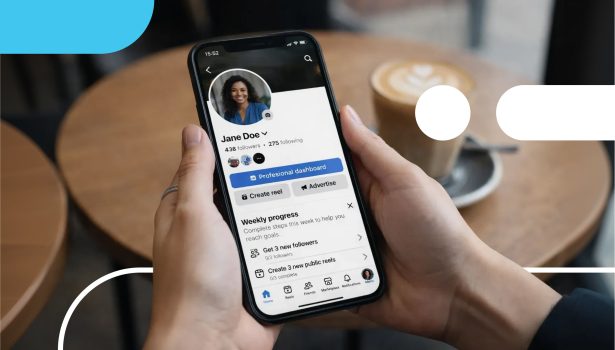
Making your Facebook account private is a smart way to stay safe while still sharing special moments with friends and family. When you make your profile private on Facebook, fewer strangers can see your posts or friends list, it’s harder for someone to stalk you online, and your data is less exposed to advertisers.
However, Facebook’s privacy tools can be a little confusing, with different and overlapping settings scattered between Audience & Visibility, Privacy Checkup, Privacy Center, and Activity Log.
If you’re just looking for a quick way to limit who sees your posts, you can make simple adjustments under Audience & Visibility settings. If you want more control, keep reading for a comprehensive guide on how to make your Facebook account private.
What “private” means on Facebook today
Today, Facebook privacy generally refers to who can and cannot view your content and personal information. It also extends to how Facebook and its partners can collect and use your data.
Note that there is no single “private mode” switch on Facebook. Instead, you’ll need to adjust multiple settings – posts, profile, search visibility, tagging, and more – to achieve your desired level of privacy.
For many settings, like your profile information and posts, Facebook lets you decide who can view them:
- Public: Anyone on or off Facebook
- Friends of friends: Your Facebook friends and their friends
- Friends: Your Facebook friends only
- Friends except…: Exclude specific friends from seeing your information
- Specific friends: Only show your information to certain friends
- Custom: Create custom lists and include or exclude them from viewing your information
- Only me: Only you can see the information
Naturally, “only me” is the most private option – but Facebook is a social network, so it stands to reason that you’ll want to share some of your content with some people. That means curating custom lists might be the best balance, since it gives you the most control over who sees what.
What you can and can’t hide on Facebook
While Facebook’s privacy settings give you a lot of control over who can view your information, some things can’t be hidden from public view. Here’s a quick breakdown.
| What you can hide on Facebook | What you can’t hide on Facebook |
|---|---|
| Past and future posts Posts you’re tagged in (on your profile) Friends list (except mutual friends) Followers (except mutual friends) Your activity, including page and comment activity Location Search engine visibility (whether your profile can be found on Google, Bing, and other search engines) Profile information (birthday, relationship status, work history, education, hometown, current city, email, phone number, check-ins, and life events) You can also restrict who can find you with Facebook search | Your “real” name (the name you set on Facebook) Username Profile URL Current profile photo thumbnail and cover photo Comments and reactions on public posts, pages, and groups Mutual friends Marketplace profile and listings Posts about you (you can remove tags, but not the posts) |
Note that making your Facebook account private does not automatically encrypt or delete Messenger chats, as those are controlled by separate settings.
How to make your Facebook account private
Facebook provides several paths to make your account private, including Audience and Visibility, Privacy Checkup, Privacy Center, and Activity Log. Many of the same settings can be found in multiple places, but some are only found in one or two of them. Here’s how to make your Facebook account private with all four tools.
Audience and Visibility settings
Start by accessing the Audience and Visibility settings:
- iPhone: Tap the bottom right profile photo > top right Settings & privacy gear icon > audience and visibility.
- Android: Tap the top right profile photo > top right Settings & privacy gear icon > scroll to audience and visibility.
- Computer: Click the top right profile photo > Settings & privacy > Settings > scroll the left sidebar down to audience and visibility.
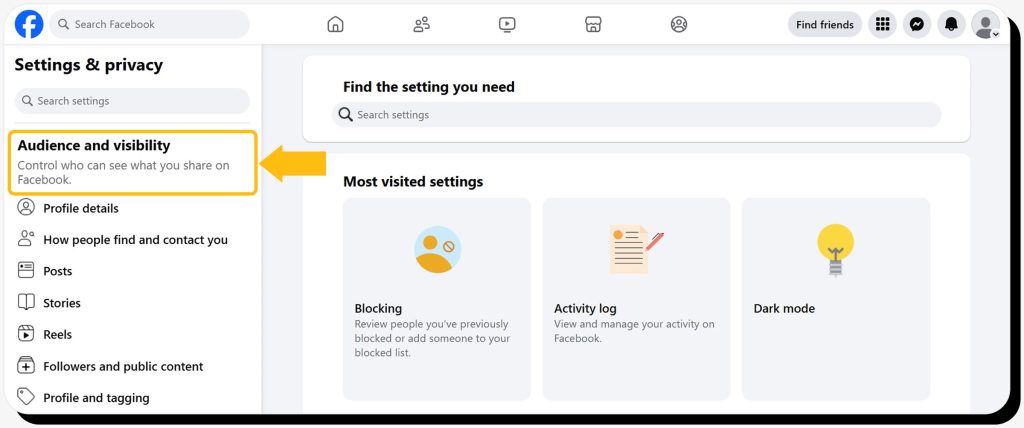
From there, go through each item and select who can see your information on Facebook:
- Profile details: Hometown, current city, relationship, phone number, work and education, places lived, contact info, life events, and other details.
- How people find and contact you: Who can send you friend requests, see your friends list, whether Facebook can suggest you as a friend to people who already have your phone number or email address, and how you get chat messages. Importantly, this is also where you can disable search engines from linking to your profile.
- Posts: Who can see your past and future posts and whether to allow AI comment summaries and visual search.
- Stories: Who can see your stories, whether others can share your public stories and the ones that mention them.
- Reels: Who can see your reels and whether others can share them to their stories.
- Followers and public content: Who can see your followers, the people and pages you follow, and who can like or comment on your public posts and profile information. You can also limit off-Facebook previews, which can display your username, profile photo, and content when public group posts are shared on third-party platforms.
- Profile and tagging: Who can post on your profile and see what others post there. You can also manage if others can share your posts to their stories, tagging rules, and enable options to review tags and posts you’re tagged in before they appear on Facebook or on your profile.
- Blocking: Block specific profiles, pages, event invites, and more.
Facebook Privacy Checkup
Facebook Privacy Checkup is an easy, guided way to make your account private. Though it doesn’t have every possible setting, it does walk you through some of the most impactful options. There are also a few settings you’ll find here that are not found in the Audience and Visibility settings.
To access it, browse to Settings & privacy as before, then select Privacy Checkup. The page will display multiple topics. Click on each to choose your desired level of privacy.
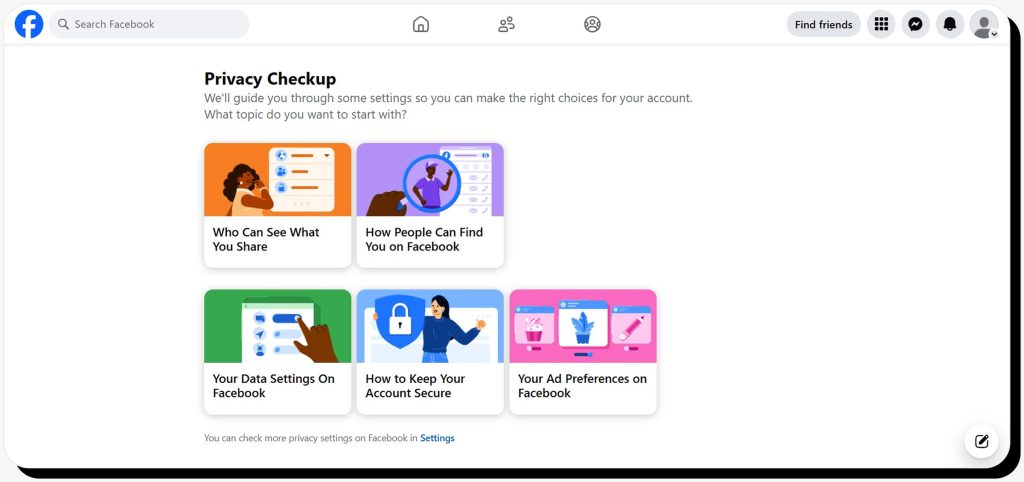
Who can see what you share
These settings are also available in Audience and Visibility – choose who can view data such as your profile information, posts, and stories.
How people can find you on Facebook
Also available in the Audience and Visibility settings, here you can decide who can send you friend requests and whether you want search engines to link to your profile.
Data settings
If you previously connected third-party apps and websites to Facebook, you’ll see them listed here. Remove any you don’t absolutely need. You can also disable the ability to use Facebook to log in with third-party apps, websites, and games.
How to keep your account secure
Review your password, two-factor authentication, and where you’re logged in. You can log out of any device you don’t recognize, set up login alerts, and run a security checkup. Though these settings don’t directly affect your privacy, they can help prevent hackers from gaining access to your account and stealing or exposing your data.
Ad preferences
Choose what information advertisers can see about you, such as your relationship status, employer, job title, and education. You can also disable friends from seeing your social interactions alongside ads.
Privacy Center
Facebook’s Privacy Center has a host of options to control your privacy across Meta platforms. Many can also be found in the Audience and Visibility settings as well as Privacy Checkup, including Account Details and Security and Audience Settings. However, there are a few additional settings here to pay attention to.
Access it from Settings & privacy > Privacy Center.
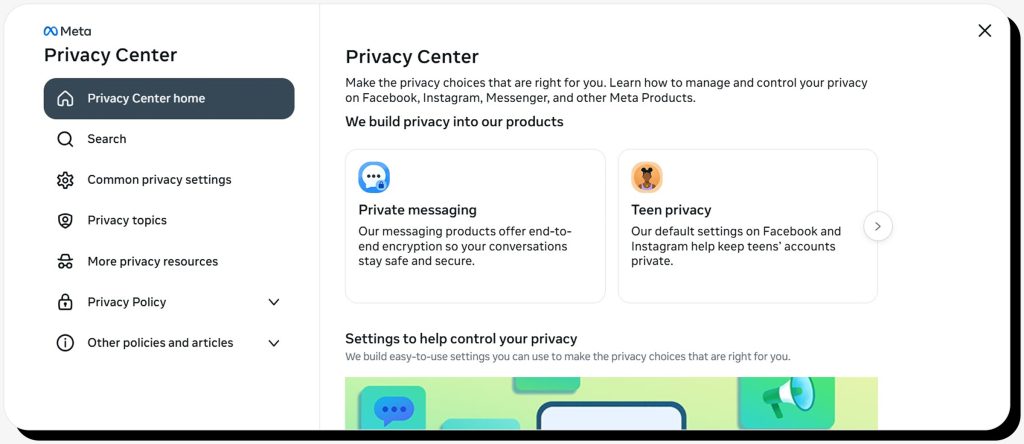
Ads preferences
This differs from the ad preferences found in Privacy Checkup. Click the “Manage info” tab to:
- Choose what profile information is used to personalize your ads
- Remove categories associated with you
- Disable the ability for Facebook to use your activity data from ad partners to show you ads
- Disable ads from Facebook ad partners in other apps
- Disable using your activity to show you ads about Meta
Privacy topics
In the left sidebar, you can click on privacy topics to view:
- Safety: This is another place where you can choose who can see your content, but it also has a setting that allows you to set a timer for Messenger messages to disappear after they have been seen.
- Generative AI: See what information Facebook uses to train its AI models and adjust settings.
- Location: Review posts that include your location.
- Activity: Disconnect information third-party companies and apps send to Facebook about you (be sure to check this – you might be surprised about who is sending your personal info to Facebook). You can also clear previous activity and disconnect future activity.
- Information: Here, you can temporarily deactivate and delete your account. You can also access your activity log (covered below in more detail).
- The Fediverse: Make sure you’re opted out of the fediverse, a global network of social media platforms that Facebook shares information with.
Activity Log
As its name suggests, the activity log lists your interactions with Facebook. You can access it by browsing to Settings & privacy > Activity Log.
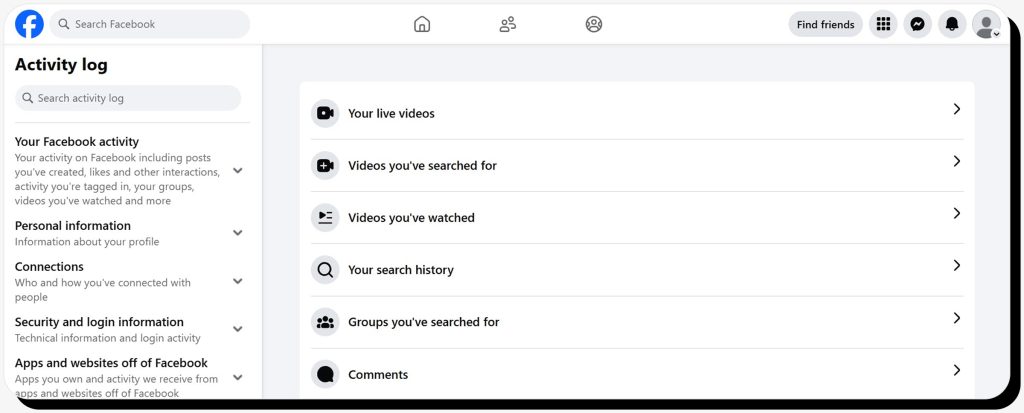
From there, you can review and delete your stored Facebook activity, including:
- Posts
- Tags
- Videos
- Search history
- Comments
- Group activity
- Pages, likes, and interests
- Profile information
- Connections
- And much more
It’s a good idea to go through these and delete anything you want to remain private.
Additional Facebook privacy tips
Beyond Facebook’s settings, use these additional tips to protect your privacy on Facebook.
1. Remove (and never post) sensitive information
Review your profile and past posts to remove any personal details you can, including your phone number, full legal name, home address, and places you frequent. Avoid posting sensitive information in the future.
2. Turn off location services
Turn off location services on your mobile phone to prevent Facebook from logging it.
iPhone
- Browse to Settings > Privacy & Security > Location Services > Facebook
- Choose “Never”
Android
- Browse to Settings > Apps > Facebook > Permissions > Location
- Choose “Don’t allow”
3. Check the public view of your profile
Facebook’s public view allows you to see your profile from a stranger’s perspective. Review it to see what information your profile reveals to anyone, then adjust accordingly. Here’s how to see the public view of your profile.
4. Use a dummy email and phone number
Instead of using your personal or work contact information, set up an email address and phone number that you use only for social media like Facebook. That will make it much harder for people to find you by searching for your real contact details.
5. Avoid posting in public groups
Anyone can view public groups, so any details you share in posts and comments are not private by default. If you do want to post, be very careful to avoid oversharing.
6. Don’t show your face in your profile and cover photos
Since you can’t completely hide your profile or cover photos on Facebook, the next best thing is to never show your face or any other identifying images on them. Instead, display nature landscapes, hobbies, animals, and other images that showcase your interests yet are generic enough to prevent someone from identifying you.
7. Make custom friends lists
Use Facebook’s custom lists feature to segment your friends so you’re only sharing with the most appropriate people. Example lists include:
- Close friends
- Family
- Acquaintances
- Work friends
8. Purge your friends list
Go through your friends list and remove anyone you don’t know well (or at all). Moving forward, do not accept invites from people you don’t know.
9. Watch what you share on Messenger
Even though Messenger has end-to-end encryption and you can enable disappearing messages, you can’t prevent people from taking screenshots of your chats. Never share sensitive information on Facebook Messenger.
10. Remove yourself from people-search sites
Data brokers, AKA people-search sites, publish sensitive information like your contact details, family member names, work history, location, birthday, and social media profiles. Scammers can use this info to try to access your Facebook account or impersonate someone you might know.
The best way to prevent Facebook scams is to remove yourself from data brokers so fraudsters can’t get your information in the first place. Onerep is a data removal service that automatically opts you out of 317 people-search sites, then continually monitors them to ensure your name stays off their lists and, effectively, out of scammers’ hands.
FAQs
How to make a profile private on Facebook?
Make your Facebook profile private by adjusting settings in Audience & Visibility, Privacy Checkup, Privacy Center, and Activity Log. Make sure only you or only your friends can view your profile details, but be aware that some information – like your username and profile URL – can’t be completely hidden.
How to make Facebook completely private to non-friends?
The easiest way to make your Facebook account private to non-friends is to browse to Audience and Visibility settings and make profile details, posts, stories, and reels only visible to friends. You should also disable search engines from displaying your profile and adjust tagging rules.
How to make my Facebook account private on an Android mobile?
On your Android phone, tap your profile photo in the top right, then tap the Settings & privacy gear icon. From there, adjust settings under Audience & Visibility, Privacy Checkup, Privacy Center, and Activity Log.
How to make Facebook private on iPhone?
On your iPhone, tap your profile picture, then select the Settings & privacy icon. Go through Audience & Visibility, Privacy Checkup, Privacy Center, and Activity Log to adjust your Facebook privacy settings.
 Erin Kapczynski
SVP, B2B Marketing at Onerep
Erin Kapczynski
SVP, B2B Marketing at Onerep