 Published December 5, 2025
  read
read
Apple security alert scam: how to spot and avoid fake warnings

For many online users, becoming a victim of social engineering scams is a nightmare they want to avoid by all means, but Apple device owners are particularly vulnerable when it comes to fake Apple security alerts. These scams target iPhone and Mac users with fabricated messages designed to look like official Apple communications, tricking people into revealing their personal information, granting remote access to their devices, or paying for fake tech support.
This article will guide you through the signs of fake Apple security pop-ups, emails, and messages, show you how to distinguish them from genuine Apple threat notifications, and help you protect yourself through safe browsing and device-usage practices.
What is an Apple security alert scam?
An Apple security alert scam is a fake notification that claims your iPhone, Mac, iPad or another Apple device is infected with a virus or is compromised otherwise. These fake warnings may appear as an on-screen pop-up, an email or phone call from Apple tech-support impersonators, or a text message. They often containing links to spoofed support websites, forms requesting your sensitive information, or phone numbers to call for supposed “assistance.”
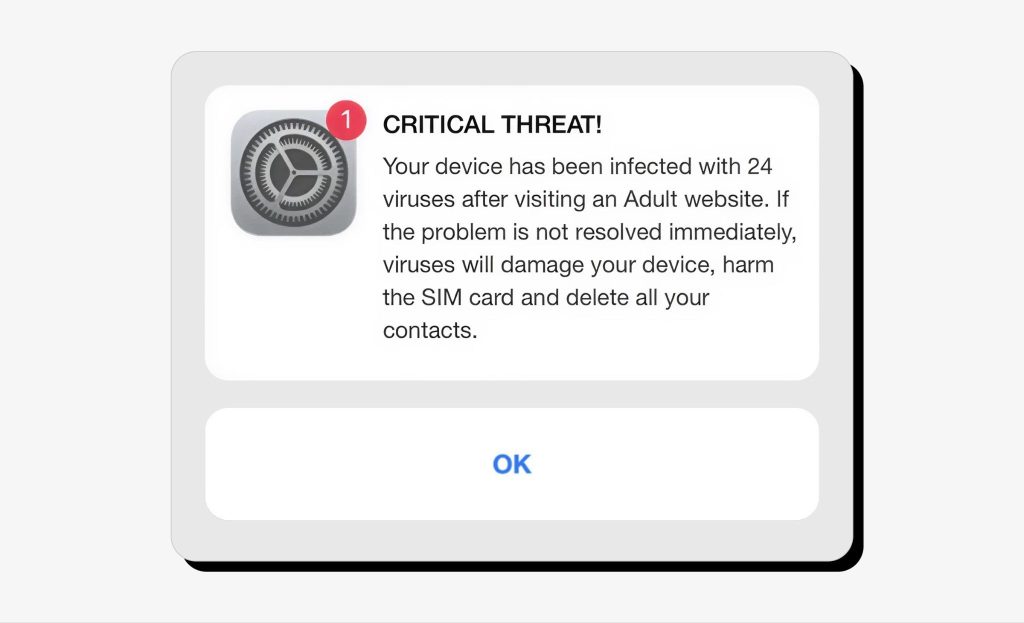
How do these scam messages reach your device? Scammers use several ways to deliver them. It may be:
- A pre-installed pop-up on an unsecured website you visit.
- A malicious app, adware, or browser extension that gets automatically installed on your device if you click a shady link or online ad.
- A phishing email from Apple support impersonators, which is also common for Apple Pay scams.
The goal of these fake security warnings is to make you panic and rush to save your device and Apple ID from being compromised or blocked. That’s why scammers often use scare tactics, urgency, and pressure. Once you take the bait and connect with them, they will try to trick you into sharing your personal information, transferring money to their accounts, granting remote access to your device, or giving away your Apple account credentials.
Examples of fake Apple security alert scams
Scammers use a variety of tactics and delivery channels to push their malicious messages when you least expect it. Below are the most common forms and examples of fake Apple security alerts you may encounter:
Phishing emails and text messages
You may receive an official-looking, Apple-branded email or text claiming there’s a problem with your account, unusual activity detected, or a suspected breach of your Apple ID. This Apple alert scam message will go on to detail why you should take action immediately and usually features contact details for you to reach out to “Apple Support.”
The reason scammers want you to get on the phone with them is that they can further social-engineer you into giving away more personal details, authorizing banking transactions, sharing your credentials, or granting them remote access to your device so they can act without you realizing their malicious intent (this is a common trick in AnyDesk scams, too).
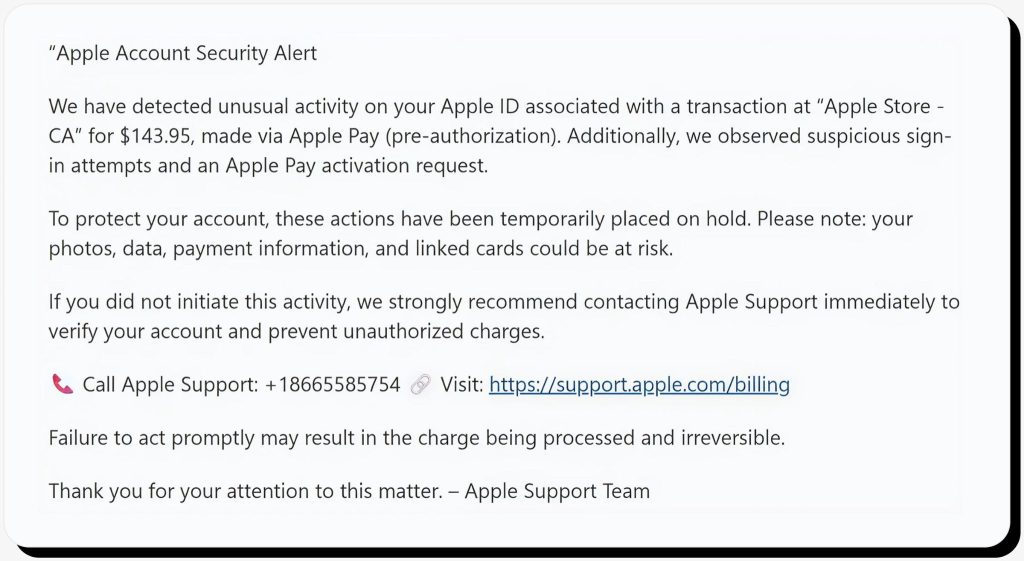
Fake Apple Support calls
You may receive an iPhone security alert via a phone call from fake Apple Support technicians. This is a shorter route than sending a phishing email because they can contact you directly and put you into panic mode over a fake security breach they claim they are trying to fix for you. As in the example above, they will attempt to collect your sensitive personal data, Apple ID credentials, online-banking login informaton, or payment-card details.
Fake Apple security pop-ups
This is one of the most prevalent forms of fake Apple security warnings. Sudden on-screen pop-ups in your Safari or Chrome browser may claim that there’s a security problem with your Mac or iPhone, that your device is infected, and that you will lose access to it unless you contact the number listed, download a “recovery” app, or take another prompt action.
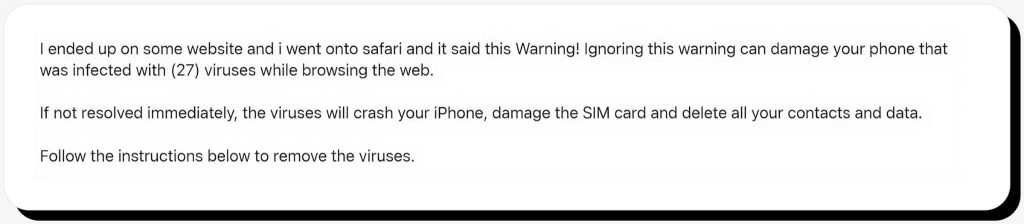
Behind the scenes, scammers set up these phishing traps on unsecured or malicious websites, using scare tactics to make you follow their instructions. They may want you to call them directly, install an app that silently spies on your device, or trick you into revealing sensitive information they can exploit for financial gain.
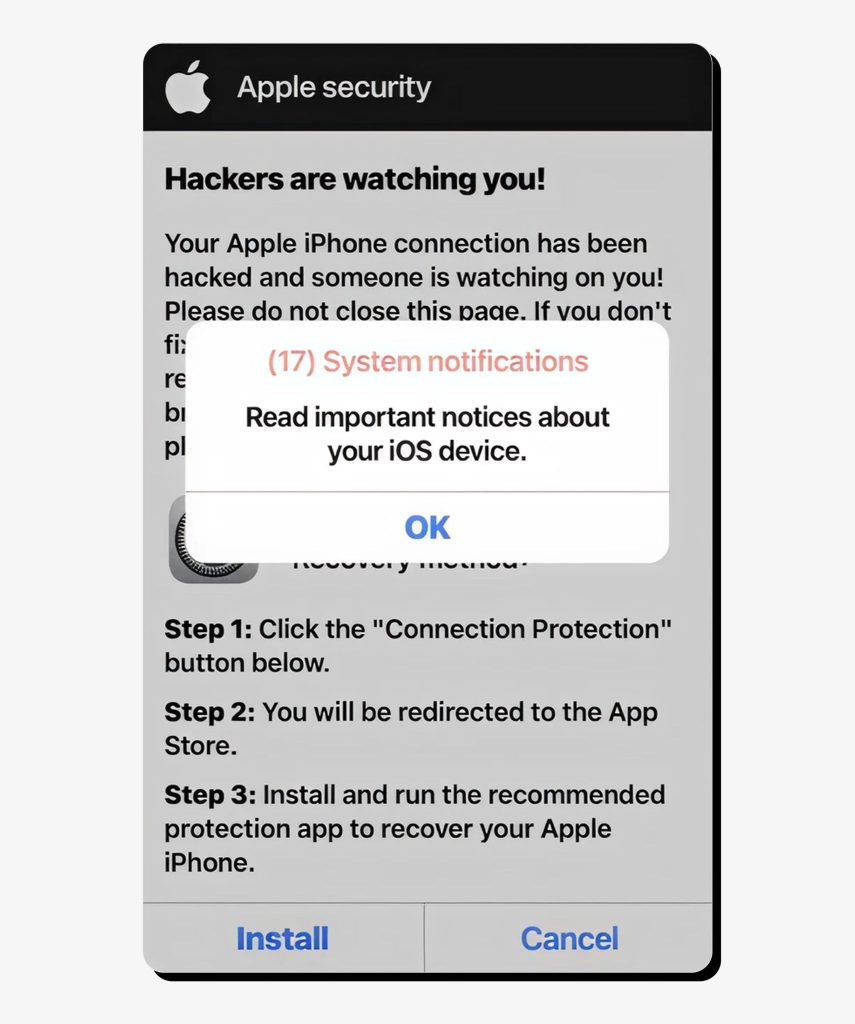
Major red flags of Apple security scam alerts
It’s easy to recognize fake Apple security alerts when you know what to look for, whether it’s a website pop-up, an email, or an iMessage:
1. Urgent or threatening language
Fake security alerts use phrases like “Your device will be locked,” “You’ll lose access to your Apple ID/photos/documents,” or “Your data will be deleted” unless you act immediately and follow the scammers’ instructions. In reality, no official Apple communication uses threats of immediate termination of your account or data access. Instead, Apple provides helpful recommendations if any action is required.
2. Suspicious links or attachments
Security alert scams are phishing attempts, so they will typically feature a link to click or an attachment to download. Interacting with these may redirected you to a malicious website spoofing Apple’s login page to steal your credentials, or the attachment may contain malware that automatically installs on your device to spy on the credentials and payment card information you enter.
3. Requests to call or text a number
In an attempt to get in direct contact with you, scammers include phone numbers in their phishing messages. Once you’re connected, they will try to talk you into sharing access to your device or authorizing certain transactions, while in reality they will be stealing your information and money.
4. Demands for payments and gift cards
Legitimate Apple Support representatives never ask for payments, subscriptions, or gift cards to cover their services. This tactic is the bread and butter of tech-support impersonators. In exchange for the “help” you didn’t need in the first place, they may request payments via Apple Pay or other instant and irreversible money-transfer apps for supposed “device recovery” services or software they installed.
5. Requests for personal information and account credentials
Whether on the phone or through a website form, scammers behind fake security alerts often require you to enter sensitive information so they can benefit from it, either through identity theft, account takeover, or some form of financial fraud. Such sensitive information may include your full name, address, SSN, payment card data, passwords, and verification codes.
6. Odd language and grammar
Among the more subtle signs of a scam, weird phrasing and unusual formatting are typical in messages attempting to mimic well-known brands. These messages may also contain misspelled words, blurry logos, or overly wordy sentences uncommon in official communication.
How to recognize genuine Apple security alerts
Is Apple’s security alert real? Yes, some of them are, but they are sent only in rare cases to select individuals.
Over the past few years, Apple has sent personalized threat notifications to users in 98 counties about a targeted mercenary spyware attack detected on their device. This is a highly specific type of security alert that is sent via email or iMessage only, with a corresponding notification also appearing at the top of the page in the person’s Apple Account, as shown below.
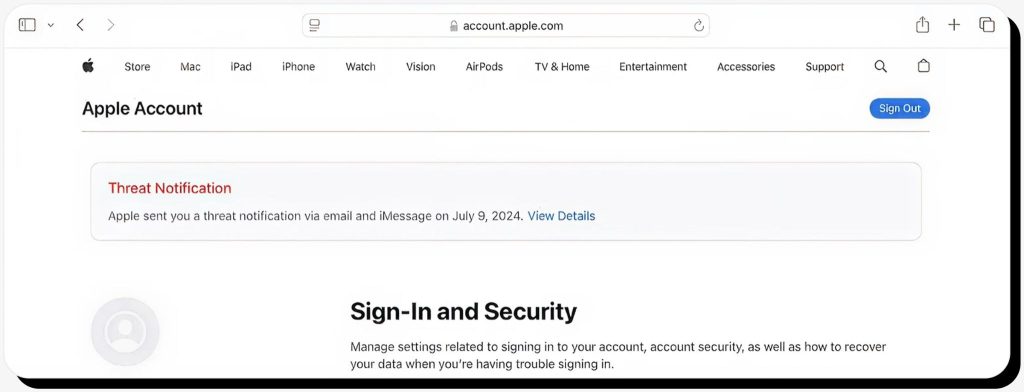
Such notifications are sent when Apple believes that your device has been targeted in a state-sponsored spyware attack, typically aimed at government officials, activists, journalists, civil-society organizations, and similar groups. One example of a person who received such a legitimate notification from Apple is Eva Vlaardingerbroek, a Dutch far-right political commentator and activist.
These notifications should come from Apple’s official email address—[email protected], while iMessage notifications are sent from [email protected].
If an Apple user receives this notification, Apple advises them to seek expert cybersecurity help and lists other recommendations, including enabling Lockdown Mode.
You can also recognize official Apple alerts and notifications by checking the following signs:
- Official Apple messages never ask you to click links, download attachments, install apps or extensions, or share your Apple login information or verification codes by phone or email.
- You can verify whether you received a real notification from Apple by logging into your Apple Account and checking for it there.
- Such messages can only appear within your iOS or MacOS system settings, your Apple Account, an email sent from an official apple.com address, or within Apple-owned apps. If you see a random browser pop-up while visiting a third-party website, it’s a scam.
- There should be no payment requests or pressure to act immediately to avoid losing access to your device or account.
- You’ll be addressed by name, not generally as “Dear user.”
How to respond to a fake Apple security alert
If you suspect you’ve been targeted by an Apple security alert scam, take the following steps to avoid any harm:
- Don’t interact with the message: don’t click any links or buttons, download attachments, reply, or contact scammers using the listed phone number. If you see an on-screen security alert pop-up that blocks your screen, force-quit the browser by pressing Option + Command + Esc. In some cases, restarting your device may be necessary.
- Clear your browsing history, cookies, and cache. Follow your browser’s instructions to remove any traces that may assist scammers in tracking your device.
- Run a full security scan using trusted antivirus software. At this stage, you need to check that no malicious software has been installed on your device.
- Review your apps and extensions and check for anything unwanted. In case you see an app or browser extension that you don’t recognize, delete it.
- Report the scam to Apple. If you received a fake Apple security alert via email, forward this email as an attachment to [email protected]. If it came as a text message, take a screenshot and send it to the same email address to report the scam.
- Change your Apple Account password and enable two-factor authentication, preferably with a passcode, to strengthen your Apple device security.
- If you interacted with the message and entered personal information, change the passwords for all affected accounts.
- If you entered financial information, contact your bank to block and reissue your payment card and block the transaction if you transferred any money to the scammers.
- Report the scam to the Federal Trade Commission if you’re in the U.S., or to your local anti-scam consumer authority.
How to stay safe from Apple scam alerts
To protect yourself from Apple security alert scams, follow these general security practices when using Apple devices:
- Avoid sketchy, unsecured websites showing HTTP instead of HTTPS as a security protocol, as these can be compromised and display fake security alert pop-ups.
- Never click on links shared by unknown accounts via email, text, iMessage, WhatsApp, or other messaging platforms, as these can disguise phishing websites.
- Only download apps from the official App Store or verified developer websites to avoid installing malware, adware, and spyware that may compromise your device.
- Run reputable antivirus software at all times to detect and prevent malware attacks promptly.
- Keep your devices up to date by checking for system updates and installing security patches.
- Use strong, unique passwords for each account and strengthen them with two-factor authentication where available.
- Ignore security alert pop-ups or suspicious messages that come from unverified sources. Remember that official Apple communication only comes through their branded channels, including emails from the apple.com domain. In case of doubt, verify the message by contacting Apple’s official support service.
FAQs
Can Apple send virus alerts to my iPhone or Mac?
No, Apple never sends virus alerts to iPhone and Mac devices via browser pop-ups, text messages, or websites. The only legitimate ways for Apple to communicate security warnings to their users are within the device’s system settings, official Apple apps, emails or iMessages coming from an official apple.com address.
How can I tell if a message or email from Apple is genuine?
Check the sender’s address—it should end with apple.com or email.apple.com. Other signs of trustworthy Apple messages include the fact that they don’t request your personal details or payments, don’t ask you to click a link, download an attachment, or install apps from third-party websites, and are sent through official Apple channels, not random browser pop-ups or phone calls from “Apple Support.”
How do I report a fake Apple security alert?
You can report a fake Apple security warning as a phishing scam by forwarding it to [email protected] (whether it’s an email or a text message). Another way to report this scam is by filing a complaint with your local anti-fraud authority.
Are Apple devices immune to scams or viruses?
While Apple devices do have strong security features, no device is completely immune to security threats. In the case of Apple scams, users may fall victim to social engineering attacks that exploit human behavior to harvest sensitive information, compromise accounts, steal identities, or commit financial fraud.
Will resetting my iPhone remove fake Apple alerts?
Yes, if a malicious website causes a persistent fake Apple security alert pop-up, a full restart of your device may help clear it. Just make sure to back up your data and avoid restoring your previous browser tabs when reopening your browser.



Dimitri is a tech entrepreneur and founder of Onerep, the first fully automated data removal service. Top cybersecurity CEO of 2021 by The Software Report.