 Published December 24, 2025
  read
read
How to tell if someone hacked your router: signs, checks, and fixes
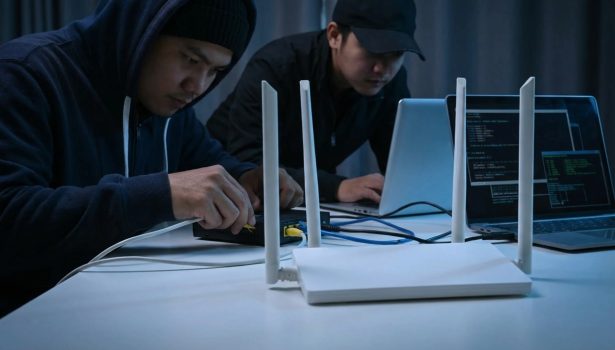
Your internet router is the gateway to your digital life. Nearly every online activity, like your account logins, banking sessions or smart home device connection passes through it. Yet it’s often ignored until something goes wrong. So what happens if your router gets hijacked?
Router hacks are more common than many people realize. If your internet starts acting strangely, it’s important to pause, stay calm, and figure out whether you’re dealing with a real security issue or a routine technical problem.
This guide explains how to tell if someone hacked your router, how to spot the real warning signs versus everyday Wi-Fi issues, and what to do if your Wi-Fi is hacked. You’ll also learn practical steps to secure your router and reduce the risk of future attacks.
Quick answer: the fastest way to tell if your router is hacked
You may want to get to the bottom of things right away. Here are the 3 best checks you can use to detect intruders:
- Check if the router admin login still works, and if settings were tampered with. Try signing in to your router’s dashboard using your usual credentials. If you can’t log in, or settings like Wi-Fi name, encryption type, or remote access options have been changed, your router may be compromised.
- Check the connected devices list. Log in to your router (detailed instructions below) and review all currently connected devices. If you see devices you don’t recognize (and sometimes your own devices can be tricky to distinguish), your Wi-Fi may be compromised.
- Check the DNS settings. These settings are usually managed by your Internet Service Provider (ISP), or you set them manually to a trusted provider. If you see any strange entries and get redirected to random websites, your connection may not be secure.
Even if you see these red flags, there’s no need to panic. You can resort to a solid troubleshooting strategy that we will get to later in this article—read on to learn more about what to do if your Wi-Fi is hacked.
When things go south
In very rare circumstances, you may not have that much time. A Wi-Fi hack should be treated as urgent in the following instances:
- Your banking app or other important accounts are behaving strangely and showing unfamiliar activity.
- You keep getting redirected to fake login pages or seeing warning screens across multiple devices.
- Ransomware pop-ups or messages demanding payment are appearing.
In these cases, disconnect the router from the internet right away and secure your accounts before coming back for further troubleshooting.
Before you panic: common issues that look like hacking but aren’t
Routers can act out for any number of reasons, and hacking is just one of them.
- Slow internet speed due to network congestion, placement, ISP outages, or interference. Are many people connected to your internet at the moment? Perhaps they are using a lot of the bandwidth. Is the router in a bad spot? Thick walls can cause slowdowns. Is your ISP having a temporary outage? Check their page to find out. Could other devices or bad weather be interfering with the signal? Sometimes microwaves, or other smart home devices, and even heavy rain, can make your internet slack.
- “Unknown devices” that are actually yours. Home devices, such as TVs, gaming consoles, and printers, sometimes show up under unfamiliar names on the list of connected devices. Some phones and laptops use a privacy feature called MAC address randomization, which makes them appear as a “new” device each time they connect to the internet. So, not every unknown device is malicious.
- Adware causing browsing pop-ups on one device. Although persistent popups and redirects may signal something sinister, they could also just be the product of good old ads. The chances of it being the case are high if this is happening on a single device. If the issue persists across all your devices, it’s worth checking the router.
Don’t have time for a guessing game? There are ways to rule out a Wi-Fi hack quickly.
- Restart your router. If that helps, a hack is unlikely.
- Check your ISP’s outage page.
- Move closer to the router to test how strong the signal is. If it gets stronger, it’s nothing to worry about.
- Review connected devices, keeping in mind your own devices could be unrecognizable. If something seems off, disconnect the device.
- See if issues persist on multiple devices. If it’s just one, scan it for malware and remove suspicious browser extensions.
Signs your internet is tapped or your Wi-Fi is hacked
Read on to learn the real signs your internet is tapped:
- Unusual slowdowns in internet speed. If your internet suddenly slows down, and nothing is wrong with its placement, the usual number of people are using it, no other devices are interfering with the signal, and the sun is shining outside, it’s time to investigate further.
- Unknown devices connected to your Wi-Fi. Let’s say you’ve found a connected device you don’t recognize; it could be your own, but you disconnected it as a precaution. Turns out, your device is still loading websites just fine. You conclude an intruder might have gotten your internet tapped.
Read more
How do you know if your phone is tapped?
Can someone see you through your phone camera?
How to know if your phone is hacked: warning signs and ways to check
- Changed router settings or admin password. If you can’t log in to your router dashboard, or notice changes once you do (a different Wi-Fi name, different DNS settings, etc), it’s likely someone had your Wi-Fi hacked.
- Frequent disconnections. You were online a minute ago, and now have to connect to the internet again. This isn’t typical internet behavior; it could mean that someone is overloading your network or disconnecting your device on purpose.
- Redirections to unexpected websites. Did you wind up on a page you didn’t look for? Is it asking you to log in, or triggering a download? This is often a sign of a trickster tampering with your DNS settings to take you to malicious sites.
Can a router be hacked remotely?
Can someone hack my router remotely? Remote could mean within the Wi-Fi range, and it could also stand for a hacker attacking your router from anywhere in the world. In both cases, the answer is yes.
Real remote router compromises are rare, but can still happen if you have flawed security settings or use an outdated router. There always is a weak entry point:
- A hacker may take advantage of the remote management feature if it’s enabled and not properly secured.
- If your admin password is weak or reused, attackers may find a way to get around it.
- Routers have their own software, called firmware, which needs to be regularly updated. If not, it may lack important security upgrades, which opens it up to hacking. Cybercriminals may even selectively scan the internet for devices with faulty firmware.
More often, a hacker will target nearby routers. The way to do so is often easier than doing it from afar.
- All they need to do is crack a simple Wi-Fi password.
- Some Wi-Fi Protected Setup (WPS) features are easy to twist and turn.
- If your router encryption is outdated or weak, it makes for a perfect entry point.
Read more:
Is hotel Wi-Fi safe? What to know about evil twin hotspots and other hazards
How to tell if someone hacked your router
Even if it seems like your Wi-Fi is hacked, don’t panic. Router hacking is one of the few cyber incidents you can resolve by yourself.
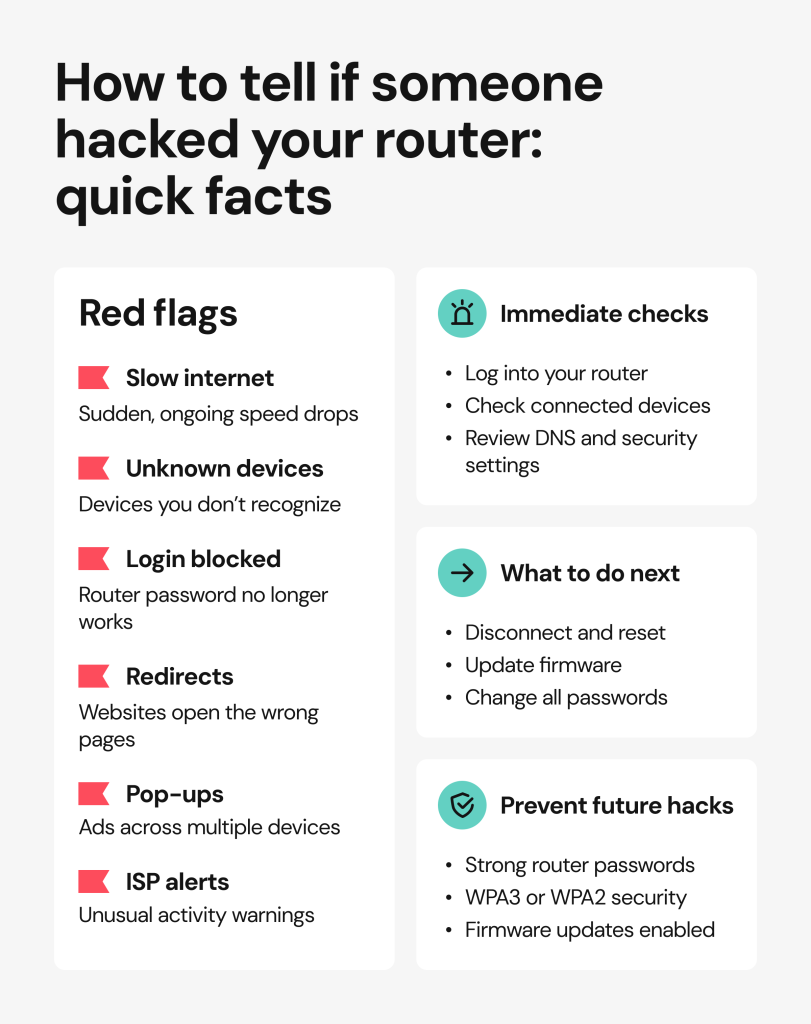
Here is how to tell if someone is using your wifi, step by step.
Log in to your router admin panel safely
To eliminate the threat, you’ll have to log in to your router dashboard.
- Look at the sticker on the back of your router, or at your ISP’s setup guide, to find the exact IP address. Most routers use IP addresses like 192.168.0.1, 192.168.1.1, or 10.0.0.1.
- Use a device you trust (ideally a laptop or phone) and stay connected to your home Wi-Fi.
- Open a web browser and enter your router’s IP address in the search bar. This will lead you to a website, where you’ll be prompted to write the username and password, which are also found on the back of your router.
- The login credentials might be different if you’ve already updated them.
- If you can’t log in, a hacker might have already changed your login credentials, and you’ll have to contact your ISP. If that happens, turn off the router immediately.
Check if someone is using your Wi-Fi
Once you log in to your router’s admin panel, it’s time to check if anyone else is connected to your internet.
- Look for “Connected devices”, “Device list”, “Clients”, or “DHCP clients”.
- If a random “Allow” prompt appears, don’t approve it.
- Review the list for names you don’t recognize, especially the ones made up of random letters and numbers (such as A4:F3:9C:7B:21), and vendors/brands that don’t match any device you own.
- If you notice an unfamiliar device, manually remove it from the network.
Check for settings that attackers commonly change
Whether or not you’ve just removed a potentially malicious device, it’s important to review the router settings. Threat actors often meddle with them as part of the attack.
- DNS settings. The Domain Name System (DNS) helps your device locate a website. Normally, DNS is handled by your internet provider. You can also set it manually to a trusted service of your own choice. Once threat actors change your router’s DNS, they can direct you to fake lookalike websites in order to steal your data or infect your device with malware.
- A different Wi-Fi security mode. Modern routers use WPA3 or WPA2-Personal (AES) security modes that come with strong encryption. Any other, outdated mode, such as WEP, WPA (TKIP), WPA/WPA2 mixed mode, or Open, should be avoided.
- Remote management/remote admin. This feature should be off, unless you really need it. If you don’t know whether you need it, you most likely don’t.
- Port forwarding rules. If you don’t know what this is, you shouldn’t have any. These rules are usually set for a specific purpose. If you see entries you don’t recognize, it’s a red flag, potentially there to maintain unauthorized access. You are best to remove any.
- WPS (Wi-Fi Protected Setup). The WPS feature makes connecting to the internet easier. It allows you to connect by pressing a button on the router, instead of having to type a password. Although it’s convenient, WPS is often better turned off.
Check logs and timestamps (if your router provides them)
Some routers keep basic activity logs, which tell you if someone has recently accessed the router dashboard and changed settings. Here is what to look for:
- “Failed login” indicates somebody tried to log in, probably by guessing the password.
- “Admin login” reveals that somebody accessed your router settings.
- “Configuration changes” showcase what modifications were made to the router settings.
If you notice any logins and changes you didn’t make, screenshot that information or write it down. In particular, take note of:
- Dates and times of logins and changes made by the threat actor.
- Unfamiliar IP addresses.
- Any settings that don’t look right.
Cross-check from your devices (to confirm it’s not just one infected device)
Checking your devices will help you understand whether a single device was hacked or the actual router. And if you’re positive that the router was compromised, malware could have been installed on your devices, so it’s good to check them anyway.
- On Windows devices, run a malware scan and make sure your DNS settings weren’t manually changed.
- On macOS devices, make sure new Apple ID profiles weren’t added, or new VPNs. Run a malware scan as well.
- On iPhone/Android devices, check for new VPNs and unfamiliar “Device admin” management apps.
Make sure to check the security of all of your devices. If only one device shows the issue, treat it like device malware first. If every device acts the same, the problem is likely the hacked router.
What to do if your Wi-Fi is hacked

Now that you know how to tell if someone is messing with your internet, let’s go over the troubleshooting steps.
Read on to learn what to do if your Wi-Fi is hacked. It’s important to follow the exact order of actions in this step-by-step recovery plan.
Step 1: Disconnect to stop active abuse
First things first: cut off internet access, so that no one can see your activity, redirect websites, or change your router settings while you fix things.
- Find the cable labeled WAN or Ethernet at the back of your router and unplug it.
- Turn the router off completely by unplugging the power cable.
- Wait 30-60 seconds before plugging the power cable back in, and proceeding with the next step.
Step 2: Reboot vs factory reset
The next thing you should do is reboot or factory reset your router.
- To reboot, turn the router off and on again. This is a solid option if you can still log into the router normally, and there are no strange redirects.
- You can reset your router to its original settings by pressing a small reset button on the router for 10 to 15 seconds. A factory reset will wipe the router settings completely. You should do it if you are locked out of the router dashboard or if your DNS settings have been changed to redirect your internet traffic.
Step 3: Update firmware right away
Firmware controls how your router works and keeps it secure. If it’s not set to update automatically, it could be vulnerable to attacks, and hackers might have used it to gain control over your Wi-Fi.
Once you’ve rebooted or reset your router to factory settings, log in to the router using the generic login credentials, and install available updates before reconnecting to your devices.
Step 4: Change passwords in the right order
Next, you need to change your passwords. Make sure to follow the right order to prevent hackers from regaining control over your router. Each password should be long, complex, and unique.
- First, change the router admin password. This is the password you use to reach your router’s dashboard.
- Next, change your Wi-fi password. This is the password you use to connect your devices to the internet.
- Also, update the passwords of any accounts you logged into while your router was compromised. Most importantly, your email, banking apps, or shopping sites where your card details might be stored.
It’s always easier to update passwords using a password manager. This way, you won’t have to come up with passwords and memorize them yourself.
Step 5: Lock down settings attackers love
Some router settings are more likely to be abused by hackers. You don’t need to understand them fully, just follow the guidance to prevent misuse:
- Disable remote management to prevent anyone from controlling your router from afar.
- Turn off WPS, as it opens your router to hacking risks.
- Remove port forwarding rules and UPnP. These settings allow outside devices to reach things inside your network.
- Make sure you use WPA3 (the best option) or WPA2 (if WPA3 is not supported) Wi-Fi security mode.
Step 6: Scan and clean connected devices
Although you’ve regained control over your router, your devices might still be packed with malware. Keep in mind that an infected device can reinfect the whole network.
So, before connecting to the internet, use a trusted antimalware software to scan your devices and remove viruses. Clean computers first, then phones, then other devices that connect to the internet, like TVs or speakers.
Step 7: Contact your ISP (optional)
You may need to reach out to your ISP for help if you can’t access the router settings, or if this method doesn’t fix the issue. If they provided you with the router, they will be best to assist you with resetting it, updating the firmware, or replacing it.
Step 8: Replace the router (if needed)
In some cases, replacing the router is the safest way to go.
- Consider getting a new one if the model is old and doesn’t get security updates anymore.
- The manufacturer says it’s end-of-life.
- You keep seeing signs of a hacked Wi-Fi after a full factory reset and firmware update.
Why would someone hack my router in the first place?
We’ve gone through all the signs your internet is tapped, and explained what to do if your Wi-Fi is hacked, without addressing the burning question. Why would someone hack your router in the first place?
If it isn’t a neighbor trying to use your internet for free, what else can hackers possibly gain?
- Personal information. Once your internet is tapped, threat actors can see what you type online, including your bank, email, or shopping logins. They could try to reach your computer files, smart cameras, or TVs. They can also see the websites you visit or apps you use, which lets them plan more elaborate scams.
- Malware injection. Through a compromised router, hackers can install viruses or spyware on your devices without you even knowing.
Read more:
Evil twin attack: what it is, how it works, and how to stay safe
- Use your Wi-Fi for attacks. Your internet could become a part of a hacked network (botnet). This lets hackers send spam or overload other websites without a trace, hiding their illegal activities.
- Cryptocurrency mining. Hackers might use your devices to create digital money, which can use up a lot of your internet bandwidth and electrical energy, resulting in a higher electricity bill.
How to prevent router hacking going forward
Can a router be hacked multiple times? Unfortunately, yes. If you’ve experienced this issue once, you’ll need to take precautions to prevent it from happening again.
- Keep firmware updated. A secure firmware is your first line of defense against router compromise. If possible, enable auto-updates. If not, check it every few months to update manually.
- Use a strong admin password. Remember, this is different from your Wi-Fi password, and it’s often a generic one. Set a long (12-16 characters) password that you haven’t used anywhere else. Use a mix of words and characters.
- Create a strong Wi-Fi password. Again, make sure it’s long enough, and unique.
- If possible, create separate networks. Check if your router supports having more than one Wi-Fi network. You can use the main one for your personal devices, and set up an IoT (Internet of Things) network for other smart devices, such as TVs, speakers, or cameras. It’s a good idea to have a guest network for visitors, too.
- Always use WPA3/WPA3 WI-Fi security that comes with strong encryption. This way, your data will be scrambled, and hackers won’t be able to read it.
- Make a habit of reviewing the connected devices list. Every few months, log in to your router and go over the connected devices list. If you see anything odd, investigate or change your Wi-Fi password.
- Keep remote management off. You don’t want your router settings visible to tricksters scanning the internet.
- Hide your SSID (Wi-Fi network name). Once you do, your network won’t show up on the list of available networks searched by phones or computers. If you know the name and password, you can still connect to it manually. Your connected devices will remain connected. Although hiding the SSID won’t make your router unhackable, it reduces unwanted attention.
- Use a firewall. A firewall blocks unwanted traffic from reaching your network. Many routers have it built in, but make sure it’s enabled.
- Use a reputable DNS. A DNS is not a magic shield, but an added layer of protection.
Privacy matters: why data exposure makes router attacks easier
How did your router get targeted in the first place? A hacker might have randomly selected it, but subpar personal cybersecurity may have also played a part.
Scammers tend to do their research. Before hacking your router, they have likely gathered information about you. The best place to do so is through data brokers and people-search websites. You may have also had your credentials exposed in a data breach
If someone can easily find who you are, where you live, and how to contact you, it becomes much easier to launch fraud against you. When less of your personal data is available, hackers have fewer ways to successfully target you.
How Onerep can help
You may not be able to stop data leaks from happening, but you sure can remove your personal information from websites that profit from it.
Onerep helps reduce your exposure on data broker and people-search websites. If a router incident started with impersonation (for example, a threat actor claiming to be your ISP support) or someone targeting your household, limiting publicly available data can remove fuel from those attacks. We scan 316 people search websites, help to get your information taken down, and make sure it stays that way. Addressing the privacy aspect of the router hacking risk is just as important as updating your router firmware and locking down the important settings.
FAQ section
How to tell if someone hacked your router?
The first warning signs are typically your internet speed decreasing, getting disconnected from the internet, or being redirected to websites you didn’t look for. If, on top of that, you see unknown devices connected to your router and the settings being changed, it’s likely someone has your Wi-Fi hacked.
Can you tell if someone is on your router?
Yes, most modern routers let you see a list of currently connected devices. If you spot devices you don’t recognize, especially after turning off your own phones, computers, and smart devices, someone’s likely on your router without permission.
How do I know if someone is spying on me through my WiFi router?
Direct spying through a router is less common than malware on a device. Still, you could experience repeated redirects to fake websites, asking for personal information, or triggering file downloads. Follow the steps to see if someone has hacked your router and remember to also scan your personal devices for malware.
Can your house WiFi be hacked?
Yes, house Wi-Fis do get hacked often. They are more likely to have weak security settings, outdated firmware, or be protected by reused or easily guessed passwords. To protect your house WiFi, set up strong and unique admin and Wifi passwords, update your router firmware, and go for strong Wi-Fi encryption.
What to do if your Wi-Fi is hacked?
Start by disconnecting the router to stop active access, then reboot or perform a factory reset. Update the router firmware, change the admin and Wi-Fi passwords, and make sure the important router settings won’t enable a new hack. Finally, scan and clean all connected devices from malware. In severe or repeated cases, contact your ISP or get a new router.
Mikalai is a Chief Technical Officer at Onerep. With a degree in Computer Science, he headed the developer team that automated the previously manual process of removing personal information from data brokers, making Onerep the industry’s first fully automated tool to bulk-remove unauthorized profiles from the internet.