 Published December 16, 2025
  read
read
Is your phone watching you? This is a strong anxiety trigger for many people concerned about their security, and your phone camera can be hacked indeed. Cybercriminials, stalkers, and spies can gain unauthorized access to your phone camera through spyware secretly installed as a result of a social engineering scam or a malware download. Called camhacking, such attacks can happen regardless of device type or operating system.
The following guide will help you understand how to tell if your camera has been hacked, which protective steps you can take to prevent and fix this, and how to make sure no app can access your phone camera without your permission.
Can someone access your phone camera?
Can someone spy on you through your phone camera? The short answer is yes—camera hacking is possible but requires malware or spyware to be installed on your device first. Such illicit app installations typically happen when you click a phishing link that starts the download in the background, or when someone gains temporary access to your phone and installs the app manually, as in AnyDesk remote access scams.
Malware used for spying can exploit your phone’s security vulnerabilities or trick you into granting excessive permissions, including camera access, allowing an attacker to:
- Turn on your camera
- Take images and videos
- Access your photo gallery
- Monitor your activity in the background
Unlike scenarios where your phone seems to “listen” to you through voice assistants or for ad data collection purposes, phone camhacking is dangerous and requires immediate action to prevent risks such as personal data exposure, financial fraud, and identity theft.
Real-world examples of phone camera exploits include:
- Pegasus spyware developed by an Israeli cyber arms company to help governments fight crime and terrorism, but later used to spy on high-profile figures, journalists, and activists.
- PhoneSpy malware, a campaign targeting Android users and disguised as utility apps such as photo editors and gallery tools. The compromised apps exploited camera permissions and could access data and spy on users.
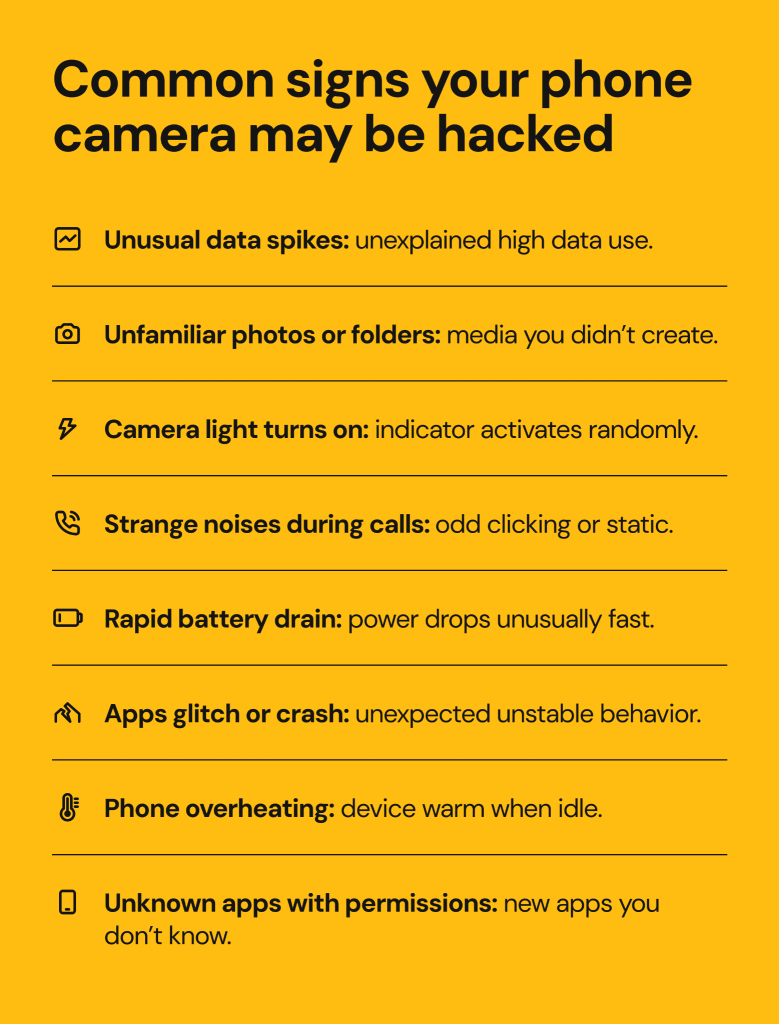
Common signs your phone camera may be hacked
How to know if someone is watching you through your phone camera? The signs that hackers have compromised your phone camera are similar to those of phone tapping but also include camera-specific behavior that can raise your suspicion.
Suspicious data usage patterns
If you observe unexplained spikes in your Wi-Fi or cellular data usage when you’re not streaming, uploading, or live-chatting, this can be a sign that your hacked phone camera is transmitting photos and videos to a remote server. Camera spyware typically requires an internet connection to upload video recordings or images.
Unfamiliar photos, videos, and media folders
If you find new photos, videos, or folders on your phone that you don’t recognize, this can be a sign there’s a hidden process that triggers your camera and stores new files before sending them to an attacker. This is rare, but some malware can record and store short clips or take snapshots before deleting them from your phone.
The camera indicator or LED turned on
Some phone models have a camera indicator or LED that turns on when the camera is in use. For example, you may see a green dot in the status bar on Android and iPhone, or a camera light/LED on certain devices. If this light flickers or turns on at odd times, malware may be accessing the camera in the background without your permission.
Static or background noises during calls
If you hear unusual clicking, static or background noises during calls, this can be a sign your microphone is being accessed alongside your camera by a malicious app. Spyware may activate both tools at once and produce strange background sounds due to overlapping signals or slow data processing.
Unexplained battery drain
You may start noticing your phone battery draining much sooner than usual, especially when your phone is not in heavy use, for example at night. If this is the case, a background process, such as creating and transmitting media files (photos, voice recordings, and videos), may be consuming your phone’s resources and causing the drain.
Strange or unstable app behavior
When running camera features in the background, spyware may interfere with legitimate apps on your device and cause them to freeze, crash, or display strange pop-ups. If you notice such unpredictable behavior, especially if your phone had been functioning normally before, it’s a strong indicator of a malware infiltration compromising your phone, including its camera.
Overheating
As noted above, spyware operations running in the background can consume a lot of phone resources, even when hidden. If your phone feels unusually warm to the touch even when it’s not in use, it may be a sign that intense tasks are being executed without your knowledge, such as using your camera, microphone, or data connection continuously.
Unknown apps with excessive permissions
While browsing the apps installed on your phone, you may find ones you don’t recognize. These can be illicit apps and malware installed without your consent. Such apps may have excessive permissions granted to all of your phone functionalities by default, or to essential ones such as your contacts, camera, microphone, and location.
How to find out if someone is using your camera
Both Android and iOS mobile operating systems provide multiple ways to check for unauthorized camera use. Here are the instructions below.
What to check on Android
If you suspect that someone can see you through your phone camera on Android, check for signs of unauthorized camera use and excessive app permissions using the following methods:
Permission Manager
Access your phone’s Permission Manager via Settings > Privacy > Permission Manager > Camera. There you can find all the apps that have access to your camera. Check whether all the apps are legitimate and have a valid reason to have camera access to function properly.
Active camera indicator
When your camera is on, your phone will likely display a small green dot or a camera indicator in the status bar. If you didn’t switch on your camera but the indicator appears, it’s likely that a malicious app is actively using your camera.
Installed apps
Go to Settings > Apps > Manage apps and see if there are any you don’t recall installing or that look suspicious. These may include apps with generic names that are not system apps, as well as apps that require too many permissions.
In the same Apps menu, also check Permissions > Background autostart to see if any apps start running without you knowing as soon as you switch on your phone.
Battery usage
Go to Settings > Battery to check which apps consume the most of your battery power and see if there are any outliers with unusually high usage. If you don’t recognize these apps, consider deleting them.
Data usage
Go to Settings > Connection & sharing > Data usage and see if any of your installed apps have used an unusual amount of cellular data. This can indicate they have been transmitting large files or streaming video in the background.
Google Play Protect
Android devices have access to free app security checks via Google Play Protect, which you can find in the Play Store. This service checks apps and devices for harmful behavior and malware and can send you privacy alerts about apps that violate Google’s Developer Policy.
What to check on iPhone
In the very rare case your iPhone has been identified by Apple as a target of an international spyware attack, you may see an Apple security alert in your Apple Account, also sent to you via email and iMessage.
In all other cases, you can routinely check if all the necessary security controls are enabled on your iPhone to prevent unauthorized apps from gaining access to your camera.
Camera and microphone indicators
iPhones typically show a green dot when the camera is on and an orange dot when the microphone is active. If these dots appear unexpectedly, force-stop your camera and investigate which app might be using it without your consent.
App permissions
You can control which apps have access to your camera. To do this, go to Settings > Privacy & Security > Camera and review the list of apps with the camera access. If there are any you don’t recognize, turn off their access and consider uninstalling them altogether.
App Privacy Report
App Privacy Report is Apple’s built-in feature that allows you to review how your installed apps are using granted permissions, along with their network activity. You can access the report in Settings > Privacy & Security > App Privacy Report and turn it on or off as needed.
Configuration profiles
Configuration profiles are sets of settings that define how your phone is used within corporate or school networks. You may receive such settings in an email or download them, knowingly or unknowingly in the case of a malicious configuration profile. Go to Settings > General > VPN & Device Management and check for any unknown or suspicious profiles. Delete them to remove all associated settings, apps, and data from your phone.
Installed apps
Review all installed apps to see if there are any apps you don’t recognize or apps with excessive permissions, especially at the system level. Consider removing them.
How to prevent unauthorized camera access
You can take preemptive steps before you know you’re being watched through your phone camera. Even though these instances are quite rare, it helps to adopt safety and security habits that protect you from all kinds of cyberattacks, phone hacking included:
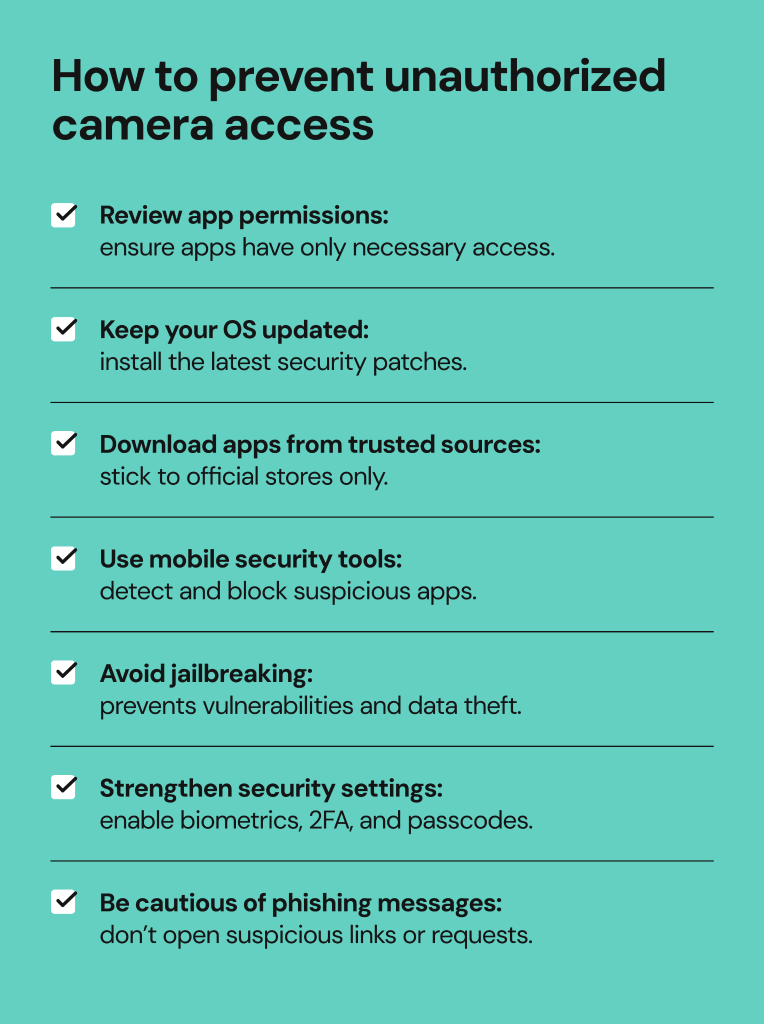
- Regularly review installed apps and their permissions. This precaution can help you monitor whether every app on your device is legitimate and has only the necessary permissions to operate.
- Keep your OS updated. Your operating system should be updated at all times to include the latest security patches and make sure no vulnerabilities can be exploited by cybercriminals.
- Download apps only from trusted sources. These include the official Google Play Store and Apple’s App Store, as well as creators’ websites that can be verified as legitimate.
- Use mobile security tools, such as antivirus and security apps that help detect suspicious apps before they cause any harm through malicious behavior.
- Avoid jailbreaking. This unsafe practice leaves your device unprotected and voids any warranties, while exposing it to malware, vulnerabilities, and data theft.
- Strengthen your security settings, such as turning on extra authentication controls (biometric authentication via fingerprint or Face ID, two-factor authentication, passcode, or PIN).
- Be cautious of phishing messages. Social engineering attacks, such as phishing, vishing and smishing, are designed to make you reveal your personal information or click malicious links that may automatically install malware on your device. Educate yourself on the most common phishing tactics to stay safe and protected.
What to do if your phone camera is compromised
What do you do if your phone is hacked and your camera compromised? If you suspect unauthorized access to your phone camera, do the following:
- Review app permissions and revoke camera access from any suspicious app.
- Uninstall apps you don’t remember installing, especially if they can’t be verified as legitimate.
- Run a security scan with a trusted antivirus or security scanner.
- Review your privacy settings and reset them as necessary to avoid unauthorized app installations in the future.
- Consider a full factory reset to wipe your phone clean of any potentially harmful apps or bit of data stored there.
- If the issue persists, consider seeking professional help. This can include contacting your mobile carrier, a trusted phone repair center, or official Google or Apple support, depending on your device type.
- If you suspect your personal data has been stolen, report the fraud to your local anti-fraud authority, such as the Federal Trade Commission or the Internet Crime Complaint Center in the US.
FAQs
Can someone see me through my front camera?
Someone (such as a cybercriminal) can only see you through the front camera if malware or spyware has been installed on your phone. However, this is very unlikely if you follow best security practices and routinely review your installed apps, their permissions, and data usage patterns.
Can apps access my camera without permission?
Android and iOS apps require explicit user permission to access any device functionality or user data. They generally cannot bypass this unless your device has been compromised through malware installed without your knowledge.
How can I block camera access on my phone?
You can manage, grant, and revoke app permissions in your phone’s privacy settings. On Android, go to Settings > Privacy > Permission Manager. On iPhone, go to Settings > Privacy & Security.
Should I cover my phone camera for protection?
You can cover your phone camera for added peace of mind, but good digital security habits are far more effective at preventing unauthorized access to your camera or microphone. Consider reviewing your installed apps and their permissions, as well as using mobile security tools for ongoing malware scans.




Dimitri is a tech entrepreneur and founder of Onerep, the first fully automated data removal service. Top cybersecurity CEO of 2021 by The Software Report.