 Published December 12, 2025
  read
read
How to turn Safari Private Browsing on and off on iPhone, iPad, and Mac
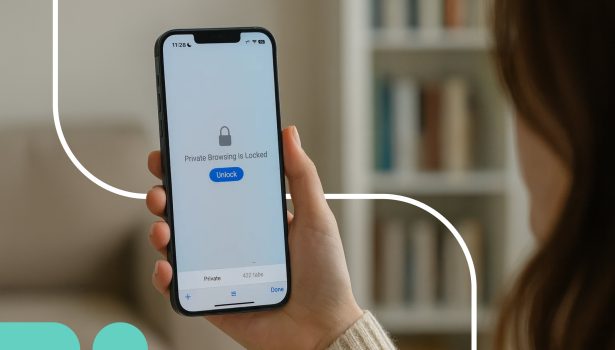
Safari’s Private Browsing is a special mode that keeps your browsing history private across devices and lets you log in to multiple accounts.
Think of it as an added layer of security, not a shield against all online tracking. Safari’s Private Browsing hides your data only from people who have access to your devices.
This guide will explain (and show) you how to turn Safari Private Browsing on and off across your Apple devices and how to browse more safely in general.
What Safari Private Browsing does (and doesn’t) do
Safari’s Private Browsing mode offers useful on-device privacy, but it doesn’t make you invisible online.
Here’s what Private Browsing on Safari Mac does do:
- Stops Safari from saving cookies, browsing history, search terms, and AutoFill information.
- Prevents your open tabs from syncing to other devices through iCloud.
- Blocks many known trackers and removes tracking parameters from URLs.
- Activates enhanced anti-fingerprinting protections to make it harder for sites to identify your device.
And here is what it doesn’t (and can’t) do:
- Doesn’t hide your online activity from your ISP, employer, or school.
- Doesn’t stop the website from tracking your IP and device fingerprint.
- Doesn’t block malware or phishing attempts.
So, Safari’s Private Browsing can come in handy if you share devices with other people or use a work/school iCloud account.
How to turn on Private Browsing in Safari
On iPad and iPhone (iOS 17 and later)
You can follow these steps on both devices:
- Open Safari.
- Tap the three squares in the bottom right corner of the screen.
- Tap the All Tabs button (two overlapping squares).
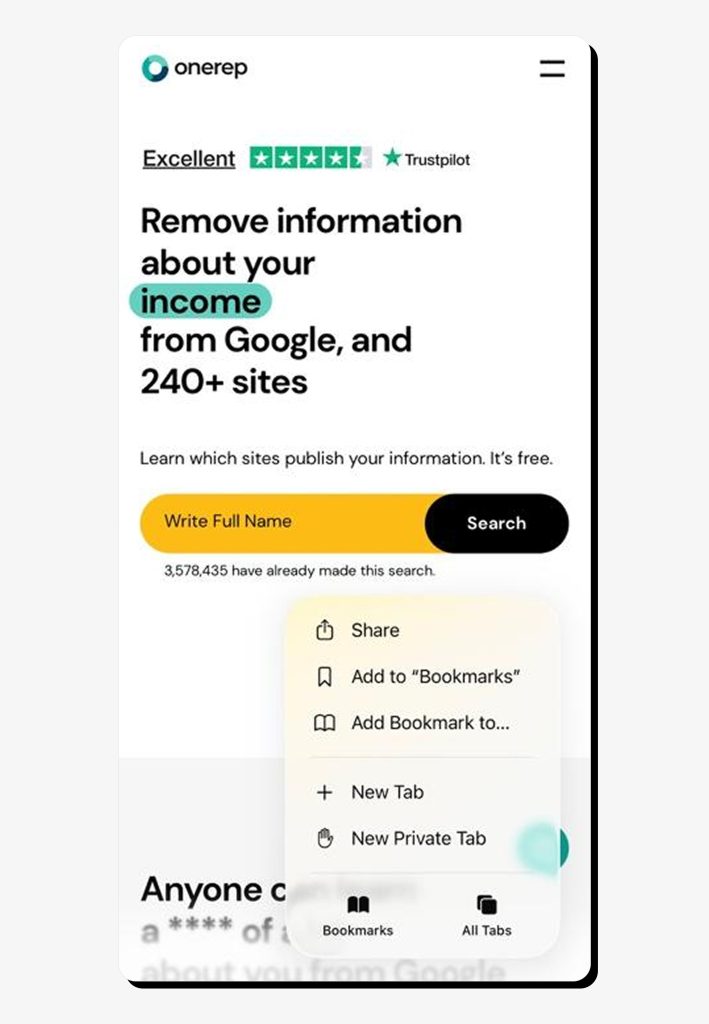
4.
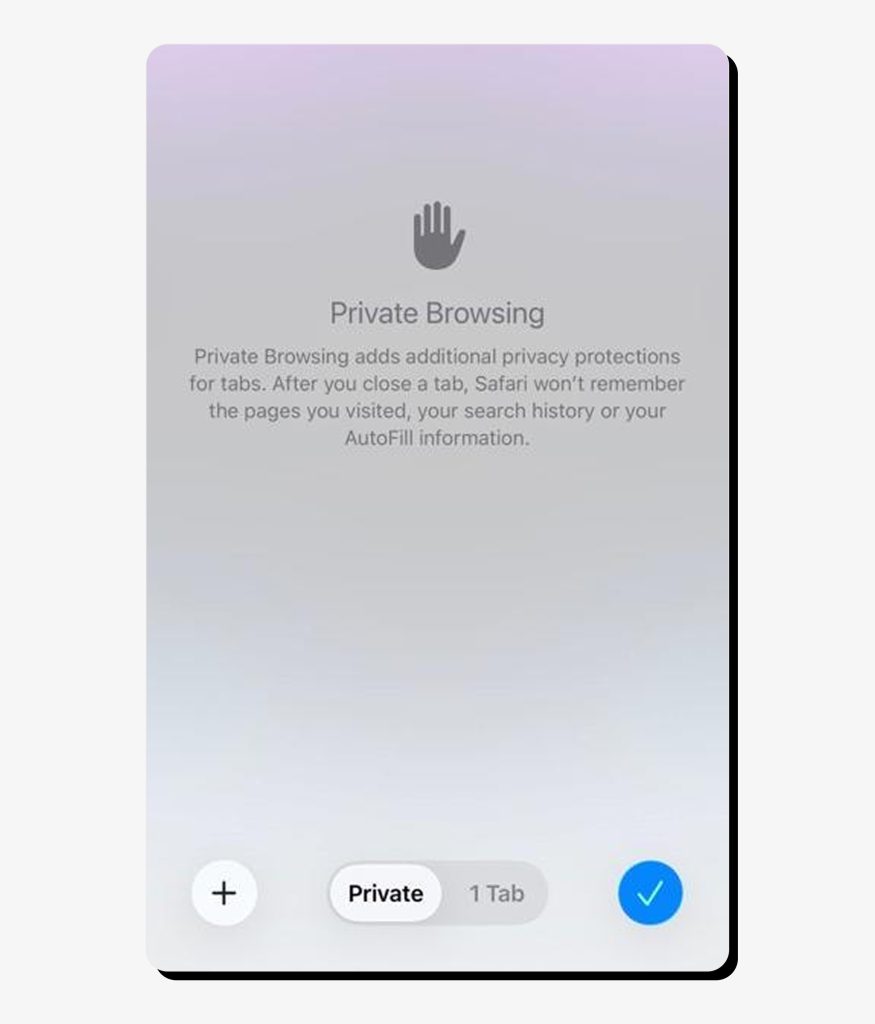
5. Tap Done (Blue circle tick symbol).
You’ll know Private Browsing is on when the address bar turns dark.
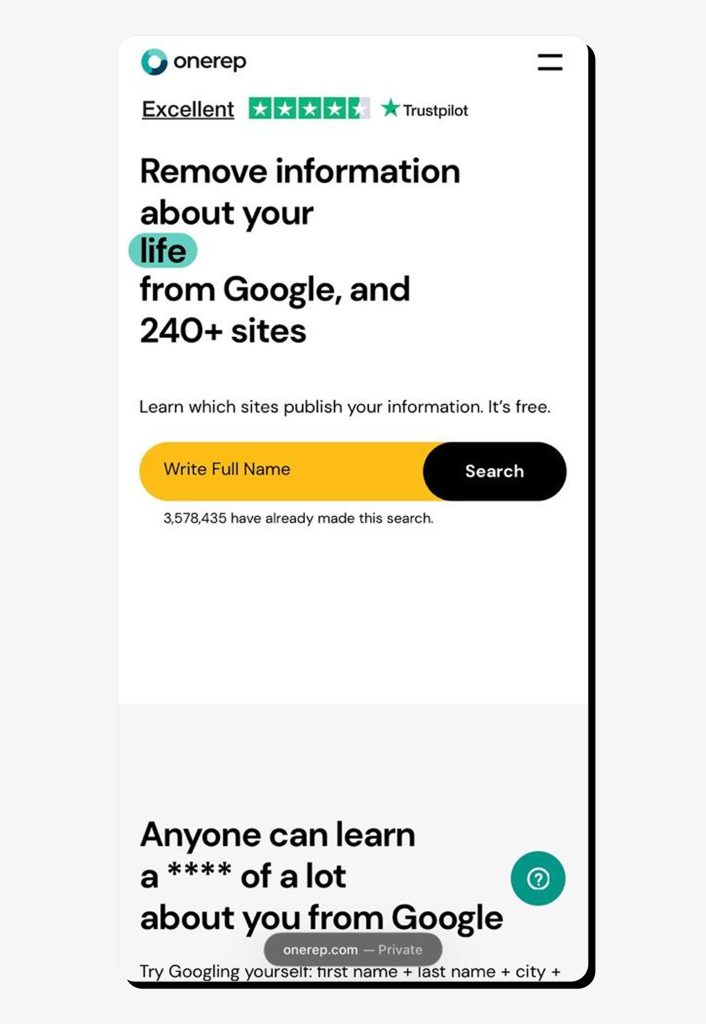
Note for iOS 16 or earlier:
Tabs → [number] Tabs/Start Page → Private → Done.
On Mac (macOS)
To turn on Safari Private Browsing:
- Open Safari.
- Click File in the top menu bar.
- Select New Private Window.
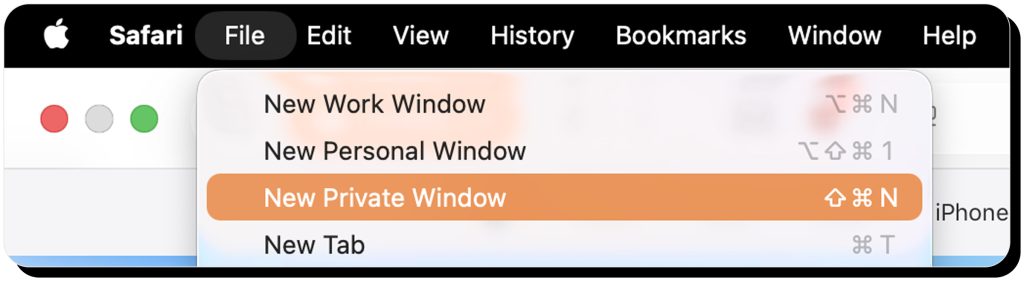
4. A new window will open (with a dark address bar indicating you’re in Private Browsing mode).
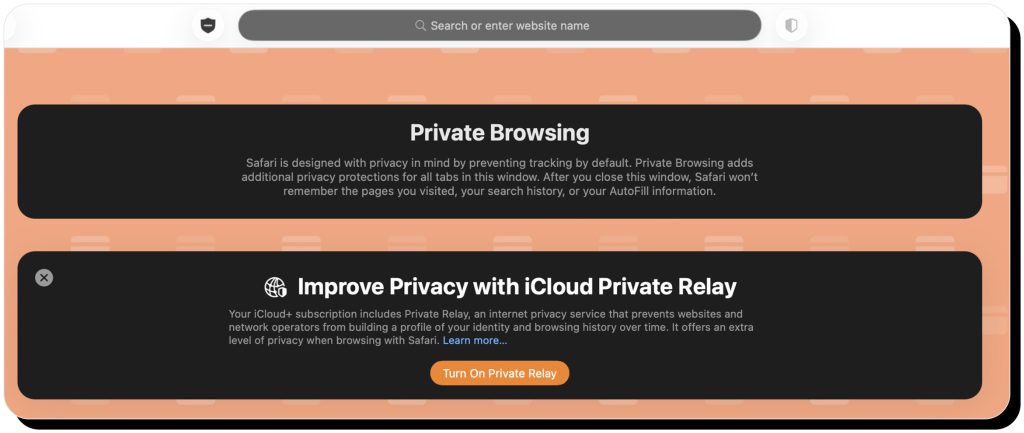
Some users prefer Safari to always open in Private Browsing. If you’re one of them, take these steps to set it as the default:
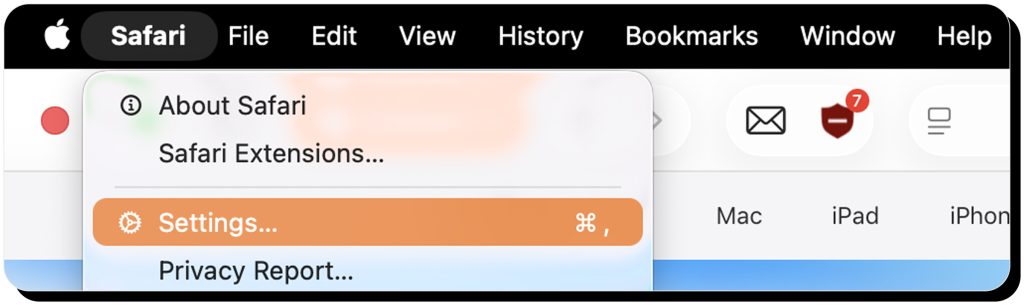
- Click Safari in the top-left corner of your screen when Safari is open.
- Go to Settings.
3. Go to the General tab
4. Find “Safari opens with” and choose “A new private window”.
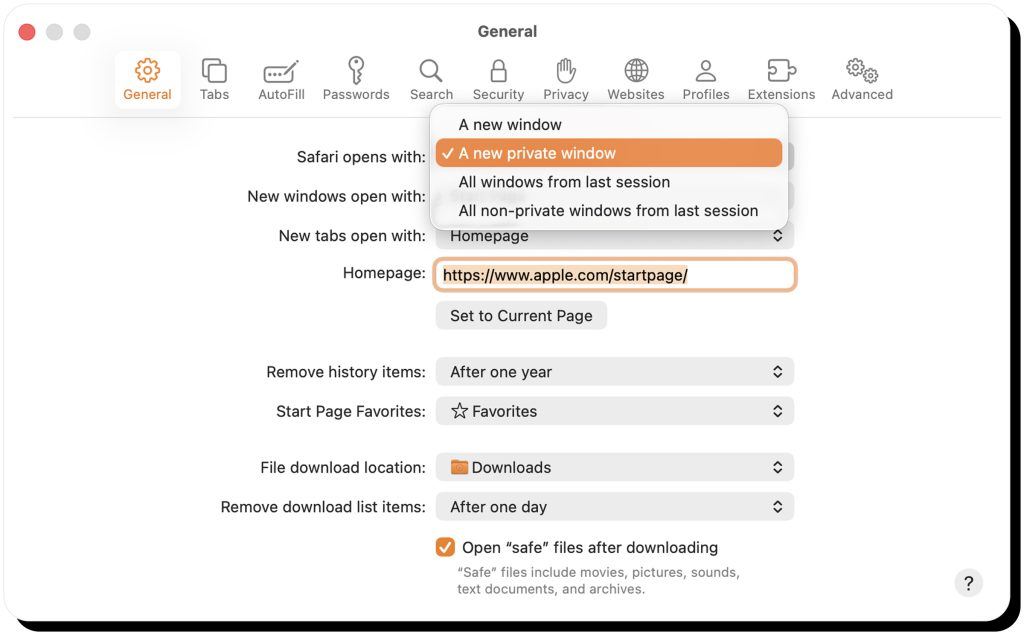
If the “A new private window” option is missing
- Open System Settings.
- Click Desktop & Dock.
- Enable Close windows when quitting an application.
How to turn off Private Browsing in Safari
On iPad and iPhone
Follow these steps to turn off Private Browsing and return to standard browsing:
- Open Safari.
- Tap the three dots in the bottom-right corner (or the Tabs button, depending on your layout).
- Tap the All Tabs button (the two overlapping squares).
4. Tap the tab groups menu at the bottom of the screen (it usually shows “X Tab(s)”).
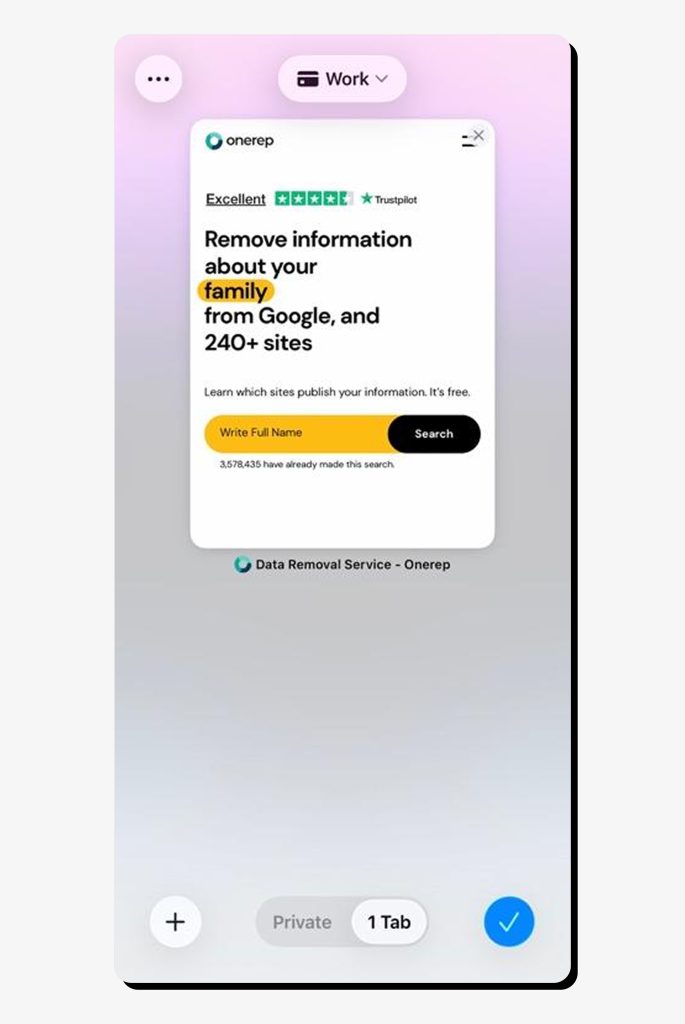
5. Tap Done
6. The address bar will turn light again, confirming that Private Browsing is off.
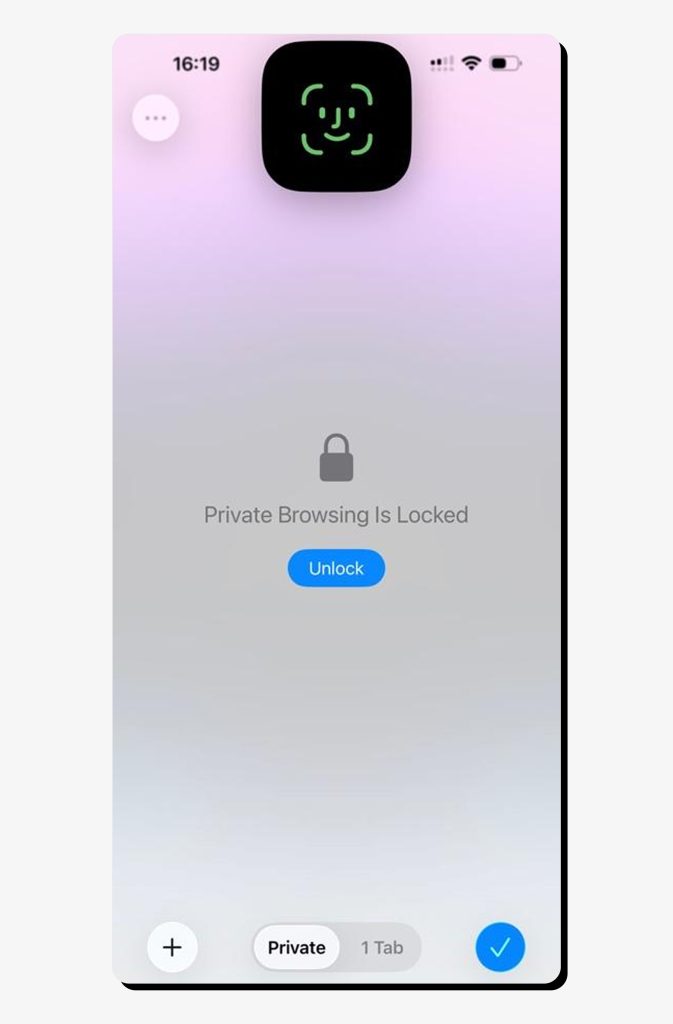
Some people may struggle to turn off Private Browsing in Safari because of its built-in lock feature. If the Private tab group stays locked, the app will ask you to unlock using Face ID or Touch ID. Unlock your device, then repeat all the steps.
Another important tip: your phone will download files in Safari’s private mode. Those files won’t show in your downloads history, but they will absolutely pop up in your Files or Downloads folder.
On Mac (macOS)
Turning on Safari Private Browsing on your PC might be easy, but many people get stuck there. Here is how you can turn off Private Browsing on a Mac:
- A dark address bar in Safari means that you are still in Private Browsing mode.
2. Close the Private Window:
- Click the red close button (●) in the top-left corner, or

- Press Command + W.
3. Open a regular browsing window:
- Go to File → New Window, or

- Press Command + N.
- This window will have a light/normal address bar.

Remember, anything that you downloaded in a Private Window is stored on your Mac. Here is how to get rid of those files:
- Open Finder.
- Go to the Downloads folder.
- Delete the files you no longer need.
Does Private Browsing really keep you private?
There is a common misconception about private browsing modes on various tools in that they allow you to browse the web anonymously without websites identifying you and without your internet service provider/employer knowing what sites you go to. These tools actually provide much more limited protections. More specifically, Private Browsing on Safari Mac can protect your online activity and data to some extent, but it’s not a simple solution for full privacy on the internet:
- You’ll be private locally: Safari’s private mode hides your activity on your own device. Other people won’t know what you looked for online.
- You won’t be anonymous: Networks you don’t control will still be able to log your traffic. This means that your internet provider, employer, or school can see the websites you visit. Websites will know your IP address and device settings, and law enforcement can still request your history report.
- Your extensions will be off by default: When you are private browsing, Safari turns off all the extensions to stop them from tracking you. You can still enable some extensions manually (Safari → Settings → Extensions → enable “Allow in Private Browsing” for trusted extensions only).
- You can go private with additional tools: Combine Private Browsing on Safari Mac with Cloud Private Relay (with iCloud+) or a reputable VPN for stronger protection. These tools hide your IP from websites and networks and encrypt your internet traffic.
Private Browsing & Private searching: how do they differ?
To an everyday user, these two might look the same. That’s not really the case.
- Private browsing: This means using your browser’s private or incognito mode—such as Safari’s Private Browsing window. It stops your browsing history, cookies, and other temporary data from being saved on the device, keeping your activity hidden from anyone else who might use it.
- Private searching: This refers to using a privacy-focused search engine, such as DuckDuckGo or Startpage, instead of Google. These search engines don’t log your search queries or build advertising profiles based on your behavior, helping you stay anonymous while searching online.
If you are looking to maximize online privacy, it’s a good idea to use both. Private browsing paired with private searching generates fewer records and less profiling.
Extra tip: add a VPN to the equation.
Read more:
Is VPN Super Unlimited Proxy safe? What you need to know before using it in 2025
Can you permanently disable Private Browsing?
Not everyone wants Private Browsing available — especially parents who need visibility into a child’s online activity. Safari doesn’t let you remove the feature completely, but you can disable access to it on your Apple devices by using built-in restrictions.
Restricting access on iPhone/iPad using Screen Time can be done as follows:
Settings → Screen Time → Content & privacy restrictions → Content restrictions → Web content → Limit adult websites (hides or greys out Private).
Please note that this method isn’t foolproof. Some tech-savvy kids go around it by using other apps or browsers. It’s better to combine Screen time limitations with router/parental controls.
Why people may want to disable Private Browsing on the iPhone?
It’s true that Private browsing may not be for everyone. Here is when you may not want to use it:
- As we already mentioned, some parents and caregivers may want to disable it for better oversight.
- If you need cookies/AutoFill for banking, email, and work sites, use the regular Safari mode.
- Some troubleshooting sites don’t work in Private mode. This is because third-party cookies are required.
Alternative tools for better privacy (beyond Private Browsing)
You can combine private browsing with other tools to get the highest level of online privacy:
- iCloud Private Relay (iCloud+): This feature, only available to iCloud+ subscribers, hides your IP address/location from sites and networks. It works by routing your browsing traffic through two separate internet relays. The private relay works in select Apple regions and only in Safari. We’ve already discussed iCloud safety, and the Private Relay feature it’s a great cybersecurity upgrade for most Apple users.
- VPNs: Similar to iCloud’s Private Relay, but encrypt your entire internet connection, not just Safari. A VPN hides your IP address from websites, secures your connection on public Wi-Fi, and prevents your internet provider from seeing which sites you visit. Choose a reputable VPN with strong encryption and solid privacy policies (like Proton VPN or Express VPN).
- Privacy-focused browsers & search engines: Some browsers and engines have built-in privacy features, such as blocking trackers, ads, and fingerprinting scripts by default. Common browser options include Firefox, Brave, or DuckDuckGo Browser. DuckDuckGo has a search engine as well; Startpage is another alternative to Google.
- Password managers + 2FA: Shielding your privacy starts with protecting your accounts by using password managers and MFA. Popular password manager options include built-in Apple Password Manager (we discussed how secure it is), 1Password (although the company experienced certain cybersecurity incidents), Bitwarden, and Dashlane. Use 2FA whenever possible, and receive the codes through a designated app, such as Authy or Google Authenticator.
Reduce online exposure with Onerep
Using Private Browsing on Safari Mac might be an attempt to protect your data on the internet, avoid ads, and phishing. But your personal data (such as name, phone, address, or emails) can already be public via data brokers and people-search sites. These sites fuel targeted scams and even ID theft.
Onerep helps you delete yourself from the internet. We scan 317 data broker sites to find your listings, automatically request removal, and monitor the sites in case they relist your data after some time. Reducing your online visibility complements the use of incognito mode on Safari Mac, as well as other tools to enhance anonymity, like VPNs.
Read more:
Does your phone listen to you? What’s really happening and how to protect your privacy
How to check iPhone for a virus in settings (2025 guide)
H2: FAQs
Can you turn private browsing on and off?
Sure, you can turn off private browsing on Safari and then turn it back on when you need it. You can also set up your Safari to always use the private browsing mode.
How do I turn off private browsing mode on Safari?
Exit Private Browsing by closing the private window (you’ll recognize it by the dark address bar)On a Mac. Click the red close button or press Command + W, then open a standard window by selecting File → New Window or pressing Command + N.
If you’re using an iPad or iPhone, open Safari and tap the Tabs button. At the bottom of the screen, open the tab groups menu and switch from Private back to your regular tab group (such as Tabs or Start Page). The interface will turn light again, indicating you’ve returned to normal browsing mode.
How can I tell if I’m in Private Browsing mode?
When you turn on Safari’s Private Browsing mode, the address bar becomes dark. When you turn it off, the address bar will go back to normal again.
Can anyone recover my private browsing history?
Other people using your device won’t be able to view your private browsing activity, since Safari doesn’t save history or cookies in that mode. However, your internet provider, employer, or school network can still see the websites you visit. And if your device is monitored, backed up, or infected with spyware, your activity could still be captured or recovered through those systems.
Do private tabs sync to my other Apple devices?
No, private tabs don’t sync to your other Apple devices. This might be a good thing if you don’t want other people viewing those tabs, and bad if you want to continue where you left off on another device.
What happens to downloads in Private mode?
You can still download files in Private mode. These downloads will be saved to your device, but they won’t show up in Safari’s download history.
Can I open links directly in a Private window on Mac?
Yes, you can open links directly in Private mode if you set Safari to always operate in private mode. Open Safari → Settings → General, then under “Safari opens with,” choose “A new private window”.




Mikalai is a Chief Technical Officer at Onerep. With a degree in Computer Science, he headed the developer team that automated the previously manual process of removing personal information from data brokers, making Onerep the industry’s first fully automated tool to bulk-remove unauthorized profiles from the internet.